Page 26 · 5400 Series TECSource User’s Manual
To erase scripts and saved configurations, you must select Reset All in the
Config menu item.
User calibration data can only be reset remotely with the TEC:USERCAL:RESET
command. Take care when clearing user calibration data, as this may change
the performance of the instrument.
Using the Function Keys
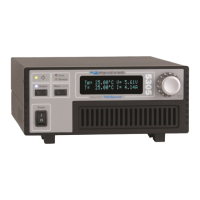
The TECSource offers a unique capability: the ability to assign functions to front
panel keys, allowing powerful configuration abilities at the touch of a button.
There are two programmable function buttons.
The function keys can be assigned either of the following actions:
Run a script
Load a stored configuration
Running a script
The most powerful capability of the function keys is the ability to execute
command strings, or scripts. These scripts are made up of commands, as
defined in the Computer Interfacing Manual, and can effect virtually the entire
operation of the instrument. Any command (except DELAY, *WAI, SCRIPT:GO,
or SCRIPT:PUT commands) can be used to construct a script, allowing you to
configure the instrument, change modes, change set points, turn outputs on or
off, or any other of a wide range of actions. Script creation must be done over
the computer interface, see the Computer Interfacing Manual for more
information on how to construct and store scripts.
Loading a previously stored configuration
Using the System Menu » Config menu item, or the *SAV command over the
computer interface, up to four different configurations can be saved to memory,
and can then be assigned as a recall function. For example, consider an
application where different laser and/or temperature set points are used. By
saving the different configurations, you can then assign the recall of the
configurations to a function key, allowing you to switch between different setups
or set points with a single button press.
Prior to configuring the function keys, you need to create your configurations or
scripts. Configurations are easy: simply setup the instrument the way you want,
then go to System Menu » Config to store the configuration into one of the four
configuration bins. Repeat the process for each setup you want to recall.



 To Next Page