AES for AMT Software
42
6. AES for AMT Software
6.1. Company and Motors
6.1.1. Company Information
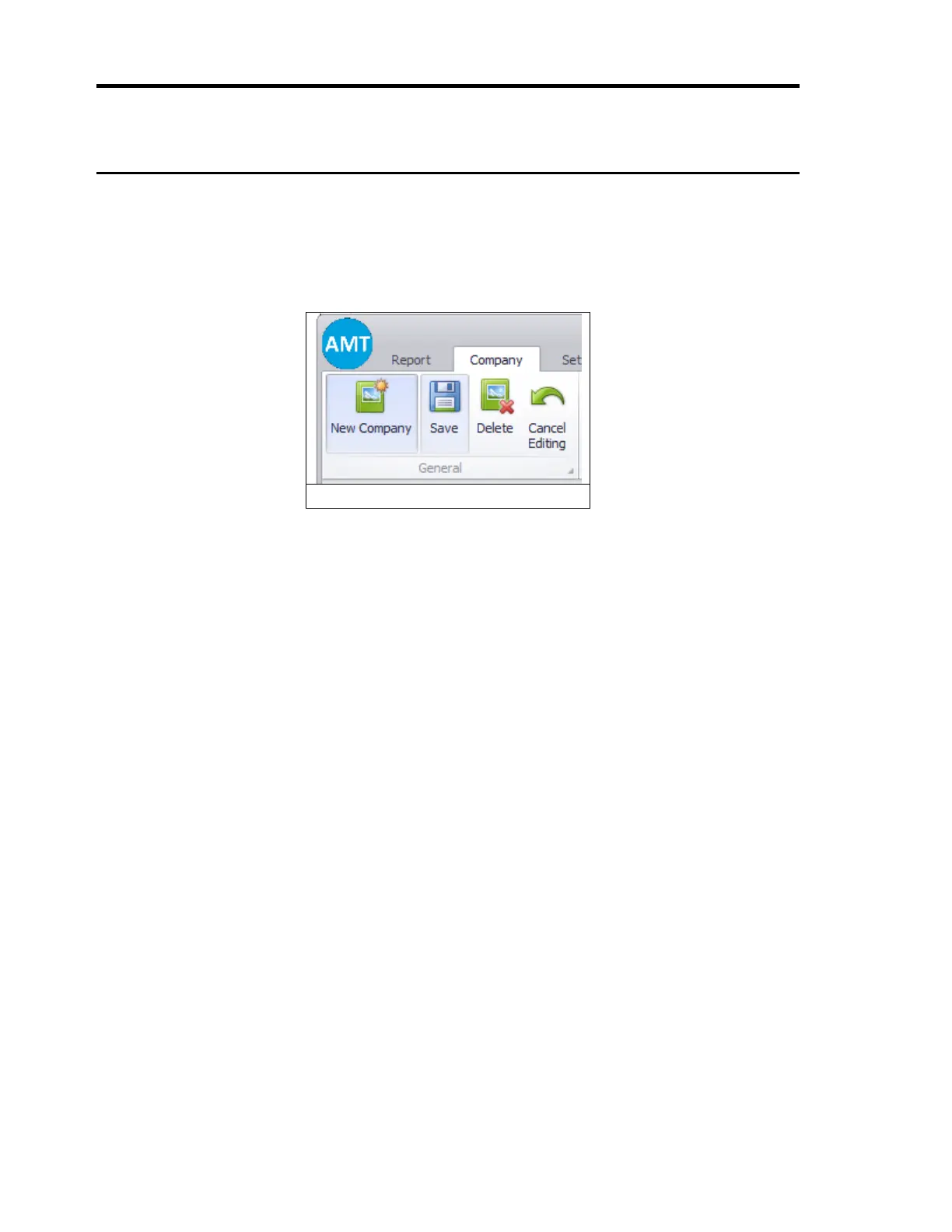
Companies are listed on the left by clicking on the ‘Companies’ group or ‘Company’ menu.
1. New Company: After clicking ‘New Company’ button, user should fill the form and
click ‘Save’ button.
2. Editing: An existing company is selected from the list on the left pane. The form on
the right will be filled automatically with the data of the selected company. User can
make any change and click "Save" button to save company data.
3. Deleting: An existing company is selected from the list on the left pane. Then
"Delete" button is clicked to delete the company.
4. Canceling Editing: Adding or editing can be canceled by clicking ‘Cancel Editing’
button.
6.1.2. Motors
Motors can be edited using the pane below the ‘Company Information’ pane. For these
operations, a company should be selected first on the left pane.
1. Adding New Motor: After clicking ‘Add New Motor’ button, user should fill the new
card and click ‘Save’ button to add a motor to the selected company.
2. Editing: An existing motor card is selected from the list. User can change motor
name, motor and driver types and click ‘Save’ button to save motor data.
3. Removing: An existing motor card is selected. Then ‘Remove Motor’ button is
clicked to delete the motor.
4. Canceling Editing: Adding or editing can be canceled by clicking ‘Cancel Editing’
button.


 To Next Page