When the access data have been input correctly, it is possible to continue configuration. For secu-
rity reasons, the usernames and passwords as set by the factory should be changed. This allows
unauthorized access to be prevented. Only one user/BC 4 can ever be logged in on the U 261
Gateway. The very bottom of the leftframe of the Web browser user interface shows which user is
currently logged in.
5 Settings
Clicking on the "Main" submenu takes you to the basic settings of the U 261.
NOTE:
All settings made must be transferred to the Gateway, and therefore activated, using the "Submit"
button. To save the data, make sure that you click on the "Save" button after all parameters have
been configured, otherwise the settings which have been changed will be lost following a reboot.
5.1 Setting the IP interfaces
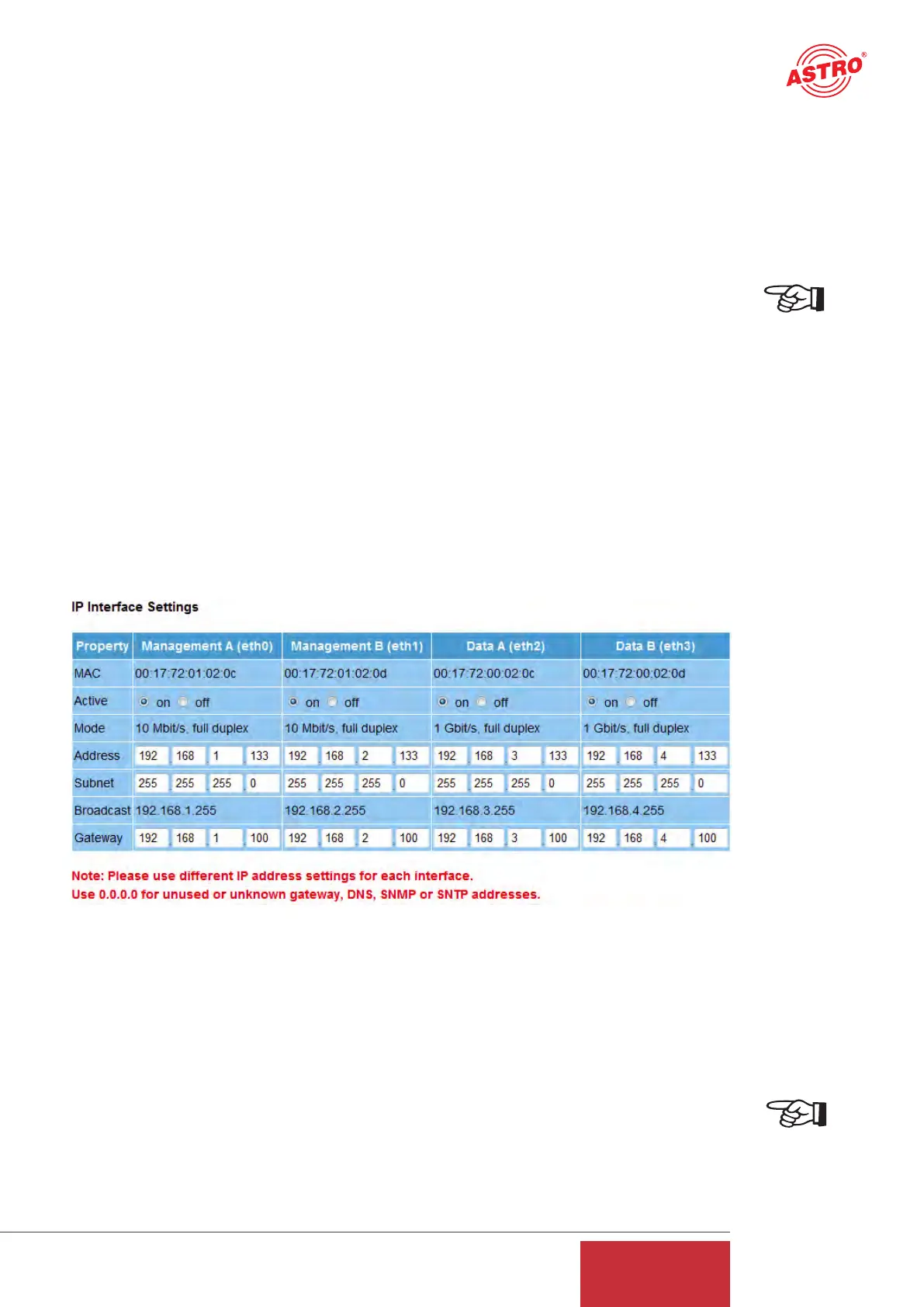
The "IP Interface Settings" area is used to make the settings for the four IP interfaces (Manage-
ment A & B, and Data A & B).
The "MAC" line displays the Mac address of the respective IP interface. The lowest Mac address
is required for licensing further features of the U 261 (see the chapter "Licensing").
The "Active" line can be used to activate and deactivate the individual IP interfaces, and the
"Mode" line displays the bandwidth of the IP interface connected to the U 261. This bandwidth is
recognized by the U 261 automatically.
Figure 4: Detail from basic settings of the U 261: IP Interface Settings
The IP addresses ("Address" line), subnetwork masks ("Subnet" line) and standard Gateways
"Gateway" line) are input using the keypad. Normally, it is only necessary to input a Gateway under
Management A.
NOTE:
Please use different IP addresses for every interface and different address ranges if the interfaces
are connected to different network segments. Input 0.0.0.0 for unused or unknown Gateways.
9
User Guide
U 261


 To Next Page