Removing a USB storage device
Windows
®
7
To remove a USB storage device on Windows
®
7:
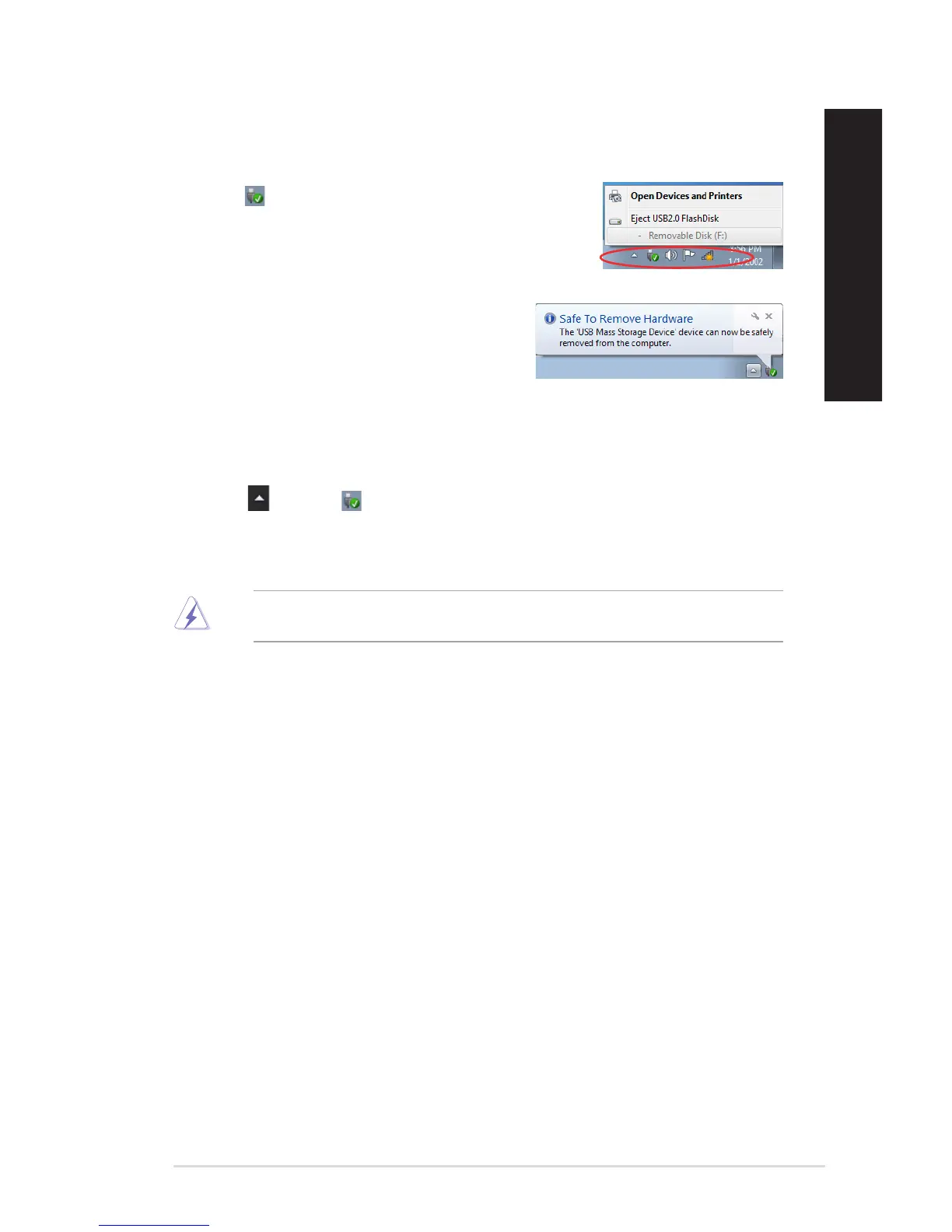
1. Click from the Windows notification area on your
computer, then click Eject USB2.0 FlashDisk or Eject USB3.0
FlashDisk if you are using the USB3.0 flash drive or USB3.0-
compatible devices.
2. When the Safe to Remove Hardware message
pops up, remove the USB storage device from your
computer.
Windows
®
10
To remove a USB storage device on Windows
®
10:
1. Click , then click from the Windows taskbar on your computer, then click Eject.
2. When the Safe to Remove Hardware message pops up, remove the USB storage device
from your computer.
DO NOT remove a USB storage device when data transfer is in progress. Doing so may cause data
loss or damage the USB storage device.
ASUS Desktop PC 33
ENGLISH
ENGLISH


 To Next Page