Configuring the HDD security setting using the BIOS
You can set a password in the BIOS Setup to protect your HDD.
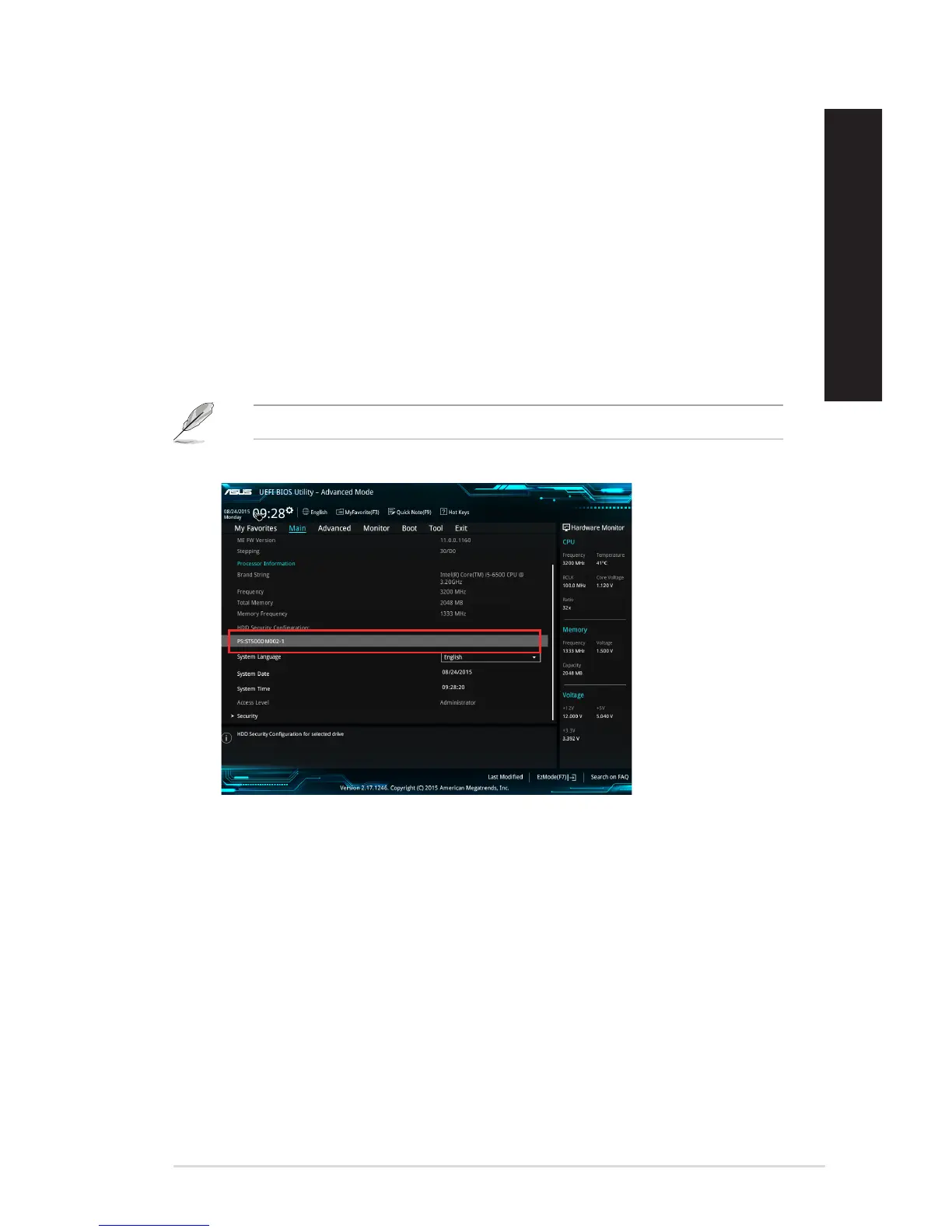
To set a password for your HDD from the BIOS Setup:
1. Press <Delete> to enter the BIOS Setup at startup.
2. From the BIOS Setup EZ Mode screen, click Exit > Advanced Mode. From the Advanced
Mode screen, click Main > HDDx: [name of HDD] to open the HDD Password screen.
3. Select the Set User Password item and press <Enter>.
4. From the Create New Password box, key in a password, then press <Enter>.
5. Conrmthepasswordwhenprompted.
6. Click Exit and select Save Changes & Reset to save the changes made.
Take note of this password, which you would need to access the HDD.
To change the password for your HDD from the BIOS Setup:
1. Follow steps 1 and 2 of the previous section to open the HDD Password screen.
2. Select the Set User Password item and press <Enter>.
3. From the Enter Current Password box, key in the current password, then press
<Enter>.
4. From the Create New Password box, key in a new password, then press <Enter>.
5. Conrmthepasswordwhenprompted.
6. Click Exit and select Save Changes & Reset to save the changes made.
To clear the user password, follow the same steps as in changing a user password, but press
<Enter>whenpromptedtocreate/conrmthepassword.Afteryouclearthepassword,the
Set User Password item on top of the screen shows Not Installed.
ASUS Desktop PC 45
ENGLISH
ENGLISH



 To Next Page