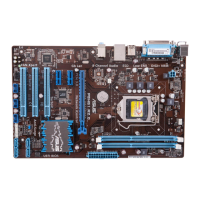
IPIBL-LA(Berkeley-GL8E)8
4. Expansion slots
Inthefuture,youmayneedtoinstallexpansioncards.Thefollowingsub-sections
describetheslotsandtheexpansioncardsthattheysupport.
4.1 Installing an expansion card
Toinstallanexpansioncard:
1. Beforeinstallingtheexpansioncard,readthedocumentationthatcamewith
it and make the necessary hardware settings for the card.
2. Removethesystemunitcover(ifyourmotherboardisalreadyinstalledina
chassis).
3. Removethebracketoppositetheslotthatyouintendtouse.Keepthescrew
forlateruse.
4. Alignthecardconnectorwiththeslotandpressrmlyuntilthecardis
completely seated on the slot.
5. Securethecardtothechassiswiththescrewyouremovedearlier.
6. Replace the system cover.
4.2 Conguring an expansion card
Afterinstallingtheexpansioncard,congureitbyadjustingthesoftwaresettings.
1. TurnonthesystemandchangethenecessaryBIOSsettings,ifany.
2. Assign an IRQ to the card. Refer to the tables on the next page.
3. Install the software drivers for the expansion card.
Makesuretounplugthepowercordbeforeaddingorremovingexpansion
cards.Failuretodosomaycauseyouphysicalinjuryanddamagemotherboard
components.
WhenusingPCIcardsonsharedslots,ensurethatthedriverssupport“Share
IRQ”orthatthecardsdonotneedIRQassignments;otherwise,conictswill
arisebetweenthetwoPCIgroups,makingthesystemunstableandthecard
inoperable. Refer to the table on the next page for details.


 To Next Page