Edit image
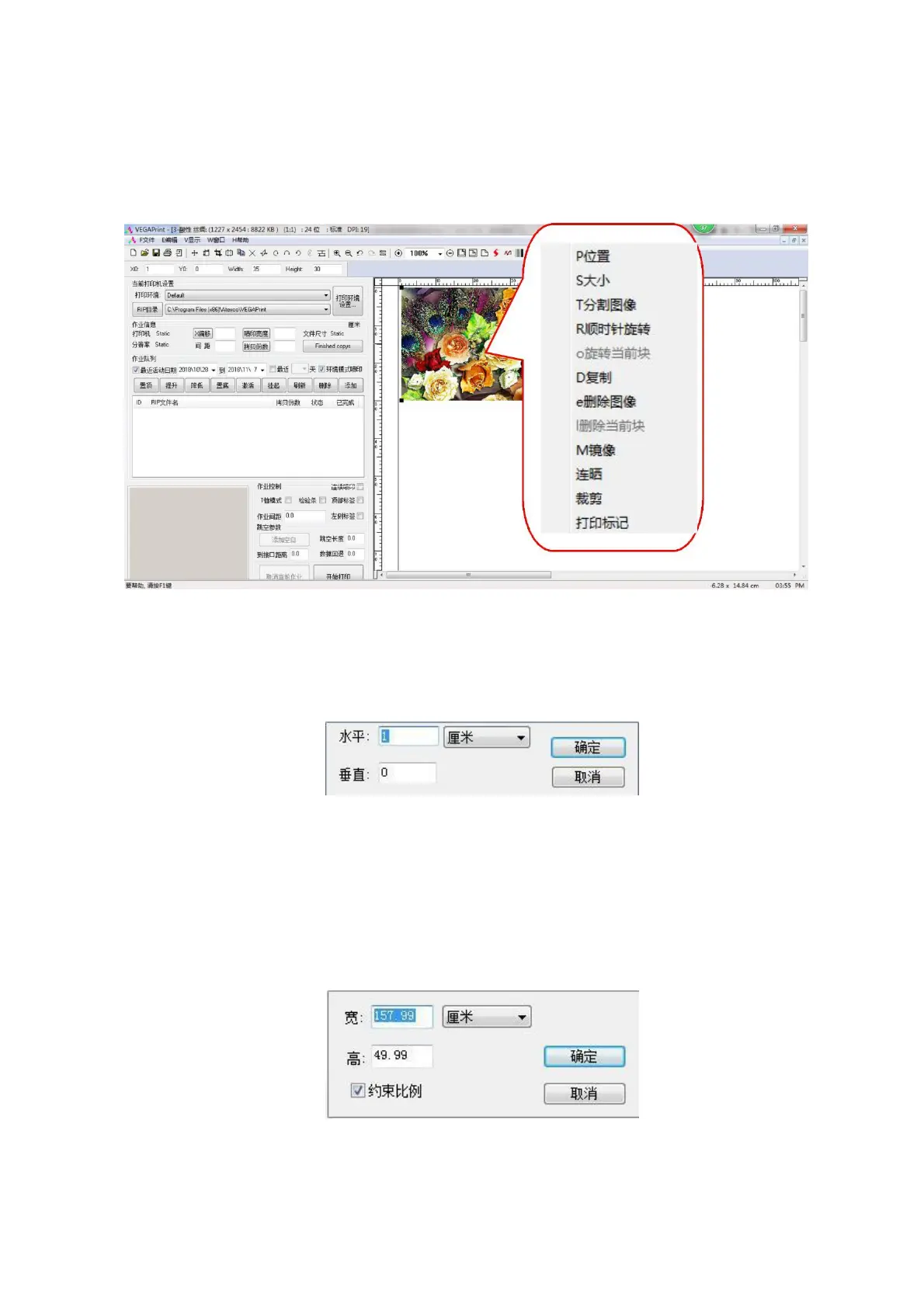
Move the mouse to the image and right click to bring up the edit menu.
Figure 4-5 Editing the job
①Position: Left click to pop up the following dialog box to enter horizontal and vertical positions in
horizontal and vertical. This allows accurate positioning of the image.
Figure 4-6 Position
②Size: To accurately change the size of an image as a number, first select the image you want to change,
then click the size in the toolbar to enter the size you want to change in the following dialog. To scale
proportionally, select Constrain Proportion. If you want to scale the disproportionately, do not select Constrain
Proportions.
Figure 4-7 Image size
③ Rotate clockwise: Rotating the image 90 degrees is useful for saving material and avoiding image tiling.


 To Next Page