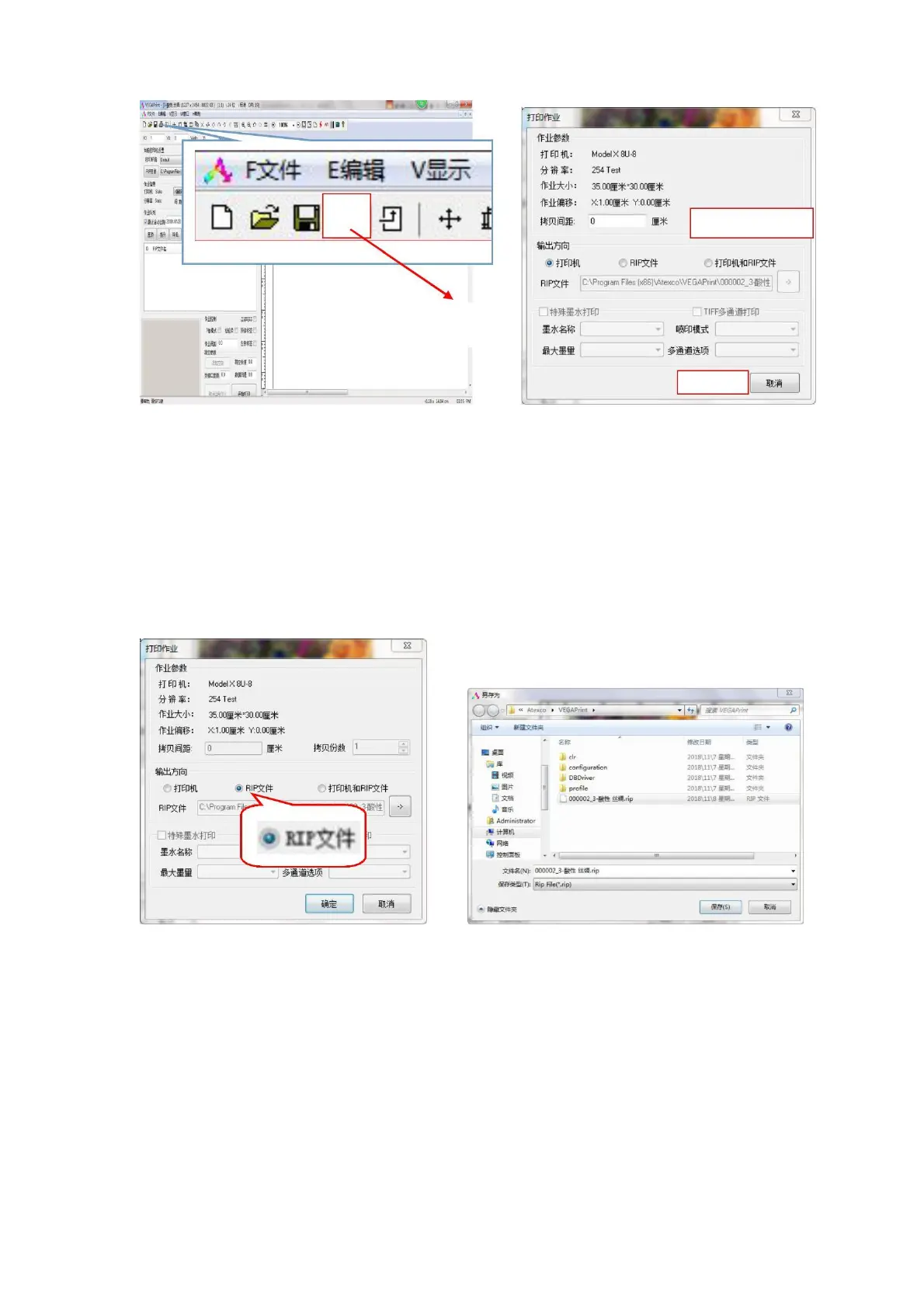
Printing
Figure 4-19 Print image Figure 4-20 Copy number
Set the number of copies (that is, the number of copies of the print job), then click "OK" to start outputting
a job and start printing.
(2) RIP output printing
When select a print image, the following dialog box will pop up. Selecting the RIP file will generate a RIP
file, save the file name and save it to the corresponding directory, and call it the next time you print. Once saved,
you can print.
Figure 4-21 Printing a RIP job
4.3 Pause/cancel a printing operation
(1)Pause print job: Pause the printing of one job, the nozzle cleaning operation can be performed, and
then the print job can be continued.
Pause print jobs can be controlled via Severe software, soft panel:Click the Pause Print icon in the
panel to pause the printing, nozzle cleaning is available.
(2)Continue the print job: continue printing can be controlled by Severe software, soft pane:


 To Next Page