18
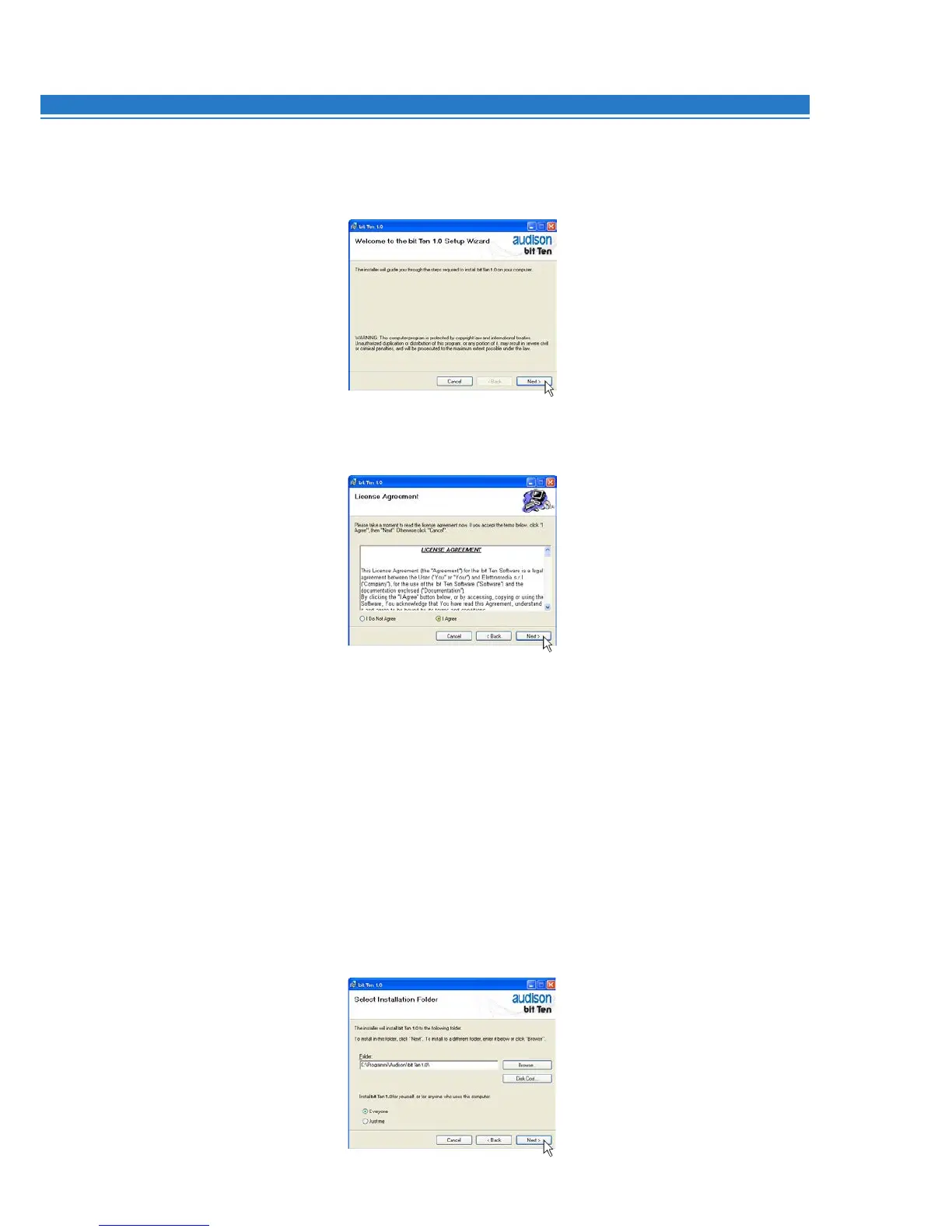
7. Windows XP: select;
- Everyone if you have system administrator privileges, so that, once installed, the program can be used
by anyone who uses that PC;
- Just me if you want that, once installed, the program can only be used by yourself as a single system
user. Then click NEXT.
Windows Vista: select
- Everyone if you have system administrator privileges, so that, once installed, the program can be used
by anyone who uses that PC;
- Just me if you want that, once installed, the program can only be used by yourself as a single system
user. Then click NEXT.
Windows 7: select
- Everyone if you have system administrator privileges, so that, once installed, the program can be used
by anyone who uses that PC;
- Just me if you want that, once installed, the program can only be used by yourself as a single system
user. Then click NEXT.
Windows 8: select
- Everyone if you have the system administrator privileges, so, once installed, the program can be used
by anyone who uses that PC;
- Just me if you want that, once installed, the program can only be used by yourself as single system user.
Then click on NEXT;
5.
Windows XP: select NEXT to continue with the installation, CANCEL to interrupt it;
Windows Vista: select NEXT to continue with the installation, CANCEL to interrupt it;
Windows 7: select NEXT to continue with the installation, CANCEL to interrupt it;
Windows 8: select NEXT to go on with the installation, CANCEL to interrupt it;
6.
Windows XP: select I Agree and then NEXT;
Windows Vista: select I Agree and then NEXT;
Windows 7: select I Agree and then NEXT.
Windows 8: select I Agree and then NEXT;
7


 To Next Page