30
2.
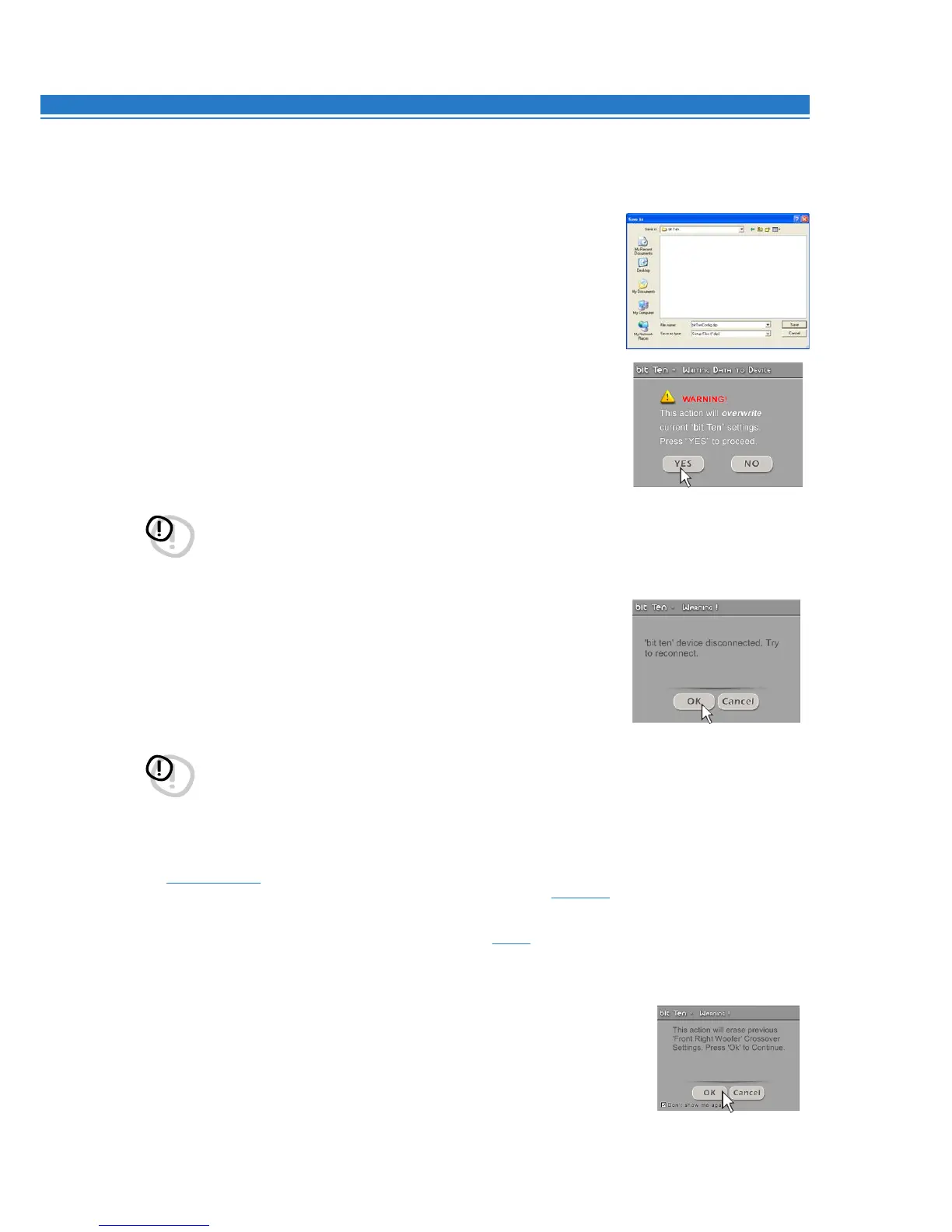
Save Setup: saves the entire bit Ten configuration in a file
(e.g. “bitTenConfig.dip”) that you can load again to
the bit Ten a second time through the Load Setup function.
This feature is available both in TARGET and in OFF LINE modes.
3.
FINALlZE to bit Ten: loads all the parameters selected while
configuring the bit Ten into the internal memory, allowing it to
work without being connected to a PC.
When selecting the Finalize to bit Ten function, the software
notifies you that the data previously saved to the bit Ten will be overwritten.
- Click YES to load the data.
- Click NO to interrupt the process
.
WARNING: Before disconnecting the
bit Ten
from the PC or each time that you exit the PC Software after
modifying the system configuration, always run the
Finalize to bit Ten
procedure. If you do not follow these
instructions, all data entered will be lost and the device will use the previous settings.
4
Synchronize: PC -> bit Ten, PC <- bit Ten
These functions synchronize the PC with the
bit Ten
.
If a dialog box like the one on the right appears, it means that for some reason
communication between the PC and the
bit Ten
has been interrupted.
To restore the communication, click:
•
PC -> bit Ten
. The PC loads into the
bit Ten
the settings
that have been selected so far.
•
PC <- bit Ten
. The PC loads the settings
that have been previously stored in the bit Ten.
WARNING: This operation cannot guarantee that data are always retrieved.
If, once you run it, the operation is not successful, you need to:
1. exit the
bit Ten
software;
2. turn the
bit Ten
off;
3. turn the
bit Ten
on;
4. launch the
bit Ten
software again.
Synchronization will be restored but the selected settings will be lost.
5
Check for updates:
connects to the web site
http://update.audison.eu and checks if any software / firmware updates to the bit Ten
and DRC are available, in order to update the devices you are using (see 9.3 - 10.4).
To perform this operation, your PC has to be connected to the internet.
6.
Update Firmware: select to update the bit Ten firmware
(see 10.3)
.
7.
Reset Default Answer: restores the display of warning messages if they have been
disabled by checking “Don’t show me again”
.
8.
Restore Factory Defaults:
entirely resets the bit Ten back to its default settings,
cancelling all data previously saved in the processor.
9.
Credits: shows information about the bit Ten software in use
.
10.
Exit:
exits the PC software.
8


 To Next Page