13
Setup
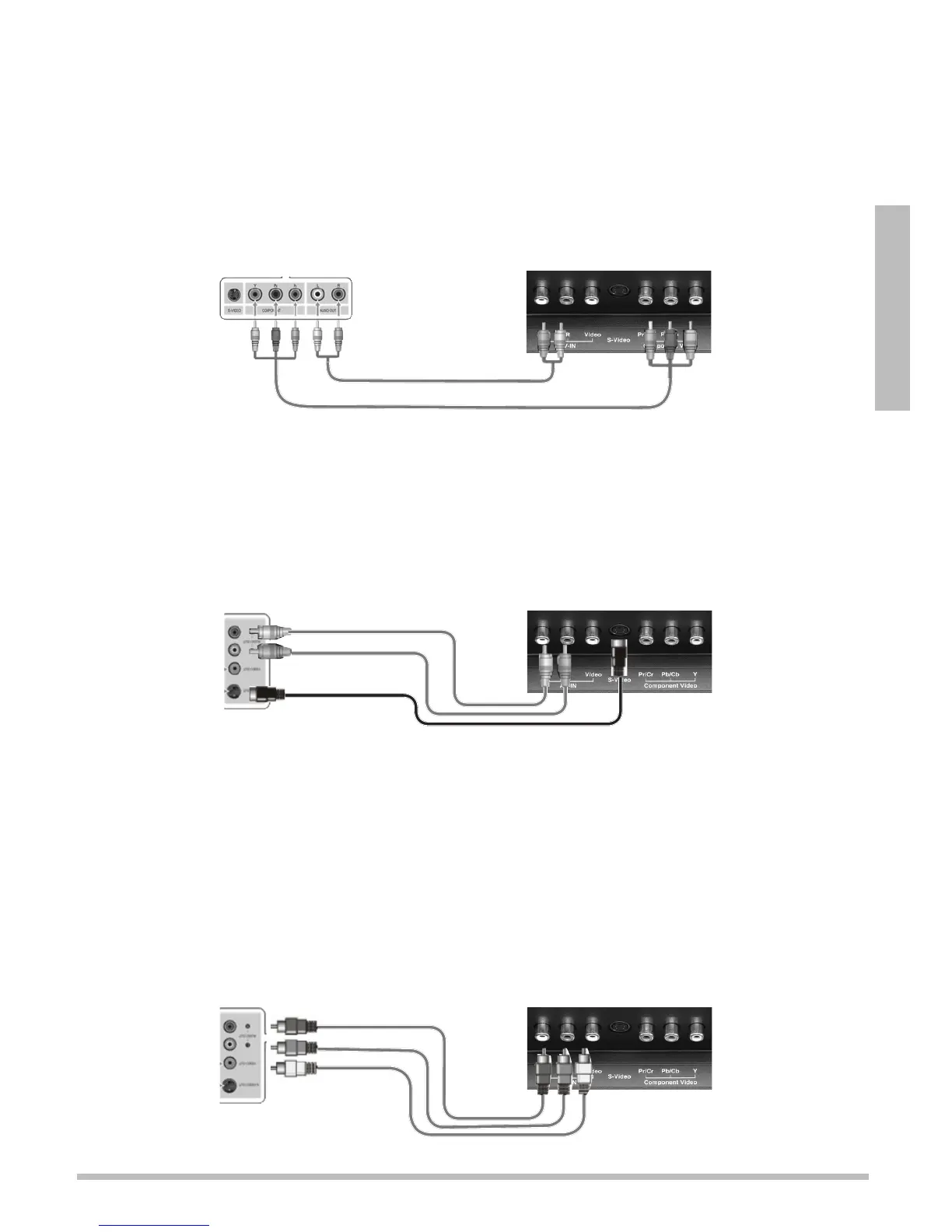
Connecting a Component Video Device
1. Connect the device’s component outputs (Y/Pb/Pr) to the COMPONENT jacks on the
back of the TV. Match the colors on the connection cables with the colors on the jacks. For
component cables and jacks, Green = Y, blue = Pb, and red = Pr.
2.
Use an audio cable (not supplied) to connect a device’s audio output jacks to the AV-IN
audio jacks on the back of the TV. Red jacks are for right audio, and white jacks are for
left audio.
nNote: Component cables do not provide audio. Use component cables for video and
composite L/R audio cables for audio.
Connecting an S-Video Device
1. Use an audio cable (not supplied) to connect a device’s audio output jacks to the AV-IN
audio jacks on the back of the TV. Red jacks are for right audio, and white jacks are for
left audio.
2. Use a S-video cable (not supplied) to connect a device’s S-Video output to the TV’s
S-VIDEO jack.
Connecting a Composite Video Device
1. Use an audio cable (not supplied) to connect a device’s audio output jacks to the AV-IN
audio jacks on the back of the TV. Red jacks are for right audio, and white jacks are for
left audio.
2. Use a video cable (not supplied) to connect each device’s video output to the TV’s
COMPOSITE video jack.
nNotes: Both S-Video and COMPOSITE share the same set of audio jacks on the back of
the TV.
Audio Cables
S-Video Cable


 To Next Page