17
Basic Operation
iPod Operation
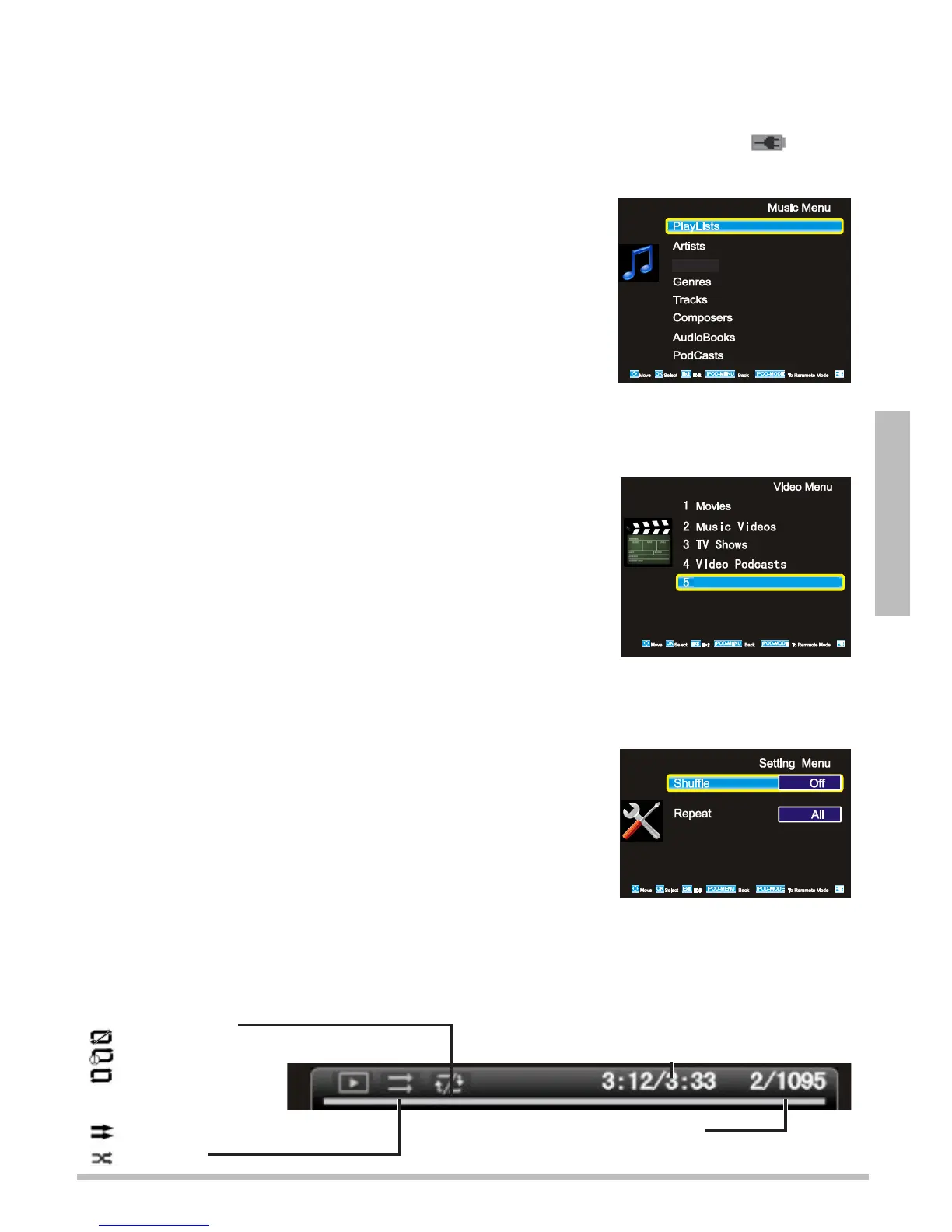
Connect your iPod or iPhone. Wait 3 to 5 seconds until the iPod menu appears.
n Note:
The iPod charges automatically while connected to the TV. When it is finished charging, appears.
Press IPOD MODE to switch from Normal mode to Manual mode (switch controls from the
remote to the iPod). Press again to switch back.
Playing Music
1. From the main iPod menu, press
or
to select Music, then
press OK.
2. Press
or
to choose Playlists, Artists, Albums, Genres,
Tracks, Composers, Audiobooks, or Podcasts. Press OK to
select a category to browse subfolders.
3. Press OK to view tracks. Press OK or to play the current
subfolder.
Optional: Select Shuffle Songs to start playing your entire library shuffled.
4. Press IPOD MENU to return to the main iPod menu without interrupting your music.
Playing Videos
1. From the main iPod menu, press
or
to select Videos, then
press OK. A list of available video categories appears.
2. Press
or
to select a category, then press OK to view tracks.
Press OK or
to play.
3. Press IPOD MENU at to the main iPod menu.
Viewing Photos
1. Press IPOD MODE to switch controls from the remote to the iPod.
The TV has no menu for photo viewing.
2. Navigate to a photo using the iPod’s menu and controls and press Play on your iPod to display
photos on your TV.
Shuffle and Repeat
1. From the main iPod menu, press
or
to select Settings, then
press OK.
2. Press
or
to highlight Shuffle or Repeat, then press OK to
change settings.
Shuffle: choose to play songs, albums, or turn shuffle off.
Repeat: repeat one track or all tracks, or turn repeat off to play
through songs once.
Now Playing Screen
Use the ///// buttons to pause, stop, skip to the next track, or go to the previous track while
playing a music or video track. Track information appears at the bottom of the screen.
Track time –
Elapsed/total track time
Shuffle status –
Shuffle off
Shuffle on
Repeat status –
Repeat off
Repeat one track
Repeat all tracks
Track number –
Current track/total number of tracks
Albums
Rented Movies


 To Next Page