21
Advanced Settings
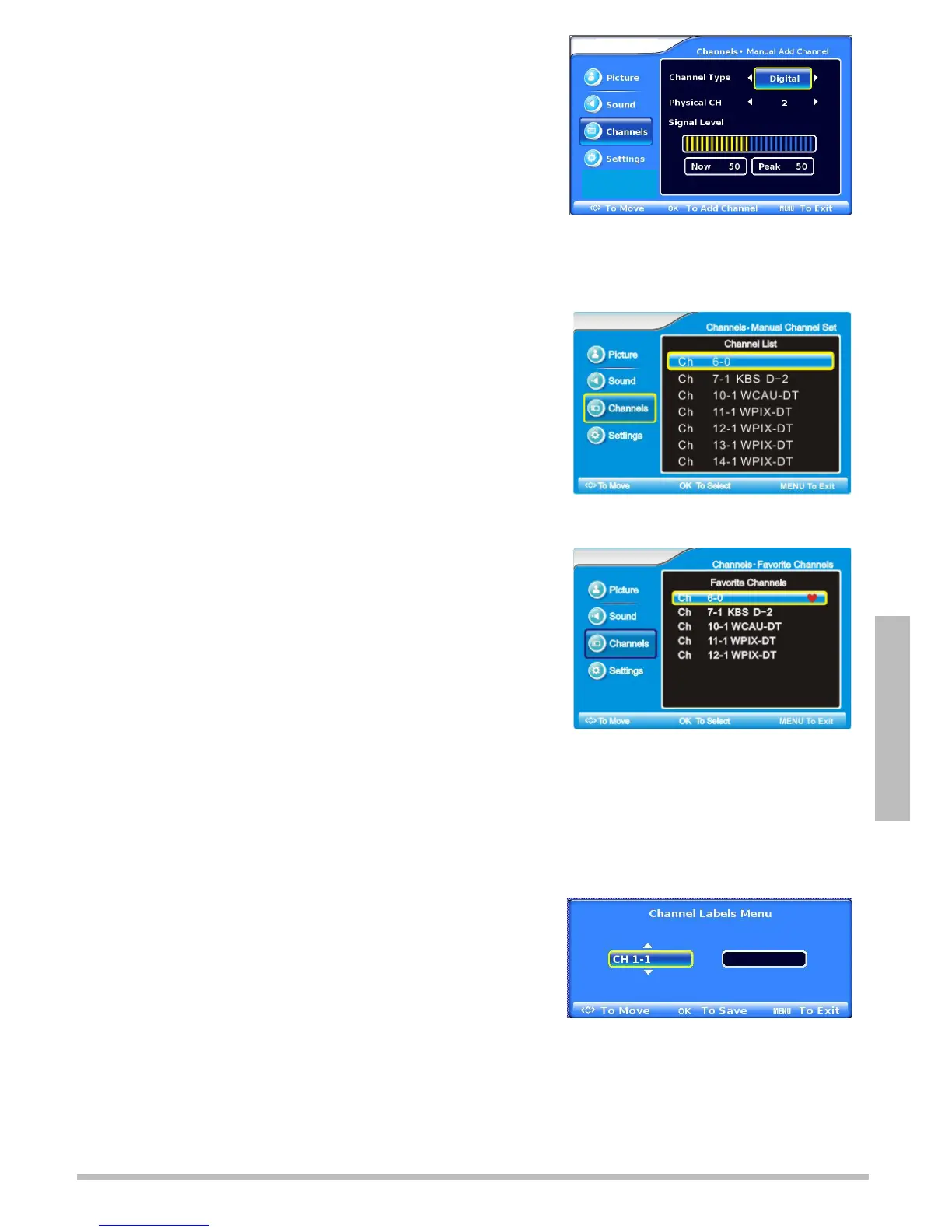
Search for Channels Manually
1. Follow steps 1 and 2 under “Set the Tuning
Band.”
2. Press or to select Manual Add Channel, then
press OK or .
3. Press to highlight Channel Type, then press to
select Analog or Digital channel type.
4. Press again to highlight Physical CH, then use the or buttons to select the
channel number you want to add.
5. Press MENU to accept changes and go back to the previous menu.
View the Channel List
1. Follow steps 1 and 2 under “Set the Tuning Band.”
2. Press
or
to select Manual Channel Set, then
press OK or .
3. Press
or
to select a channel you want to view
and press OK to select.
4. Press MENU to accept changes and go back to the
previous menu.
Add or Delete Favorites
1. Follow steps 1 and 2 under “Set the Tuning Band.”
2. Press
or
to select Favorite Channels, then
press OK or .
3. Use
or
to scroll through the channel list. Press
OK to place a marker next to the ones you want to
add to the favorites list.
4. Press MENU to accept changes and go back to the
previous menu.
Edit a Channel Label
Channels are automatically labeled with their number and call sign when first added. You can
change how the channel appears when you press the INFO button on your remote.
1. Follow Steps 1 and 2 under “Set the Tuning Band.”
2. Press or to select Channel Labels, then press
OK. The Channel Labels Menu displays.
3. Press or to select the channel you want to
edit, then press OK.
4. Press or to enter letters or numbers, then
press or to go to the next or previous space.
5. Press OK or MENU to accept changes and go back to the previous menu.
6. To view the channel label you set, press INFO while on that channel.


 To Next Page