7
Installation
Device Connection
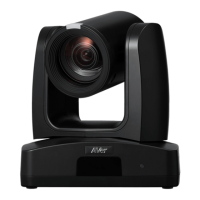
1. Use USB cable to connect the CAM520 Pro3 to your PC/laptop (refer to diagram above).
2. Connect the power to the CAM520 Pro3; power indicator will light up and camera head will rotate.
3. Install PTZApp 2 on laptop or PC that is connected with CAM520 Pro3. The app can be used to
adjust and setup the parameters of the camera (refer to the section of PTZApp 2).
4. To make a call, run your video application (Zoom, Microsoft
®
Teams, Skype for Business, Skype,
Google Meet, Intel
®
Unite™, RingCentral, BlueJeans, V-Cube, LiveOn, CyberLink U Meeting
®
,
TrueConf, Adobe Connect, Cisco WebEx
®
, Fuze, GoToMeeting™, Microsoft
®
Lync™, Vidyo, vMix,
WebRTC, Wirecast, XSplit, etc.). Select CAM520 Pro3 as your video device.
[Notes]
Use the USB 2.0 cable included in the package.
CAM520 Pro3 has the USB 3.1 port which is USB 2.0 compatible.
Maximum resolution/fps for USB 2.0 and USB 3.1 port are shown below.
- 640x480 or less
resolution, up to 30fps
- 720p, up to 10fps
- Up to 1080p/30fps
- 720p/60fps
- 1080p/60fps
- 1080p/30fps



 To Next Page