34
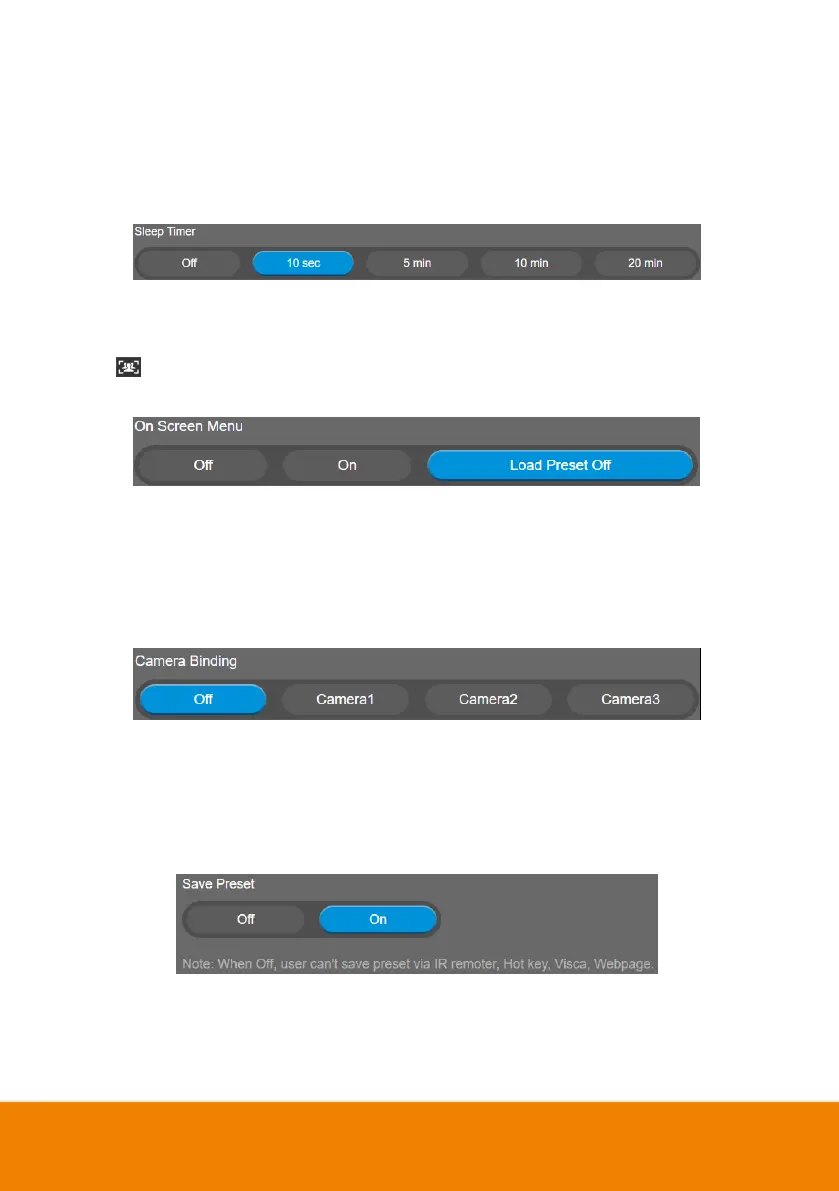
Sleep Timer
Set the camera idle time to enter sleep mode. When entering sleep mode, the camera will turn to sleep
position.
Select Setting > Camera > Sleep Timer > Off, 10 sec, 5 min, 10 min, or 20 min.
Please notice that whenever there is USB streaming or RTSP/RTMP streaming, the camera won’t
enter sleep mode.
On Screen Menu
Enable/disable on screen display status information. For instance, when it is at auto frame mode, it will
appear “ ” on the upper left side of the screen. If you don’t want to see the icon, please select Off.
Select Setting > Camera > On Screen Menu > Off, On, or Load Preset Off.
Camera Binding
With multiple cameras connection, users can set each camera to buttons 1 to 3 on the remote control.
Select Setting > Camera > Camera Binding > Camera1, Camera2, or Camera3.
[Note] When camera binding is off, press camera 1, 2, or 3 button on the remote control can control all
the AVer USB camera nearby you.
Save Preset
Enable/disable “save preset” function. When applicable, IT personnel can limit end-user access to
change preset points by locking “save preset” function and switching this function off.
When off, user can’t save preset points via IR remote, Hot key, VISCA, and webpage.
Select Setting > Camera > Save Preset > Off or On.



 To Next Page