Pro Tools | PRE Guide18
Configuring MIDI Studio in
AMS for Pro Tools | PRE
(Mac Only)
The following are basic instructions for configur-
ing PRE in the Apple Audio MIDI Setup applica-
tion (AMS).
To configure your PRE with AMS:
1 Do one of the following:
• Launch the Apple Audio MIDI Setup (Appli-
cations/Utilities).
• In Pro Tools, choose
Setup > MIDI > Studio
Setup
.
2 If the MIDI Studio window is not shown in Au-
dio MIDI Setup, choose
Window > MIDI Studio.
3 Do one of the following:
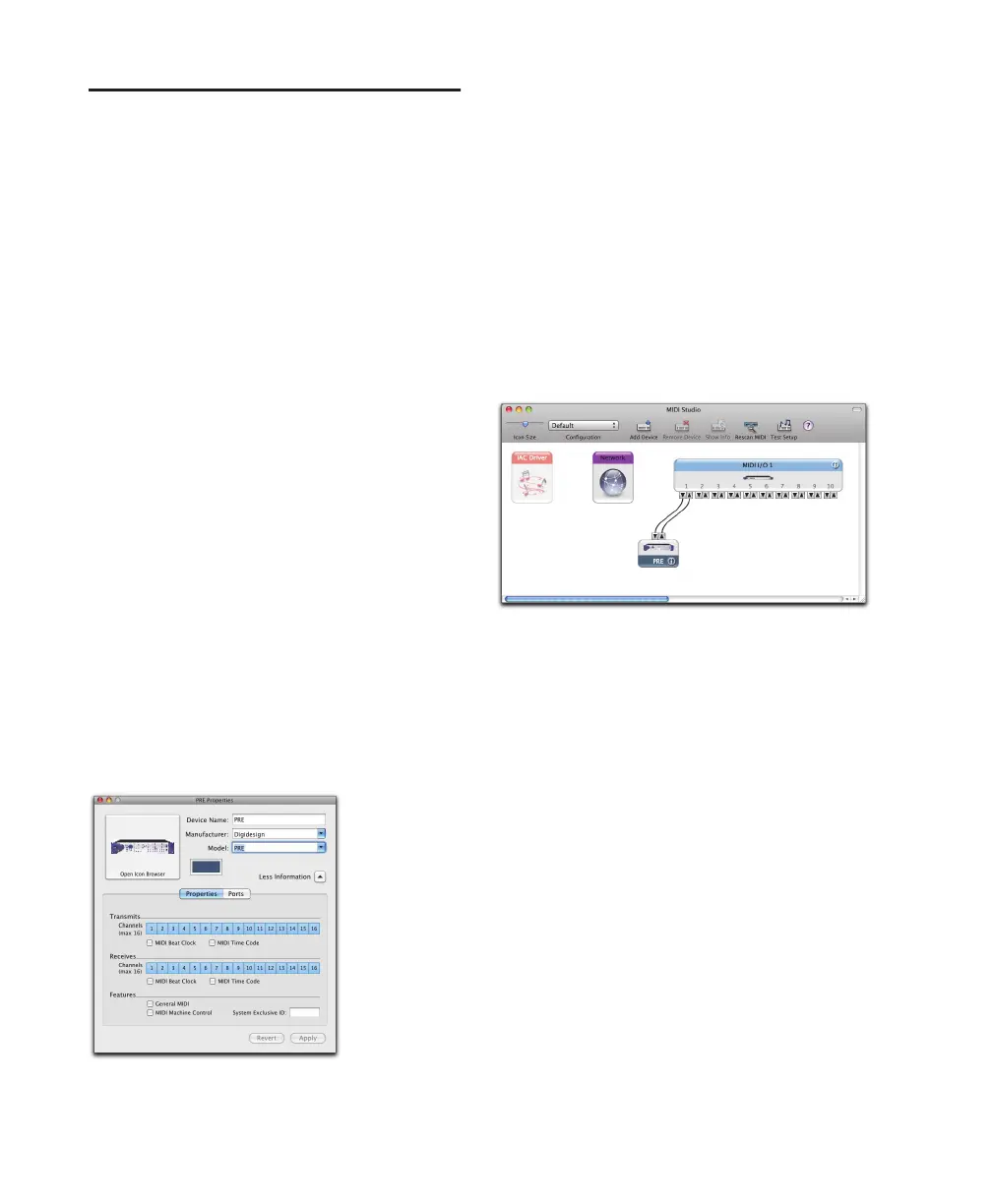
• Double-click the PRE icon.
• If there is no icon for the PRE, click
Add Device
in the toolbar at the top of the window and do the
following:
• Double-click the New External Device icon.
• Select
Digidesign as the Manufacturer.
• Select
PRE as the Model.
4 Click Properties.
5 Enable the appropriate Channels for the Trans-
mits
and Receives options.
6 Click Apply and close the Properties window.
7 Connect the PRE icon to the correct port on the
MIDI interface icon:
• Click the arrow for the output port of the PRE
and drag a connection to the input arrow of
the corresponding port of the MIDI interface.
• Click the arrow for the input port of the PRE
and drag a connection to the output arrow of
the corresponding port of the MIDI interface.
8 Pro Tools supports the use of up to nine PREs at
the same time. If you use multiple PREs, make
sure that none of the PREs are assigned to the
same MIDI channel, and that all PREs are
daisy-chained together (as noted in “MIDI Con-
nections” on page 16).
9 Quit Audio MIDI Setup (Audio MIDI Setup >
Quit Audio MIDI Setup
).
MIDI Device Properties for PRE
Connecting the PRE to the MIDI interface in the AMS
MIDI Studio window


 To Next Page