Chapter 3: Remote Operation 21
to, the PRE controls (identified as Mic Preamps)
appear on top of the channel strip, giving you audio
and control. Make sure that
Display > Mix Windows
Shows > Mic Preamps View
is selected.
For each declared PRE, the I/O Setup Mic Preamps
page includes the PRE path name, and provides
tools to map PRE output channels to an audio in-
terface.
Paths can be:
• Renamed, for easier identification after chang-
ing or renaming audio interfaces. See “Naming
Paths (Optional)” on page 22.
• Remapped to different input destinations (audio
interface analog). See “Remapping Channels”
on page 21.
• De-activated (or re-activated) to manage un-
available or unnecessary I/O resources. See
“Active and Inactive Paths” on page 22.
PRE paths cannot be deleted. Additionally, their
I/O Setup configuration cannot be exported or im-
ported.
If you have multiple PRE units in I/O setups, the
order in which the PRE paths appear corresponds
to the order in which they were assigned in the Mic
Preamps tab of the Peripherals dialog.
Channel Mapping
Existing PRE paths must be mapped to specific au-
dio interface inputs in the Grid in order for audio
and remote control to be available in Pro Tools.
To map channels:
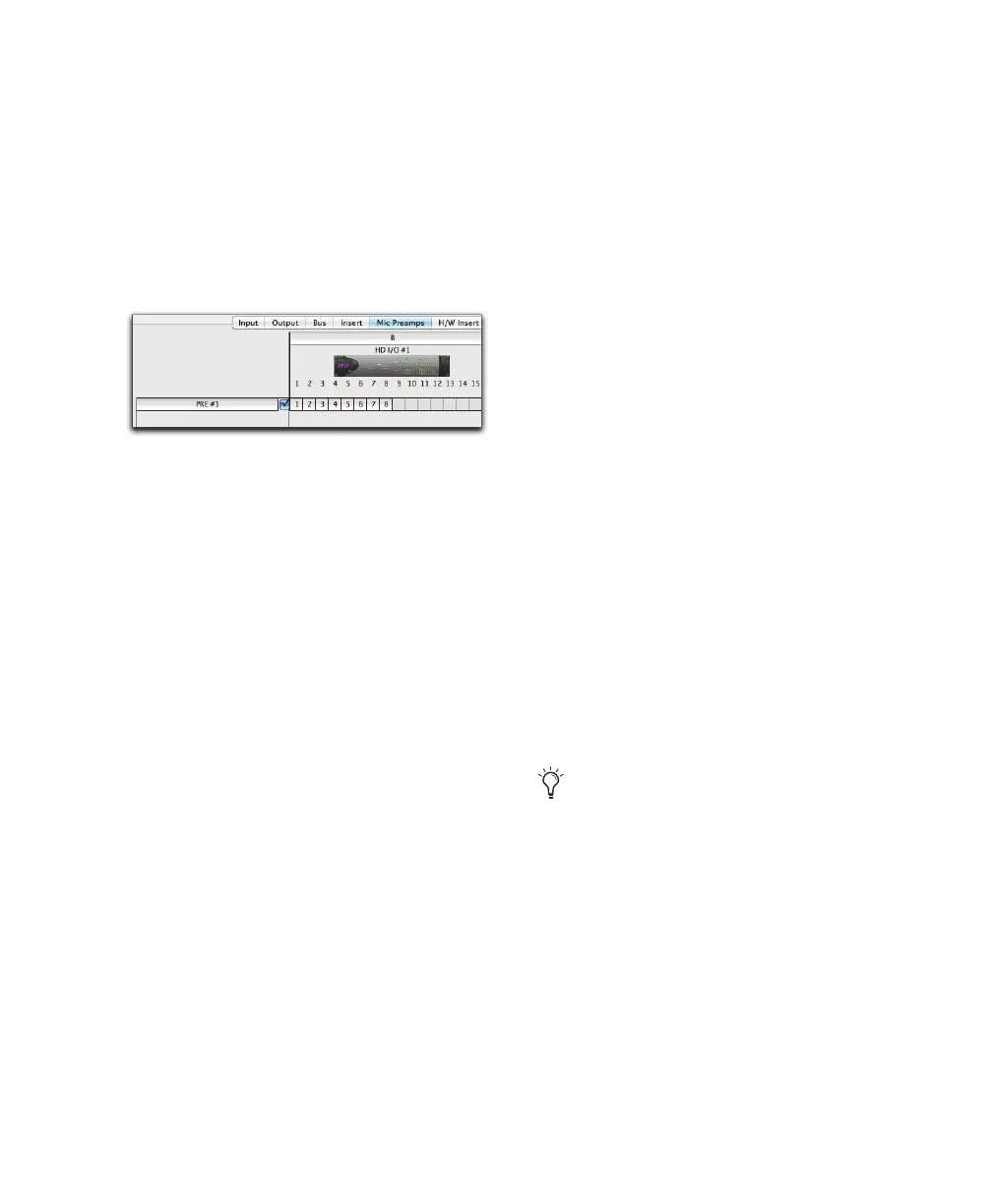
1 Choose Setup > I/O and click the Mic Preamps
tab.
1 In the row for the selected path—the high-
lighted PRE name—click in the Grid column
under the audio interface and channels to which
PRE is connected. The first output channel of
the PRE appears in this column (as the number
1), while the remaining seven channels fill to
the right.
2 When you are finished mapping channels, click
OK.
Remapping Channels
You can move the individual PRE assignments to
different audio interface input channels.
To remap channels in a path, do one of the
following:
Drag the PRE channel to the new location in the
Grid.
Command-click the PRE channel in the Grid to
open the PRE Output Channel pop-up menu,
then select an output channel. If you select a
channel that is already in use, the old and new
assignments will swap Grid positions.
To remap multiple channels in a path do one of the
following:
Shift-click multiple channels, then drag the
channels to the new locations in the Grid.
Marquis-select multiple channels, then drag
them in the Grid.
PRE path in I/O Setup window
To update the Grid with new mapping, Com-
mand-click a white box in the Grid, then se-
lect an output channel. If the channel was al-
ready in use, the old assignment is removed.


 To Next Page