Artist Series and Pro Tools40
Working with Sends on MC Mix
Assigning Sends on MC Mix
To assign a send on MC Mix:
1 Select a track.
2 Press the AUX key.
3 Press both PAGE keys (< PAGE and PAGE >) to enter Send Assign mode. The display shows the cur-
rent (or last viewed) send slot a–j (an 8-fader system will only show slots a–f). To see additional send
slots, press the lit PAGE > key.
4 Press the encoder below desired send slot. For example, to assign a send to the current track in slot
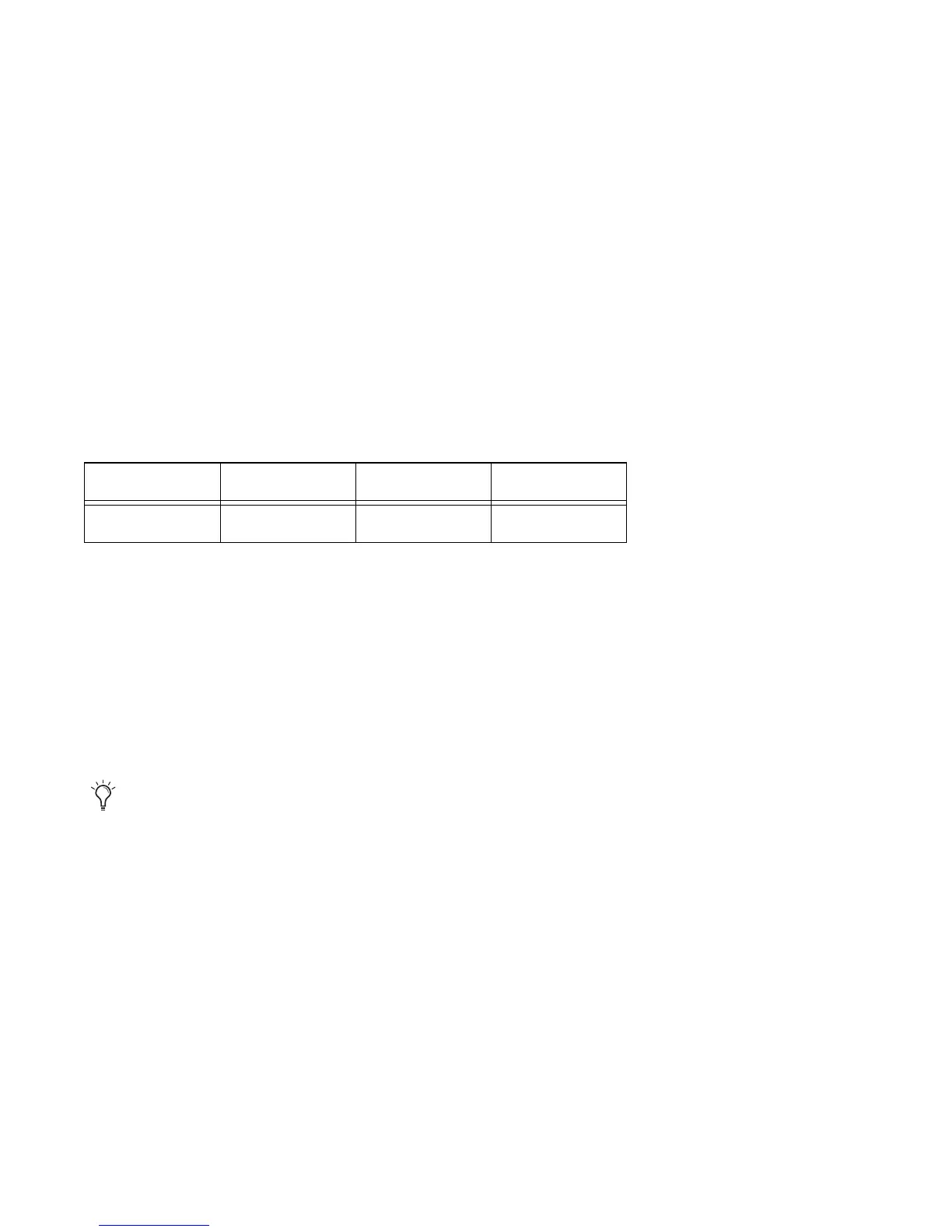
a, press encoder 1. The display above the first three encoders shows the following choices:
5 Do one of the following:
•Press the encoder below no send to leave that slot unassigned.
•Press output to see output bus choices (such as Out 1–2).
•Press bus to see available internal busses.
6 To see additional choices (beyond the number of faders in your system) press the lit PAGE > key.
7 When the desired send is displayed, press its encoder to make the assignment. In that fader strip,
the encoder ON key lights.
Display no send output bus
Soft Encoder 1 2 3
To assign a send in the same slot to all selected tracks, hold Option+Shift (Mac) on your computer key-
board while pressing the desired encoder. To assign to all tracks, hold Option (Mac).











 To Next Page