User’s Guide
28
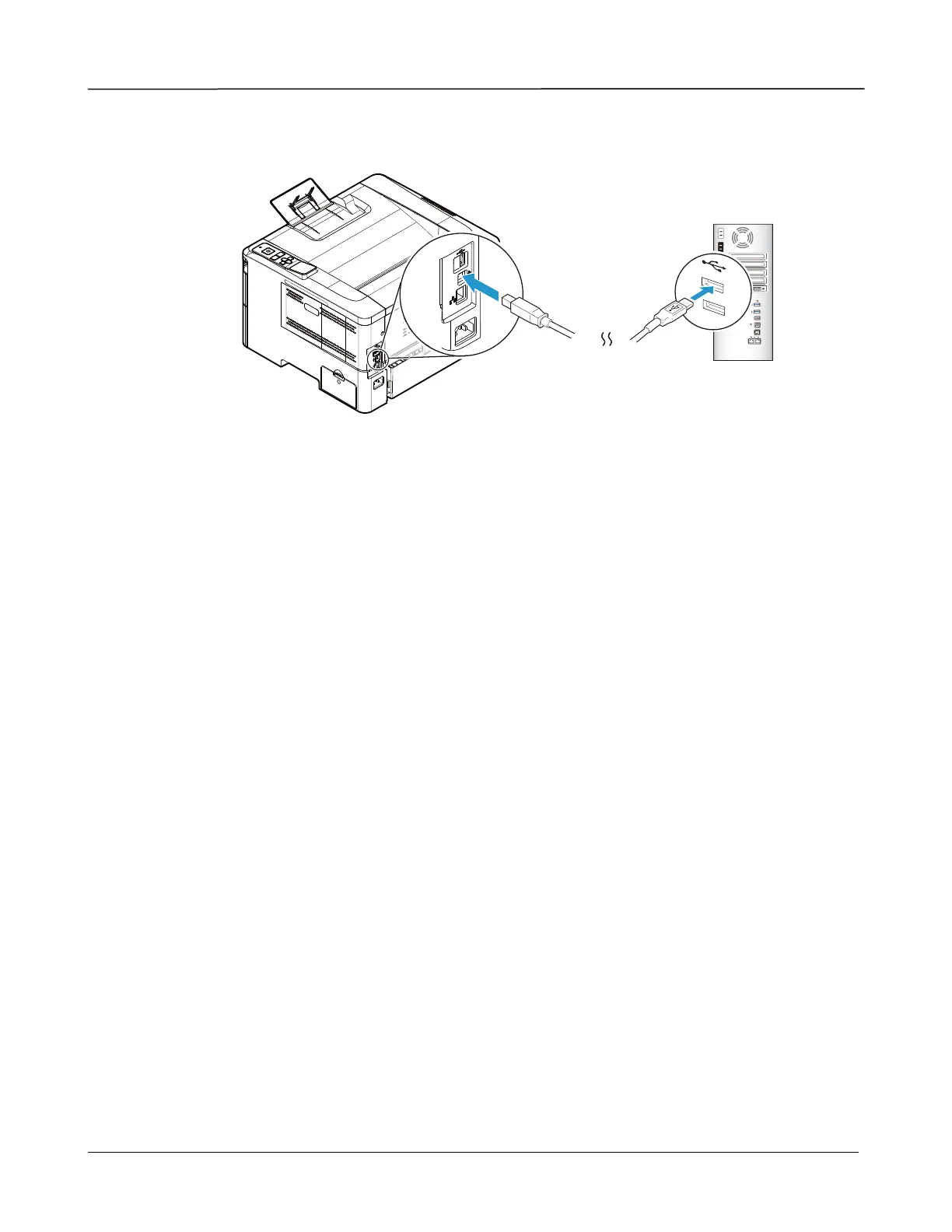
a. Connect one end of the USB cable to your computer.
b. Connect the other end to the USB port of your product.
5. When the “Found New Hardware” screen appears, click Next and follow the
on-screen instruction to complete the installation.
6. When the Finish dialog box appears, click Finish to complete.
If you have successfully installed the driver, you will find “Avision AP4XXX Printer” has
been added in the “Printers and Faxes” option from the Control Panel.
Uninstalling the Printer Driver
1. Make sure your USB cable is connected to your product.
2. From the “Start” menu, select All Programs>Avision AP4XXX Printer>Uninstall
Driver in succession to remove the driver.


 To Next Page