Installation
27
Installing the Driver (Windows)
System Requirement
Windows 7, Windows 8, Windows 10, Windows 11
For USB Interface Users
Please follow these steps to install the PRINTER driver if this machine is connected to
your computer via a USB cable. *You may also download the driver and manual at
www.avision.com/download.
Important!
DO NOT connect the USB cable before installing the PRINTER’s driver.
You may also download the driver and manual at our web site
www.avision.com/download.
1. Insert the supplied CD into your CD-ROM drive. The installation menu appears, as
shown below.
2. Click “Install Driver” and follow the on-screen instructions to install the program.
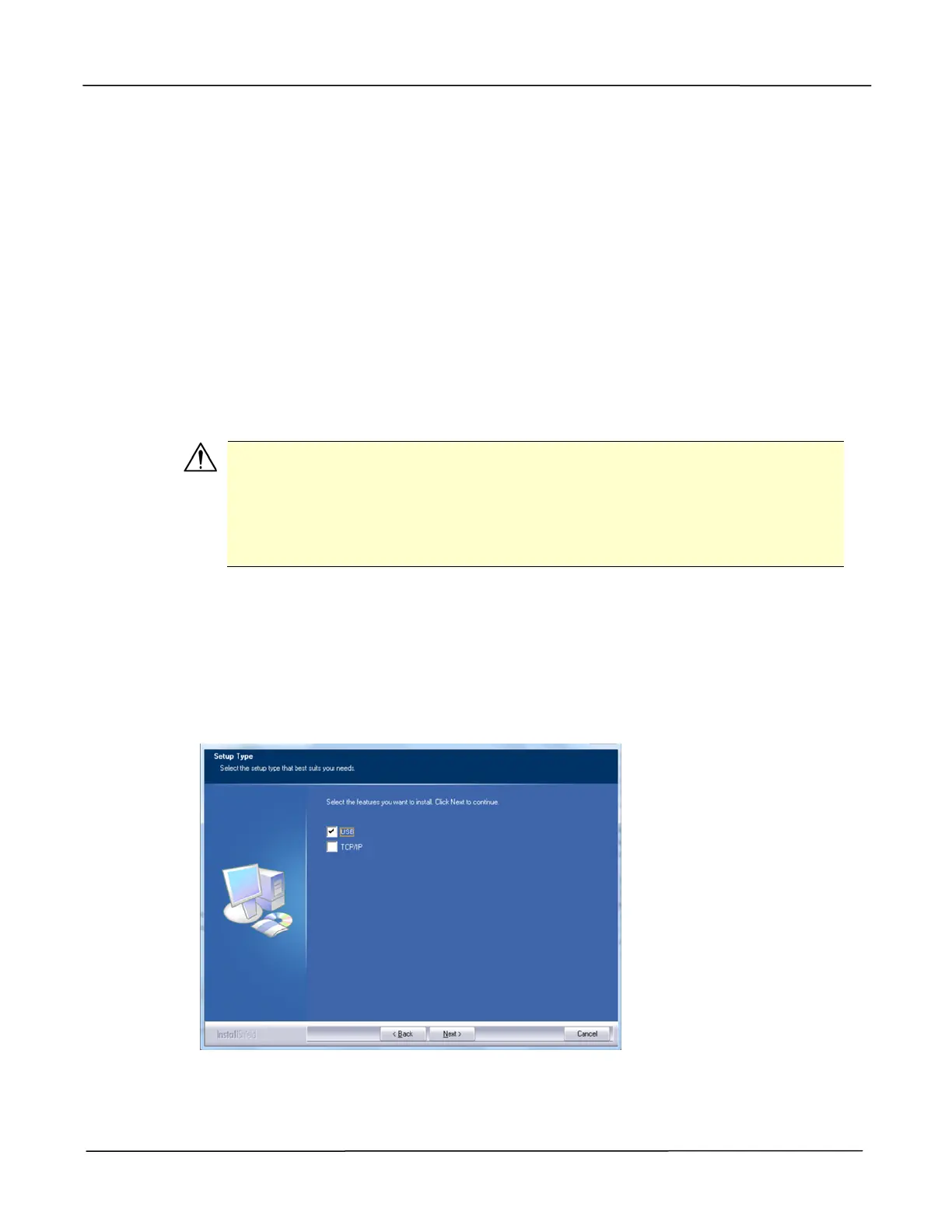
3. When the Setup Type dialog box appears, select USB.
4. During installation, the USB Connection dialog box will be prompted to instruct you
to connect the machine to your computer with a USB cable.


 To Next Page