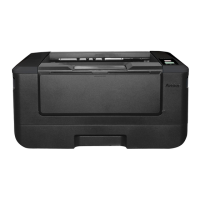
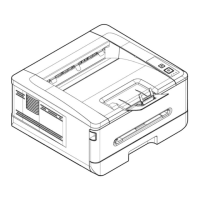
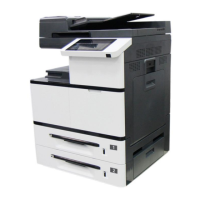
3. Customizing the Product’s
Settings
This chapter is specifically targeted to the persons who are responsible for the
administration of the product. It is recommended that the administrator read this
chapter before installing the machine. The product’s settings can be customized via the
control panel or the product’s embedded web page. How to customize the product’s
settings via these two methods will be described in the following sections.
Note:
When installing the product for the first time, it is recommended that the
Administrator retain the default system settings. The settings can be
customized at a later date once you are familiar with the operation and
functionality.
Customizing System’s Settings via the Control Panel
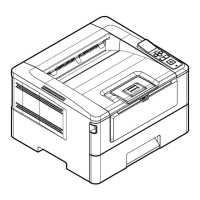
To change the default settings on the control panel, press the “OK” button on the
control panel. The menu information will be displayed. To navigate the menu items,
the OK/Enter, Up, Down, and Back buttons are provided on the control panel. You
can adjust settings or view information (e.g. IP address, firmware version).
Typical steps in using the menus are as follows:
1. Press the OK button to access the menu items.
2. Press the Up or Down button repeatedly until the desired menu item is
highlighted in the displayed list.
3. Press the [OK] button to select this item.
4. Press the button to go back to the previous screen.
5. Press the Cancel button to leave the menu item.


 To Next Page