User’s Manual
7.2 Connect to a Wi-Fi network in an AP (Access Point)
mode
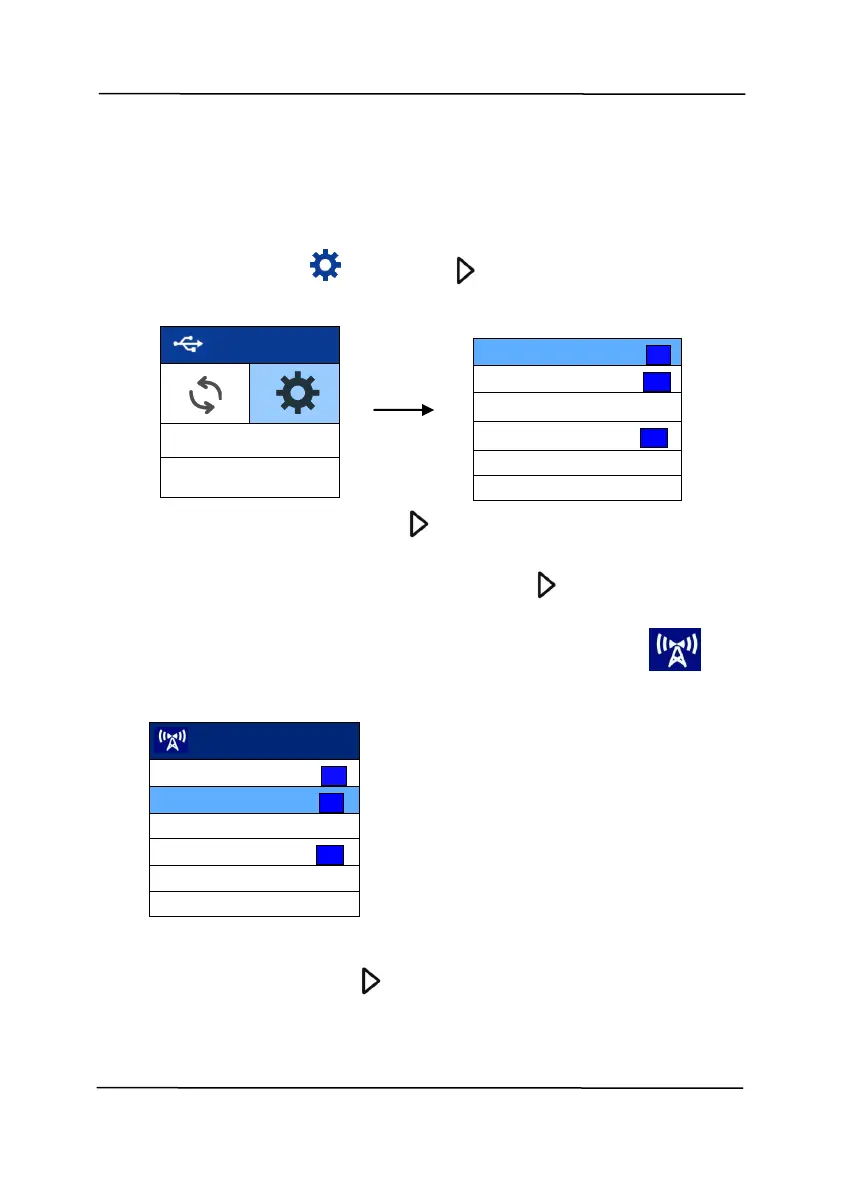
1. On the scanner panel, press (the Down arrow) to select
[More Settings] and press (OK) to confirm. The
following screen will be displayed.
2. Select [Wi-Fi] and press (OK) to turn on Wi-Fi
connection.
3. Select [Wi-Fi Direct Link] and press (OK) to enter Wi-
Fi AP(Access Point) mode in which the scanner itself act as
an AP. If connection is successful, a Wi-Fi AP icon will
be displayed in the screen.
To turn off the Wi-Fi connection:
Select [Wi-Fi] and press (OK) to turn off the Wi-Fi
connection. The Wi-Fi connection will be turned off and the Wi-
Fi icon will be disappeared.



 To Next Page