AXIS 200
User’s Manual Section 4: Configuring the AXIS 200
31
Setting the white
balance manually
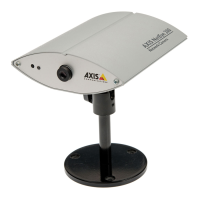
Follow these steps to set the white balance of the AXIS 200 manually:
1. Hold a white paper in front of the camera lens for at least one
minute.
2. Press and hold down the Control button a few seconds until the
Snapshot indicator starts to flash rapidly. The Control button is
situated at the front of the AXIS 200.
3. Release the button.
4. Press the Control button again while the Snapshot indicator
continues to flash. The Snapshot indicator should then stop
flashing. The AXIS 200 saves the white balance setting a couple of
seconds after you have pressed the button.
5. Confirm that the white balance has been set by clicking the Settings
link from the AXIS 200 Home Page. The white balance settings
should read Freeze.
The white balance is now fixed and your AXIS 200 is no longer
dependent upon the prevailing light conditions. Note that the setting
will be lost when the AXIS 200 is powered off.
Note:
❏ Due to the multiple functionality of the Control button, you
should not run a CRON script while setting the white balance.



 To Next Page