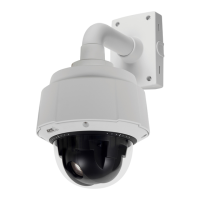
AXIS Q6032 PTZ Dome Network Camera
System Options
3. Click Format and select the desired file system.
Note
During formatting any previous data stored on the disk will be lost.
Mounting is d one automatically when the card is inserted o r when the product is started. A manual mount is only required if the
card has been unmounted and not ejected and re-inserted .
To unmount the SD card:
1. Go to System Options > Storage and click SD Card.
2. Click Unmount.
3. The card can now be removed.
The SD ca rd is managed on the System Options > Storage page. Click SD Card to open Storage Management.
If the card’s status s hows as failed, click Check disk to see if the problem can b e found and then try Repair. This option is only
available for SD cards with ext4. For SD cards with vFAT, use a card reader or computer to troubleshoot the card.
To avoid filling the card, it is recommended to remove recordings continuously. Under Recording Settings, select Remove recordings
older than and select the number of days or weeks.
To stop writing to the card and protect recordings f rom being remove d, select Lock under Recording Settings.
Network Share
Network share allows you to add network storage such as a NAS (Network Attached Storage) or any server that uses CIFS (Common
Internet File System) and use them for storage of recordings.
To add a netwo rk share:
1. Go to System Options > Storage.
2. Click Network Share.
3. Enter the IP address, DNS or Bonjour name to the host server in the Host field.
4. Enter the name of the share in the Share field.
5. If required, select The share requires login and enter the user name and password.
6. Click Connect.
To clear all recor dings and data from the Axis product’s folder on the d es ignate d share, click Clear under Storage Tools.
To avoid filling the share, it is recommended to remove recordings continuously. Under Recording Settings,selectRemove recordings
older than and select the number of days or weeks.
To stop writing to the share and protect recordings from being removed, select Lock under Recording Settings.
Ports & Devices
I/O Ports
The Axis product provides four configurable input and output ports for connection of external devices. A multi-connector cable
(available from Axis) is required when connecting external devices, see
Multi-Connector Cable (sold separately), on page 58
.
The I/O ports are configured under System Options > Ports & Devices > I/O Ports. Select the port dire ction (Input or Output). The
ports can be given descriptive names and their Normal states can be configured as Open circuit or Grounded circuit.
47



 To Next Page