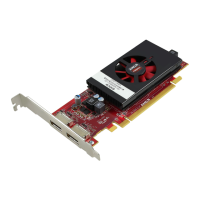
30 Display Controller
5 When the driver setup is complete, click the Finish button.
6 The Barco Product Installation Wizard will now guide you through
the installation of MediCal QAWeb, BarcoMed SelfExam, and the
Barco on-line documentation.
7 When the Setup complete message appears, select Reboot System
Now and click Finish.
8 After the system reboots, Windows may display either the Digital
Signature Not Found message or The software you are installing
for this hardware has not passed Windows logo testing.
Automated display configuration
Once the drivers, software and documentation have been installed and
your system has been rebooted, the computer should automatically
detect your Barco displays and attach them to the desktop with the
correct resolution. If the computer fails to detect your Barco displays or
fails to attach them to the desktop correctly, please refer to the “Setting
the resolution of your B
ARCO DISPLAY CONTROLLER” on page 34 in the
Configuring Windows section of this manual.
Reinstalling drivers
You can install new drivers or reinstall existing drivers at any time by
using the Barco Set-up wizard on your B
ARCO Display System Installation
CD-ROM.


 To Next Page