- 7 -
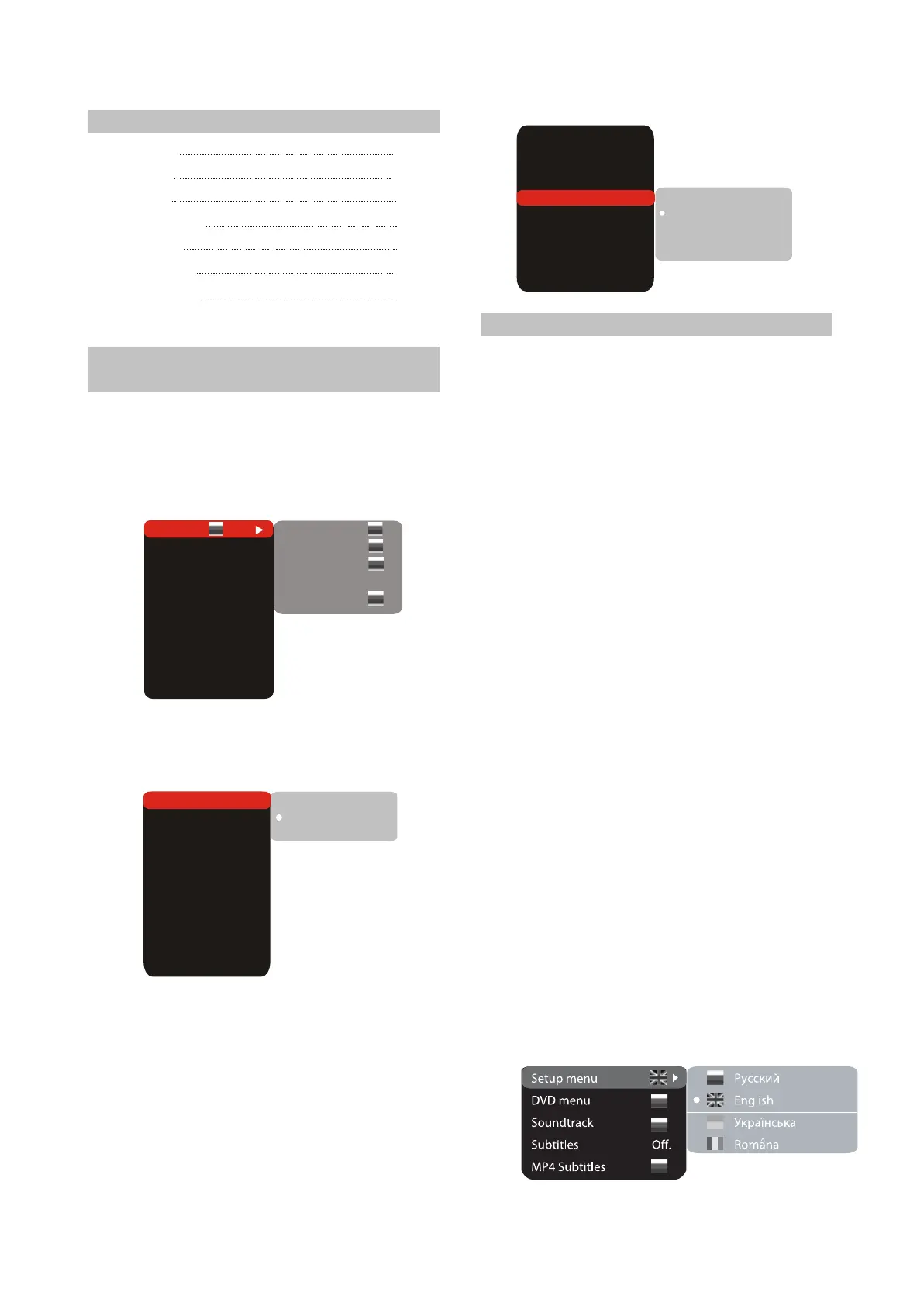
2.4.2 Language settings
1. menu: interface language setup
#Options: Russian, English, Ukrainian,
Romanian.
#Default option: English.
2.DVD menu: selection of disc menu language
3.Soundtrack:selection of translation language
#Options:Russian,English,Estonian,Latvian,Kaz
akh,Romanian,Belarusian,UKrainian,Chinese.
#Default: English.
#Selection of other languages: select the
OTHERS item using the UP and DOWN
buttons and press OK. Enter the language
code using the numeric buttons and press OK.
#If the language you selected is not recorded on
the DVD disc, another available language will
be used.
4.DVD Subtitles: selection of DVD subtitles
language
#Options:Off,Russian,English,Estonian,Latvian,
Kazakh,Romanian,Belarusian,UKrainian,Chin
ese and others.
#Default option: Off.
#Selection of other languages: select the
OTHERS item using the UP and DOWN
buttons and press OK. Enter the language
code using numeric buttons and press OK.
#If the language you selected is not recorded on
the DVD disc, another available language will
be displayed.
5.MP4 subtitles: selection of Mp4 subtitles
language
#Options: Russian, English, Ukrainian,
Romanian.
#Default option: English.
High
Medium
Low
TV system
TV scan mode
Video output.
TV format
Sharpness
Gamma
Brightness
Contrast
Hue
Saturation
AUTO
IS
S-Vid.
4:3 LB
Med.
Off.
+48
+48
0
0
DVD player
Audio cord
Video cord
Remote control
Battery AAA
Warranty card
User’s manual
1PCS
1PCS
1PCS
1PCS
2PCS
1PCS
1PCS
2.3 Set list
TV system
TV scan mode
Video output
TV format
Sharpness
Gamma
Brightness
Contrast
Hue
Saturation
PAL
IS
S-Vid.
4:3 LB
Med.
Off
+48
+48
0
0
AUTO
PAL
NTSC
2.4 FUNCTION SETTINGS
2.4.1 Function selection and
change
Press the SETUP key to show the setup
menu. You will see the following image on the
screen, as shown on the figure:
Select the desired menu item using the UP
and DOWN buttons; press OK for confirmation.
1.For example, if you wish to change the image
settings, you have to select the lmage item
and press the OK.
2.Using the Up and Down buttons, select the
desired item and press OK.
For example, select the Sharpness item.
Settings will appear on the screen. Then select
the desired sharpness level and press OK for
confirmation.
3.Press LEFT key of the UP and DOWN buttons
for exit to previous menu level.
4. Press SETUP to exit setup menu.
Setup menu
DVD menu
Sound track
Subtitles
MP4 Subtitles
Off.
Language
Image
Sound
Playback
Karaoke
Preference
Parental control
Initial help
Reset settings
Exit



 To Next Page