Operation
28
Correcting keystone
Keystoning refers to the situation where the projected image is noticeably wider at either
the top or bottom. It occurs when the projector is not perpendicular to the screen.
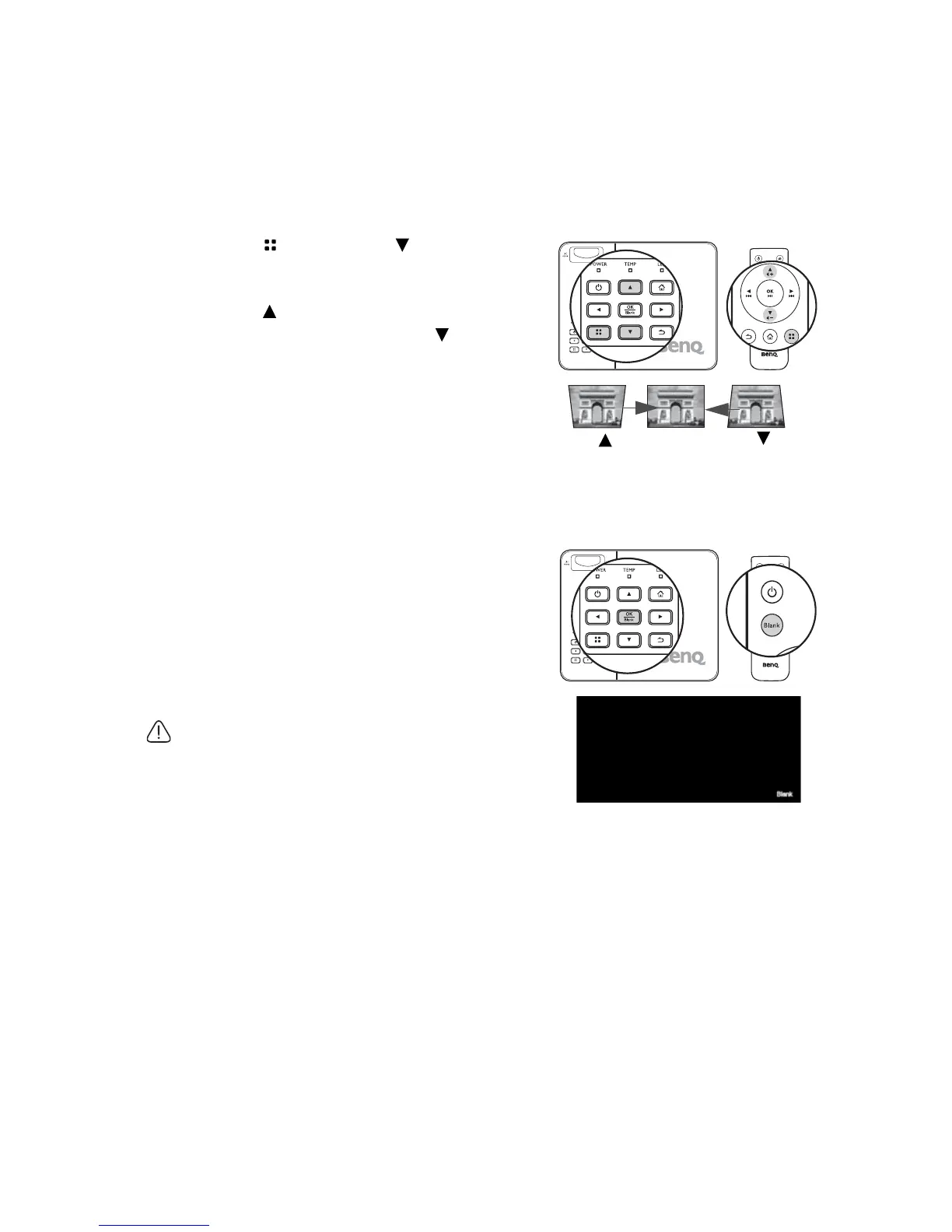
Correcting keystone when an image is displayed on the screen.
To correct this, besides adjusting the height of the projector, you will need to manually
correct it following one of these steps.
1. Press and then press to highlight
Keystone. The Keystone pop-up menu
displays.
2. Press to correct keystoning at the
bottom of the image or press to correct
keystoning at the top of the image.
Hiding the image
In order to draw the audience's full attention to the presenter, you can:
• Using the remote control
Use Blank on the remote control to hide the screen
image. Press again Blank or any keys on the remote
control to restore the image.
• Using the projector
Press and hold Blank for 3 seconds on the projector
to hide the screen image. Press again Blank or any
keys on the projector to restore the image.
Do not block the projection lens from projecting as this
could cause the blocking object to become heated and
deformed or even cause a fire.



 To Next Page