Operation
51
Using USB streaming
The projector supports USB streaming for USB display and USB file transfer.
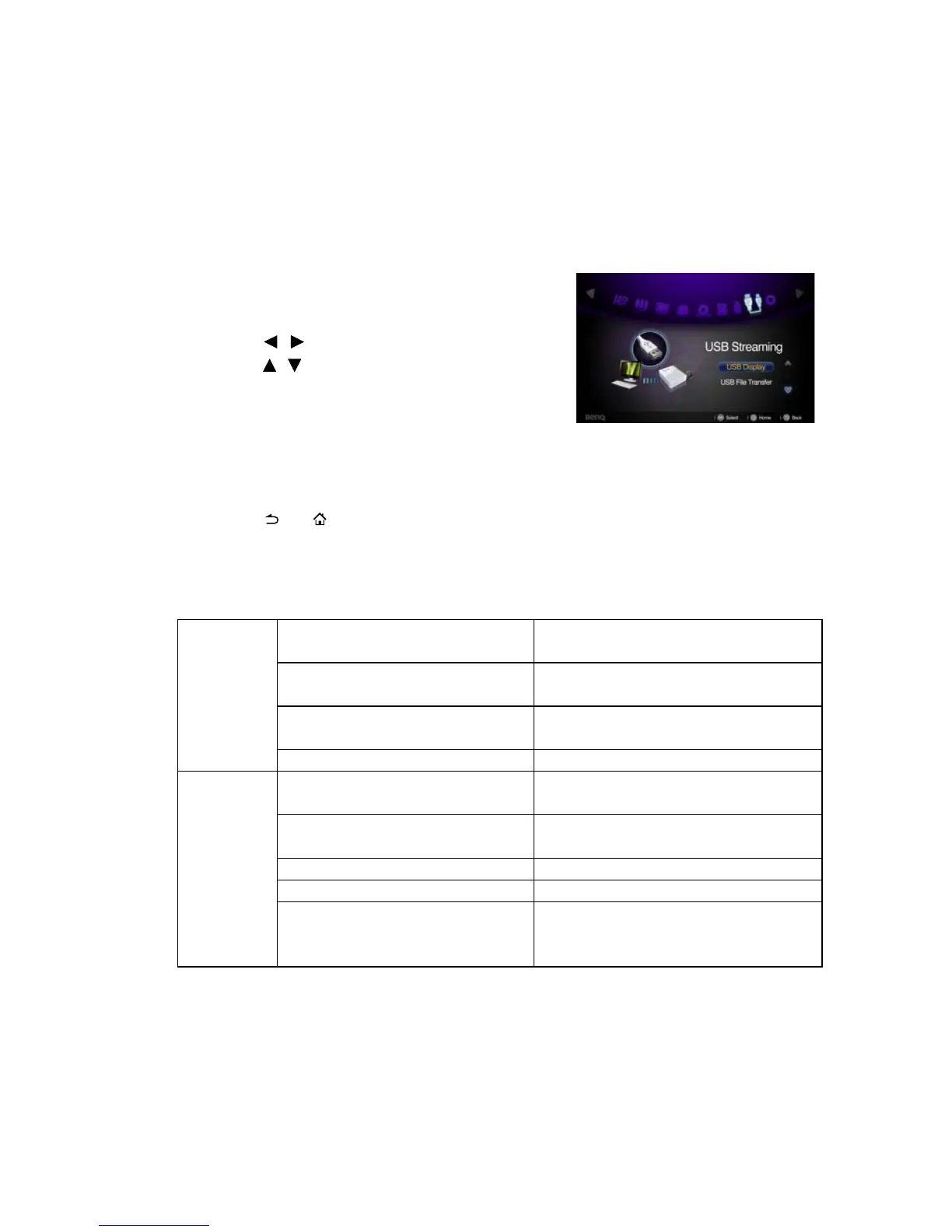
BenQ EZ USB display
The projector can project computer screen via a USB cable instead of a VGA cable.
To u s e U S B d i s p l ay :
1. Connect the projector to a computer using a USB cable.
2. Turn on the power of the projector and your
source device. The projector displays the home
screen.
3. Press / to select USB Streaming.
4. Press / to select USB Display and then
press OK to enter.
5. If your computer can automatically install USB
driver, you can see computer’s screen.
6. If computer's screen can't be projected, please go to "My Computer", find the
“BenQUSB EZ Display” (same as using a flash disk drive), then run the “Autorun.exe”
file.
7. Press or to leave computer projection screen and back to projector home
screen.
System requirements
USB file transfer
You can connect the projector to transfer files from your computer to the projetor. The
files will be saved in the internal menory, and you can project images from the projector.
To use USB file transfer:
1. Connect the projector to a computer using a USB cable.
Windows
CPU
Intel/AMD Dual Core 2 GHz or
higher (ATOM not supported)
Graphic card
Intel, nVIDIA or AMD graphic card
with 64MB VRAM or above
OS
Windows XP Professional SP3, Vista
SP3, Windows 7 SP2
DRAM 1 GB DDR
Mac
CPU
Intel Dual Core 1.4 GHz or higher
(PowerPC not supported)
Graphic card
Intel, nVIDIA or AMD graphic card
with 64MB VRAM or above
OS Mac OS X 10.6.5 and above
DRAM 1 GB DDR
Recommended Models
MacBook after 2009-01-21
All series of MacBook Pro
MacBook Air after 2010-06-08



 To Next Page