23 Operation
If you intend to switch from the Basic OSD menu to the Advanced OSD menu, follow the
instructions below:
1. Go to Basic Menu > Menu Type and press OK.
2. Press / to select Advanced and press OK. Next time when you turn on the projector, you
may access the Advanced OSD menu by pressing MENU.
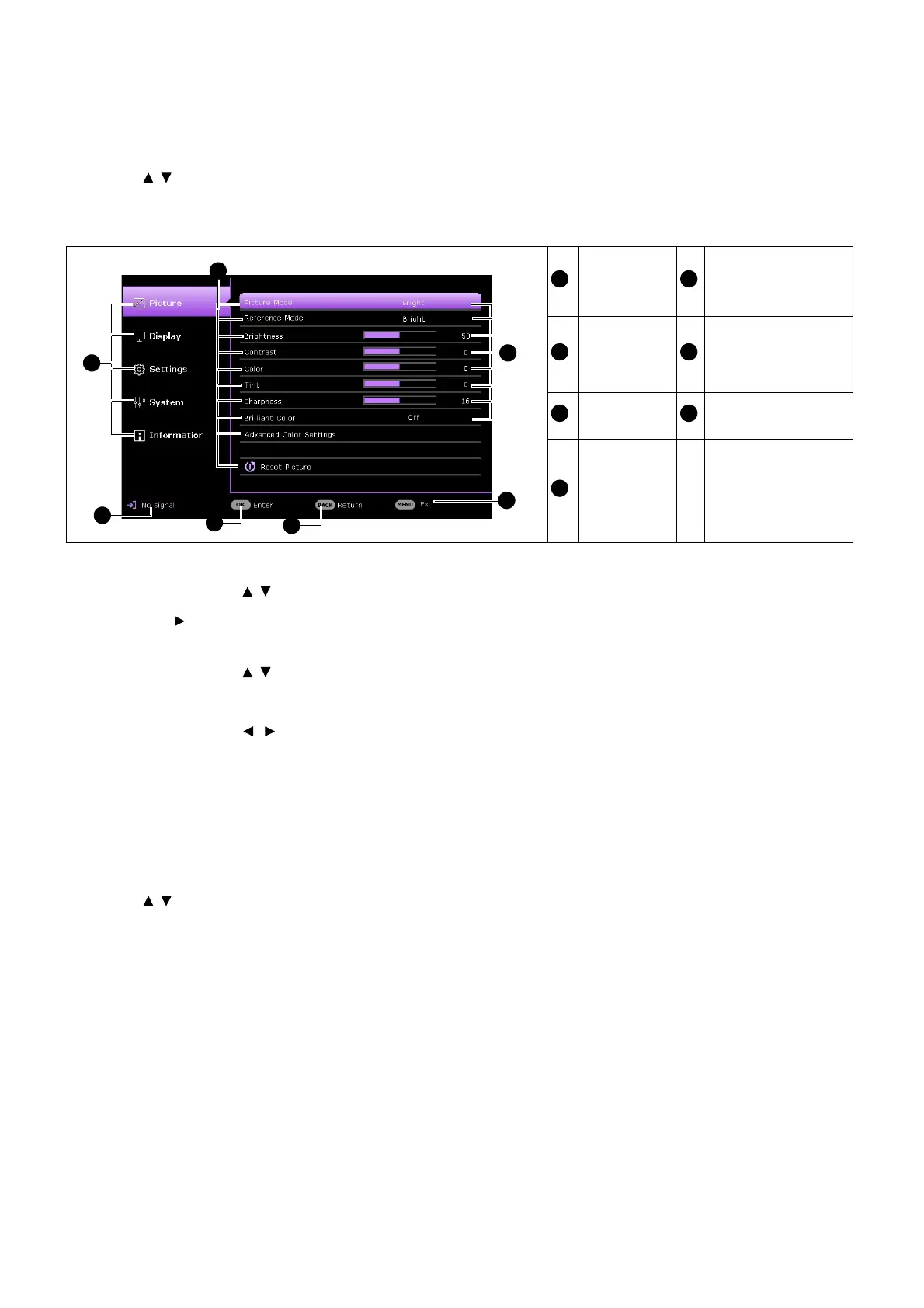
Below is the overview of the Advanced OSD menu.
To access the Advanced OSD menu, press MENU on the projector or remote control.
• Use the arrow keys ( / ) on the projector or remote control to move through the main menu.
• Use OK or on the projector or remote control to confirm the selected main menu and enter the
sub-menu.
• Use the arrow keys ( / ) on the projector or remote control to move through the sub-menu items.
• Use OK on the projector or remote control to confirm or enter the selected sub-menu item.
• Use the arrow keys ( / ) on the projector or remote control to make adjustments.
• Use OK or BACK to save the settings.
Likewise, when you wish to switch from the Advanced OSD menu to the Basic OSD menu, follow
the instructions below:
1. Go to Advanced Menu - System > Menu Settings and press OK.
2. Select Menu Type and press OK.
3. Press / to select Basic and press OK. Next time when you turn on the projector, you may
access the Basic OSD menu by pressing MENU.
Main menu
& Main
menu icon
Press BACK to go
to the previous
page.
Sub-menu
Press MENU to
exit.
Current
input signal
Status
Press OK
to enter the
menu.



 To Next Page