13
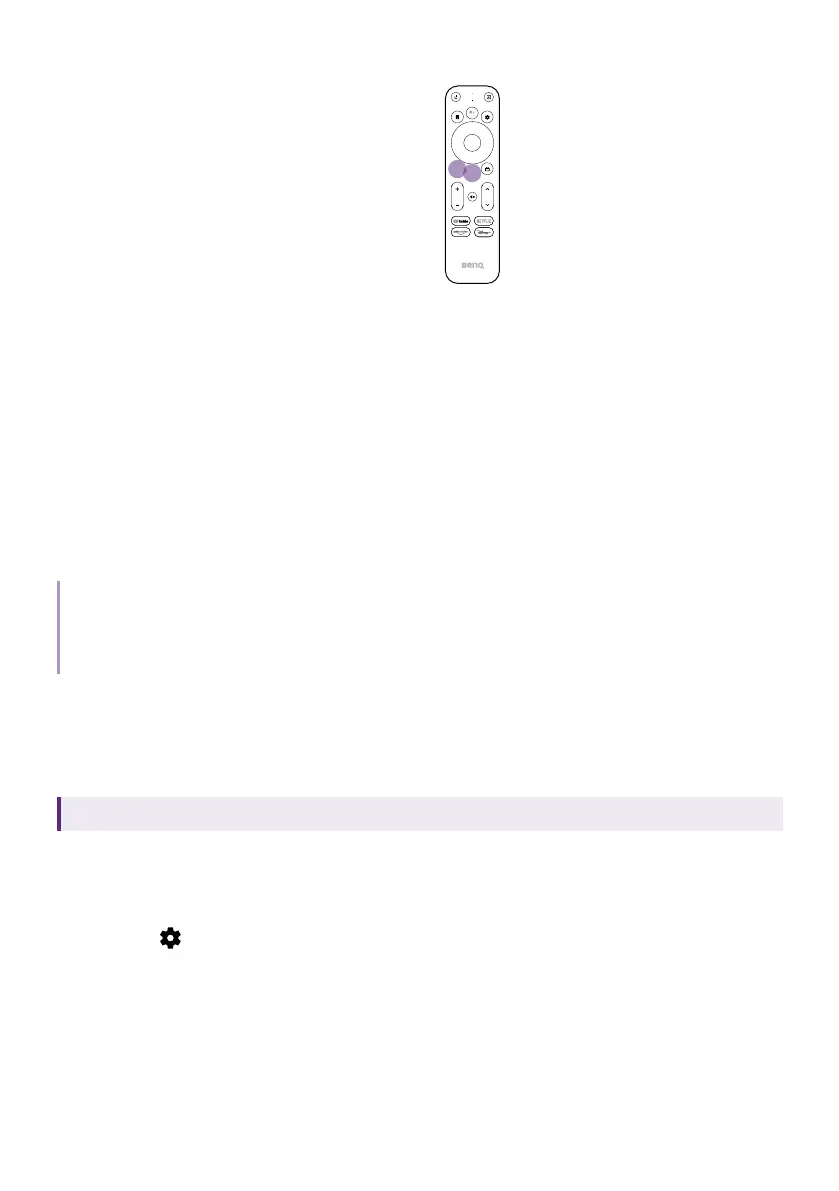
same time for 10 seconds for pairing.
10
seconds
5. Not all settings are required to complete the initial setup. However,
you are required to connect to a wireless network and sign in with
your Google Account to proceed.
6. When you are asked to set up your remote, select Not now. This is
an optional step. If you skip the setup now, you can still operate the
projector and the dongle normally with the remote controls came with
the products respectively. You can always set up later as instructed in
Control of projector and dongle with one remote control on page 13.
7. Once the initial setup is complete, the Home screen is displayed. See
Android TV home screen on page 15 for more information.
Tip
To navigate the projector's menus and access its functions, you need to work with the remote
control came with the projector. If you wish to access services or apps from the Android TV™ (ATV)
home screen, use QS02's remote control.
Control of projector and dongle with
one remote control
Applicable for C008 only. Availability of C008 may vary by country/region.
To enhance product compatibility, you can set up to control the projector's
power and volume with the dongle's remote control. Available functions
are determined by Google.
1. Go to
> Set up remote buttons > Add device from the ATV home
screen.
2. Select TV as your device and BenQ when you are prompted to choose
your TV brand.
3. Follow the on-screen instructions to check if specific buttons on the
remote control work.



 To Next Page