16
CUSTOM ZOOM
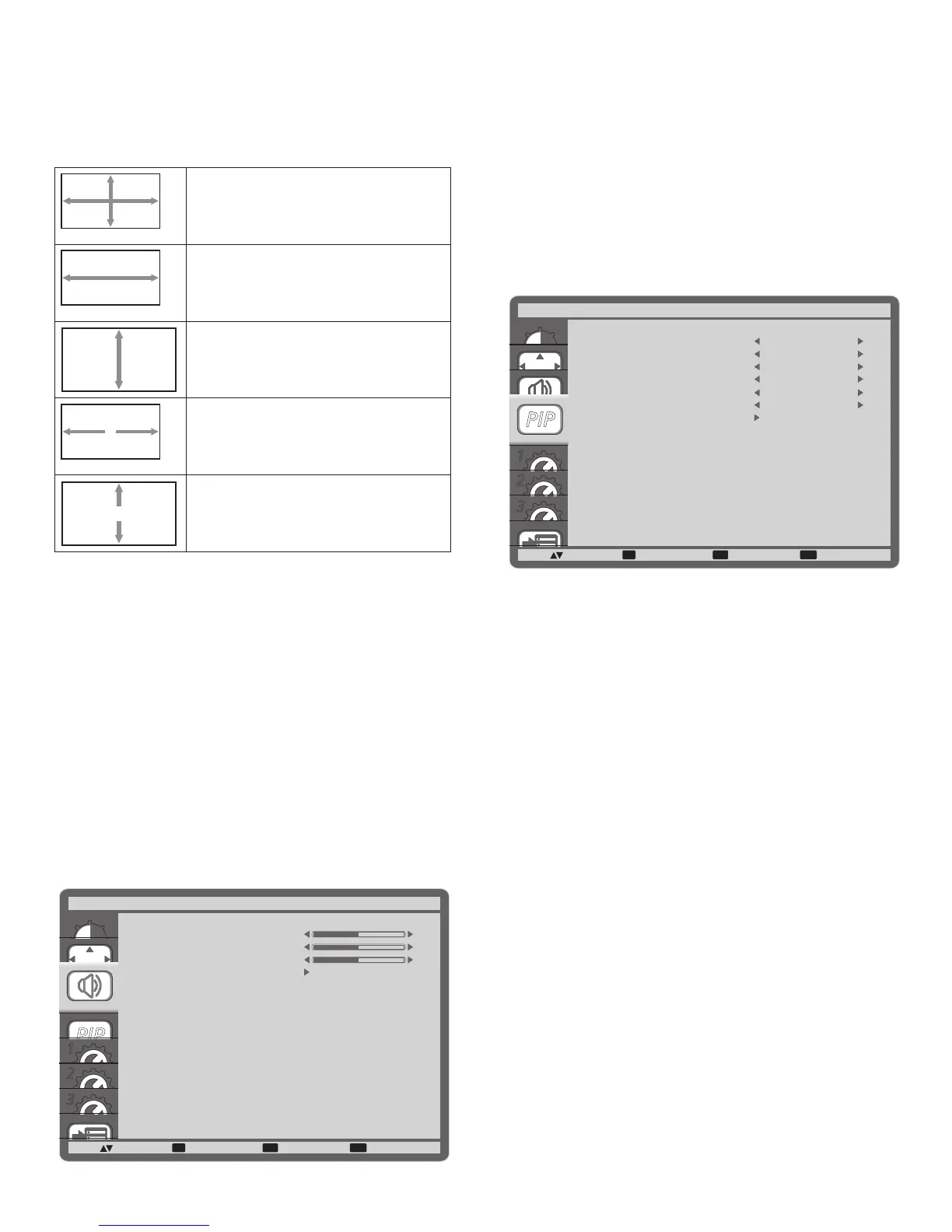
You can use this function to further customize the zoom settings
to suit the image you want to display.
NOTE: This item is functional only when the {ZOOM MODE}
setting is set to {CUSTOM}.
ZOOM
Expands the horizontal and vertical sizes
of the image simultaneously.
H ZOOM
Expands the horizontal size of the image
only.
V ZOOM
Expands the vertical size of the image
only.
H POSITION
Moves the horizontal position of the
image left or right.
V POSITION
Moves the vertical position of the image
up or down.
INPUT RESOLUTION
Set the resolution of the VGA input. This is only required when
the display is unable to detect the VGA input resolution correctly.
NOTE: This item is functional for VGA input only.
The options are:
• {1024x768 / 1280x768 / 1360x768}
• {1400x1050 / 1680x1050}
• {1600x1200 / 1920x1200}
• {Auto}: Determines the resolution automatically.
The selected settings will become effective after turning off the
power and turn it on again.
SCREEN RESET
Reset all settings in the SCREEN menu to factory preset values.
4.2.3. AUDIO menu
1
2
3
SET EXIT MENU
:SEL :NEXT
BALANCE
TREBLE
BASS
AUDIO RESET
AUDIO
:RETURN :EXIT MENU
50
50
50
BALANCE
Adjust to emphasize left or right audio output balance.
TREBLE
Adjust to increase or decrease higher-pitched sounds.
BASS
Adjust to increase or decrease lower-pitched sounds.
AUDIO RESET
Reset all settings in the AUDIO menu to factory preset values.
4.2.4. PIP menu
1
2
3
SET EXIT MENU
PIP
:SEL :NEXT
PIP MODE
PIP SIZE
PIP AUDIO
PIP H POSITION
PIP V POSITION
SUB INPUT
PIP RESET
PIP
:RETURN :EXIT MENU
SMALL
MAIN AUDIO
100
0
VIDEO
OFF
PIP MODE
Select the PIP (Picture-in-Picture) mode.
The options are: {OFF} / {PIP} / {POP} / {SBS ASPECT} / {SBS
FULL}.
PIP SIZE
Select the size of the sub picture in the PIP (Picture-in-Picture)
mode.
The options are: {SMALL} / {MIDDLE} / {LARGE}.
PIP AUDIO
Select the audio source in the PIP (Picture-in-Picture) mode.
• {MAIN AUDIO} - Select audio from the main picture
• {PIP AUDIO} - Select audio from the sub picture.
PIP H POSITION
Adjust the horizontal placement of the sub picture.
PIP V POSITION
Adjust the vertical placement of the sub picture.
SUB INPUT
Select the input signal for the sub-picture.
PIP RESET
Reset all settings in the PIP menu to factory preset values.



 To Next Page