17
NOTES:
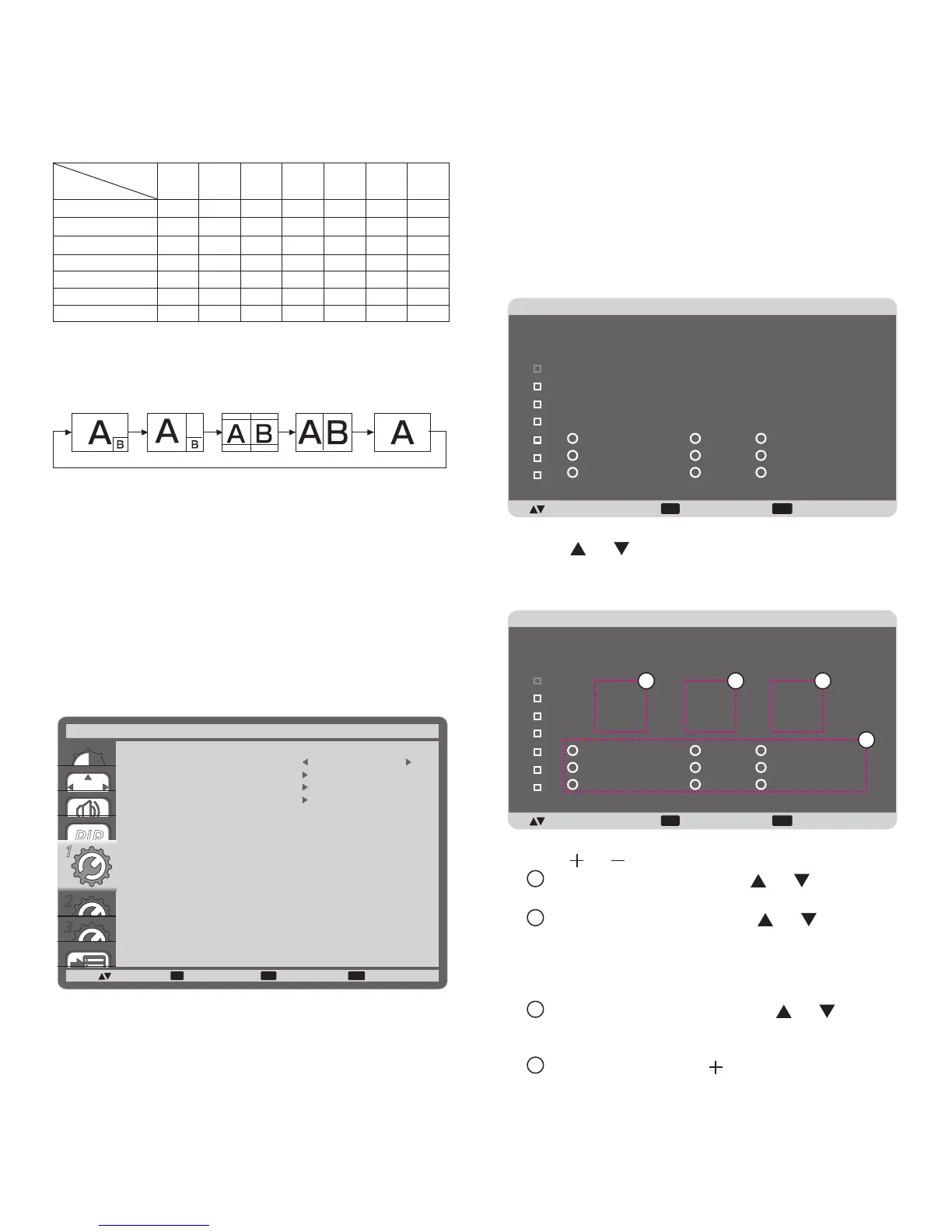
• The PIP function is available only for certain signal source
combinations as shown in the table below.
• The availability of the PIP function will also depend on the
resolution of the input signal being used.
Main Picture
Sub Picture
DVI VGA HDMI YPbPr DP Video
Card
OPS
DVI X X X X X O X
VGA X X X X O O X
HDMI X X X X X O X
YPbPr X X X X O O X
DP X O X O X O X
Video O O O O O X O
Card OPS X X X X X O X
(O: PIP function available, X: PIP function unavailable)
By pressing the [PIP ON/OFF] button on the remote control,
you can change the mode in the order shown below:
PIP POP
SBS ASPECT SBS FULL
OFF
The resolutions in the PIP and POP modes are congured as
follows:
PIP SIZE {SMALL} : 320 x 240 pixels
{MIDDLE} : 480 x 320 pixels
{LARGE} : 640 x 480 pixels
POP SIZE : 474 x 355 pixels
NOTE: The images displayed in the sub picture always t the
PIP sizes shown above irrespective of the aspect ratio
of the input image.
4.2.5. CONFIGURATION1 menu
1
2
3
SET EXIT MENU
1
:SEL :NEXT
OFF TIMER
SCHEDULE
DATE AND TIME
CONFIGURATION1 RESET
CONFIGURATION1
:RETURN :EXIT MENU
OFF
OFF TIMER
Set the display to turn itself off to standby mode within an
amount of time specied.
The options are: {OFF, 1HOUR ~ 24HOURS} from currrent
time.
SCHEDULE
This function allows you to program up to 7 (seven) different
scheduled time intervals for the display to activate.
You can select:
• The time for the display to turn on and turn off.
• The days in a week for the display to activate.
• Which input source the display will use for each scheduled
activation period.
NOTE: You should set up current date and time in {DATE
AND TIME} menu before using this function.
1. Press [SET] button to enter the submenu.
EXIT MENU
+-:SEL :RETURN :EXIT MENU
SCHEDULE
TODAY
1
2
3
4
5
7
6
2011 . 08 . 04 THU 20 : 19 : 55
ON
_
:
_
_
:
_
_
EVERY DAY
OFF INPUT
WED
SAT
MON
THU
SUN
TUE
FRI
EVERY WEEK
2. Press [ ] or [ ] button to select a schedule item (item
number 1 ~ 7), and then press [SET] button to mark it the
item number.
EXIT MENU
+-:SEL :RETURN :EXIT MENU
SCHEDULE
TODAY
1
2
3
4
5
7
6
2011 . 08 . 04 THU 20 : 19 : 55
ON
_
:
_
_
:
_
_
EVERY DAY
OFF INPUT
WED
SAT
MON
THU
SUN
TUE
FRI
EVERY WEEK
4
1 2 3
3. Press [ ] or [ ] button to select the schedule:
1
POWER-ON schedule: Press [ ] or [ ] button to set
the hour and minute for the display to turn on.
2
POWER-OFF schedule: Press [ ] or [ ] button to
set the hour and minute for the display to turn off.
Select or leave an empty “__” for both the hour and minute
slot if you do not want to use this power-on or power-off
schedule.
3
INPUT-SOURCE selection: Press [ ] or [ ] button to
select an input source. If no input source is selected,
the input source will remain the same as last selected.
4
DATE schedule: Press [ ] button to select which day
in a week this schedule item will be take effect, and
then press the [SET] button.



 To Next Page