The OSD (On-Screen Display) menu 49
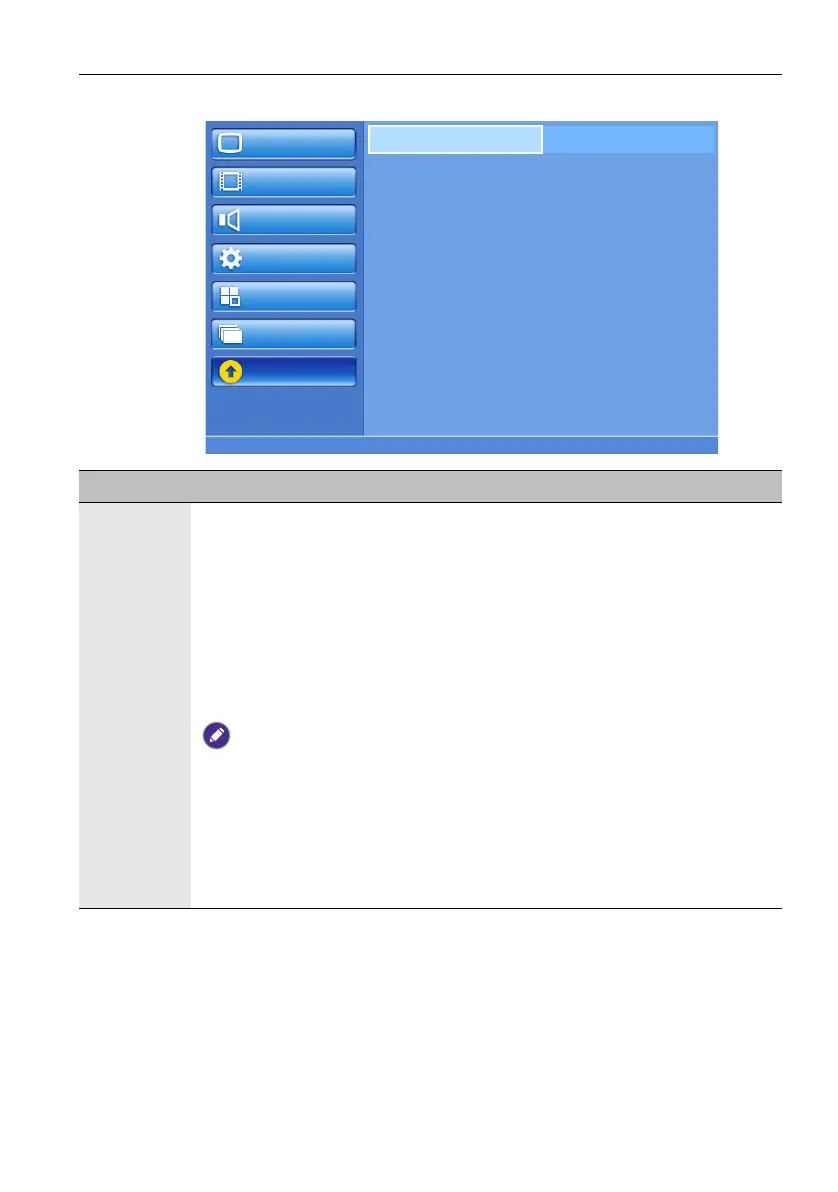
Update menu
Picture
Screen
Audio
Configuration1
Configuration2
Option
Update
From USB
Name Description
From USB To update the display firmware:
1. Take a USB flash drive and make sure it is formatted with FAT32.
2. Create a folder and name it “fupgrade” on the USB flash drive.
3. Obtain the firmware named “usb_rootfs” and put it into the folder
“fupgrade”.
4. Plug the USB flash drive into the USB port on the display.
5. Highlight Action in the Update > From USB menu and press SET.
6. Select Yes to start update. A status message appears.
7. After the update process completes, the display will re-start automatically.
• The display does not support USB flash drives with NTFS format.
• Do not turn off the display during the update process. It may damage the display if you do so.
• If the error message appears in the Update OSD menu, please make sure that:
- the USB flash drive is properly plugged in.
- the folder name (fupgrade) and file name (usb_rootfs) are correct.
- the model name shown on the OSD menu is the same as the display’s.
- the firmware version is different from the old one. The display will not be updated if you
are using the same version.


 To Next Page