Network connection 31
Network connection
Connecting to a LAN
To set the display to connect to a local area network:
1. Connect a RJ45 cable to the corresponding ports on the display and your LAN
switch or router.
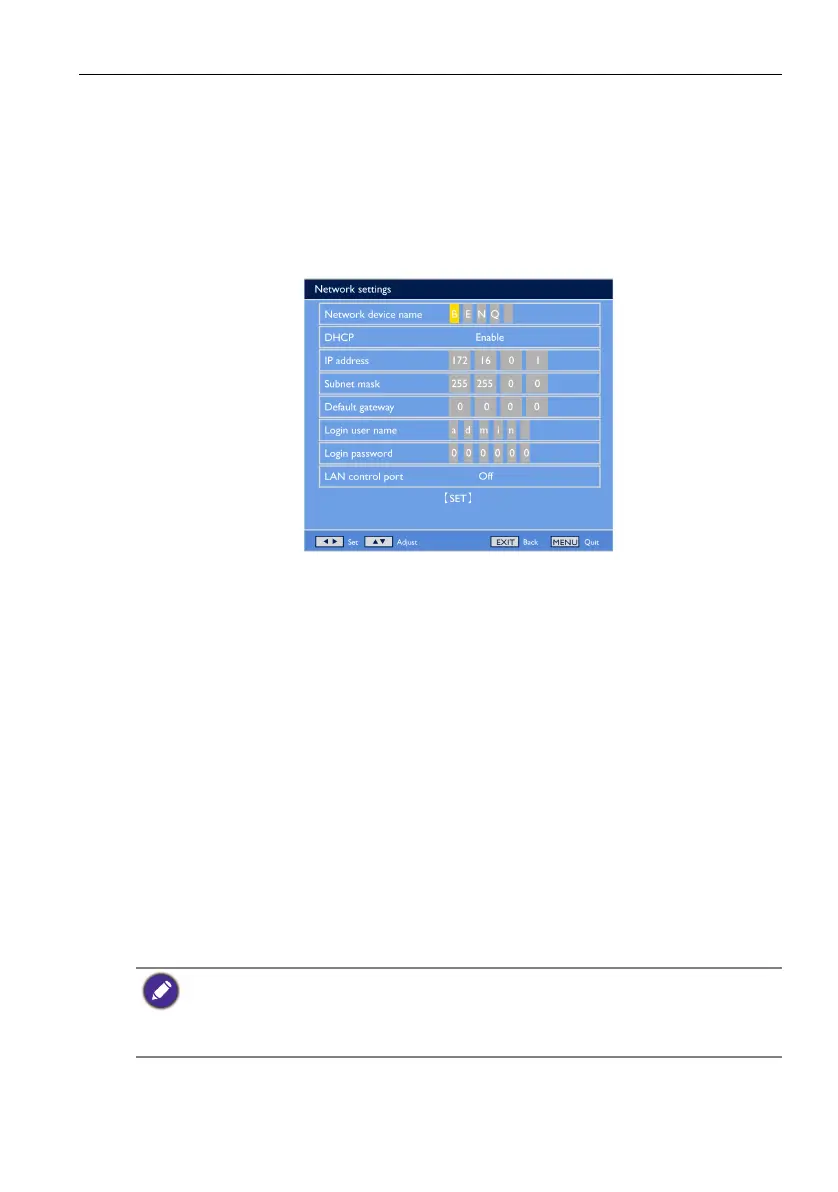
2. Enter the OSD menu Configuration1 > Network settings. You will see the OSD
page similar to the following picture.
3. Use the /// buttons to set the Network device name.
4. If you are in a DHCP environment, highlight DHCP and select Enable. Once
selected, the IP address, Subnet mask, and Default gateway settings will be
displayed.
If you are not in a DHCP environment, highlight DHCP and select Disable.
Contact your ITS administrator for information on the IP address, Subnet mask,
and Default gateway settings and enter it accordingly.
5. Make sure the information on the Login user name is displayed.
6. Use the /// buttons to set Login password. The password is required
when using a computer browser to log in.
7. To control the display with a computer browser, highlight LAN control port and
select On.
8. To save the settings and return to the previous menu, highlight SET and press the
SET button on the remote control.
Controlling the display
Once you have the correct IP address for your display and the display is on or in standby
mode, you can use any computer that is on the same local area network to control the
display.
• You cannot control the display via the RS-232C connector when LAN control is in use.
• Currently most browsers are supported. However, if using Internet Explorer, only versions 7.0
or higher are supported.
• The screen shots in this manual are for reference only, and may differ from what is displayed on
your screen.



 To Next Page