46
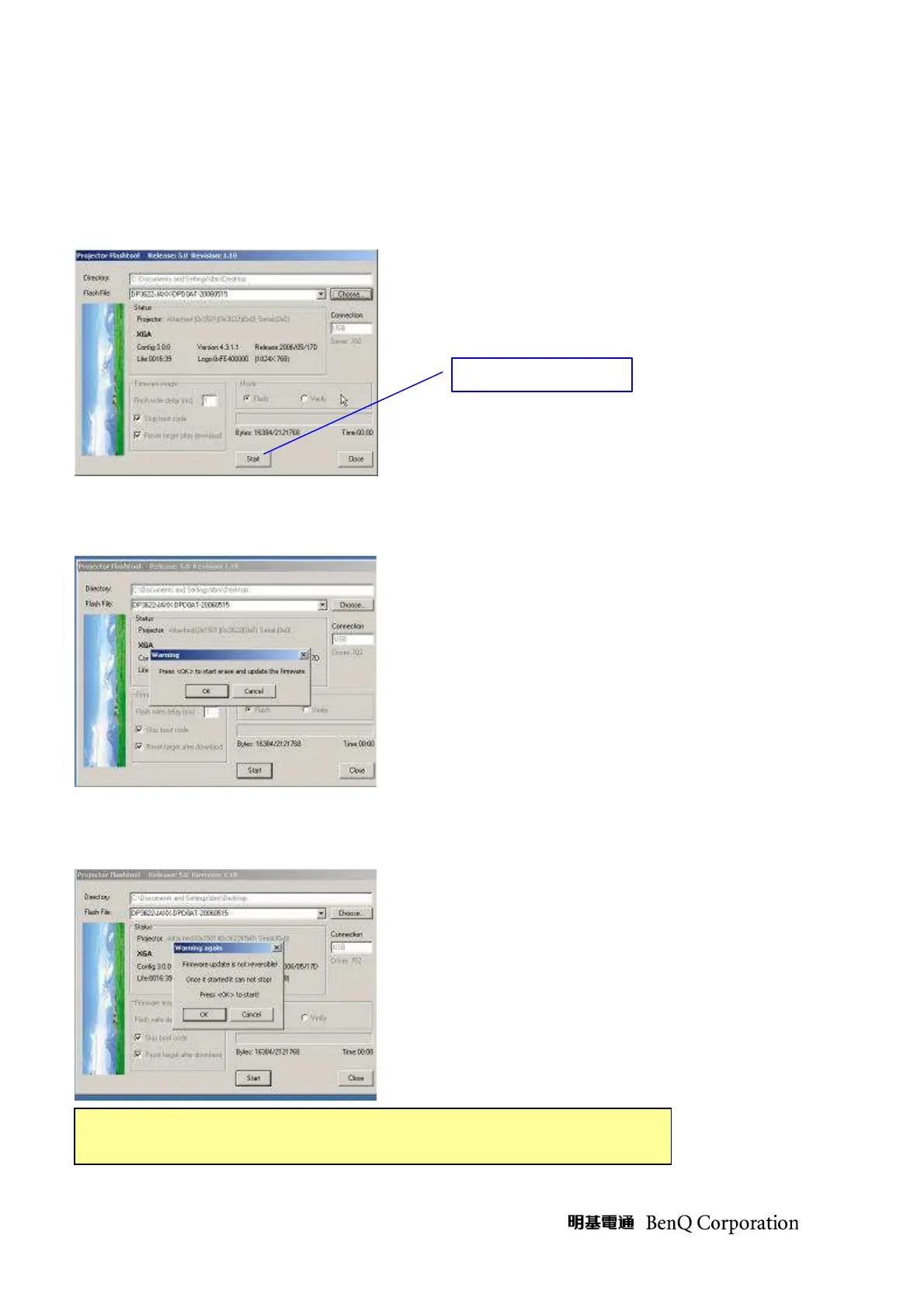
Step 5: The Flash-Tool will validate the signature of the binary image file for upgrading.
The “Start” button will not enable if the binary image is not a valid projector firmware.
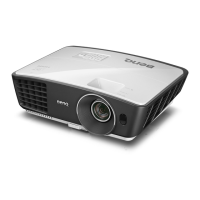
Step 6: Press the “Start” button to update the flash with the chosen firmware.
A warning message box will appear for confirmation. Press <OK> to continue.
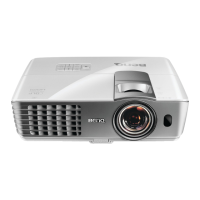
Step 7: The last warning message box appears, this is the last chance to stop the update.
Press “OK” button to start the firmware update.
DO NOT install any USB driver when erasing or upgrading


 To Next Page