• Avoid charging, using, or storing your device in extremely hot or cold places, such as on a vehicle dashboard.
• Avoid leaving your device turned o with a low battery power level for an extended period. If you plan to store your
device for an extended period, partially charge the battery and put the device in a cool, dry place.
About wireless charging
Some service providers support wireless charging for your device. You can charge your device by setting it on a supported
charging mat instead of connecting your device to a charger.
You can use the following device models with Qi and Power Matters Alliance (PMA) wireless chargers:
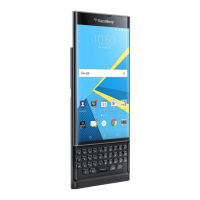
• PRIV by BlackBerry STV100-1 smartphone
• PRIV by BlackBerry STV100-2 smartphone
• PRIV by BlackBerry STV100-5 smartphone
Tip: To find your device's model number, swipe down from the top of the screen once using two fingers, or twice using one
finger, and then tap > About phone.
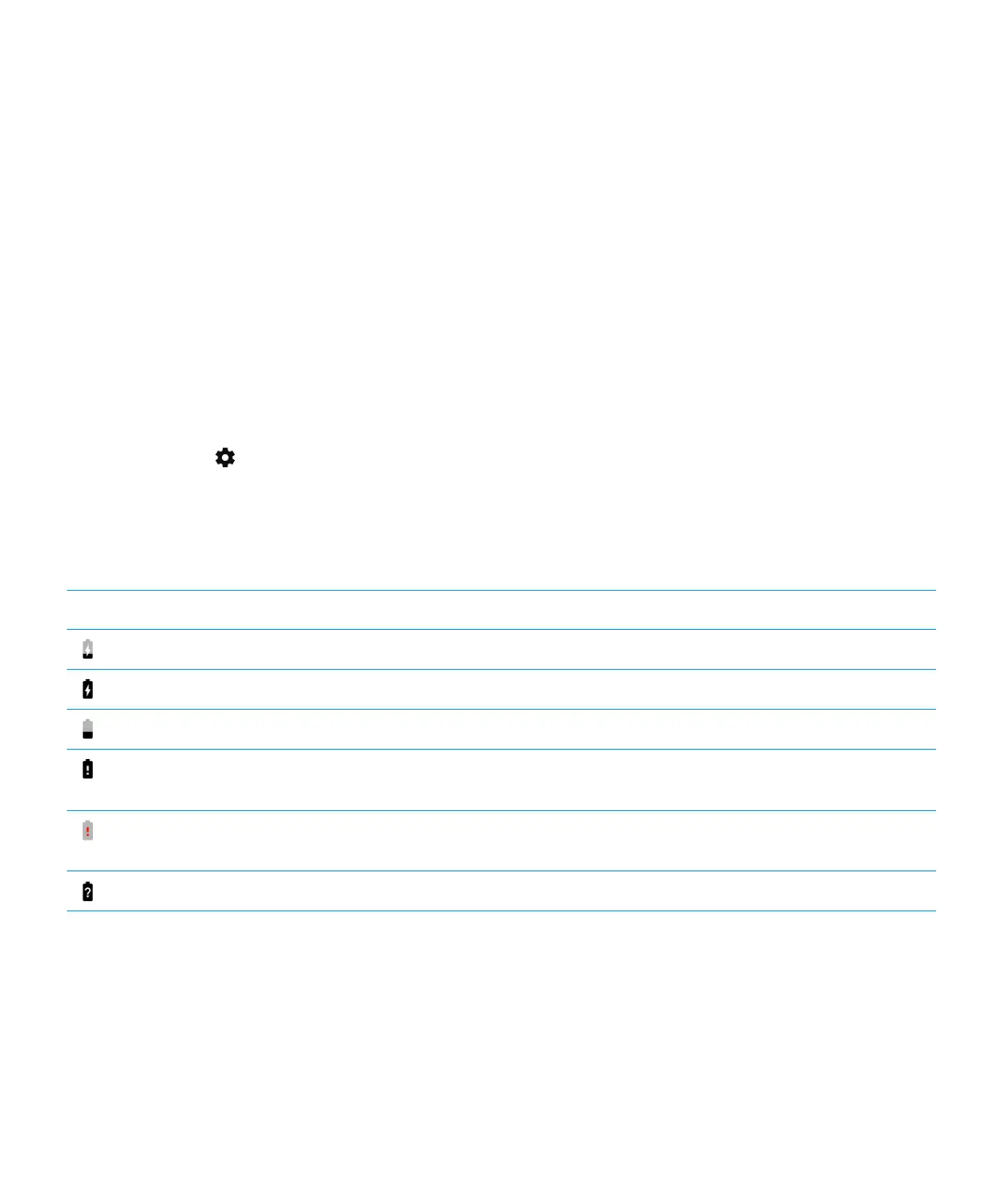
Battery and charging icons
The battery power level icons appear at the top of the screen.
Icon
Description
The battery is charging.
The battery is fully charged and still connected to a power source.
The battery is getting low on power.
Battery saver mode is turned on, or you can turn it on from your list of
notifications.
The battery is at 5% power or less. If the battery charge gets too low, your device
might turn o. Save any work in progress and charge your device.
There is a problem with the battery, and the battery might need to be replaced.
About the battery edge indicator
When charging your device, the battery edge indicator appears as a strip of color on the right edge of the screen. The color
and length of the strip indicates the current battery power of your device.
As your device is charging, the strip grows and transitions from red to yellow to green depending on the charge level, with a
full green strip indicating that the device is fully charged.
User Guide Settings
100







 To Next Page