Using ATEM Software Control
24
Interface Overview
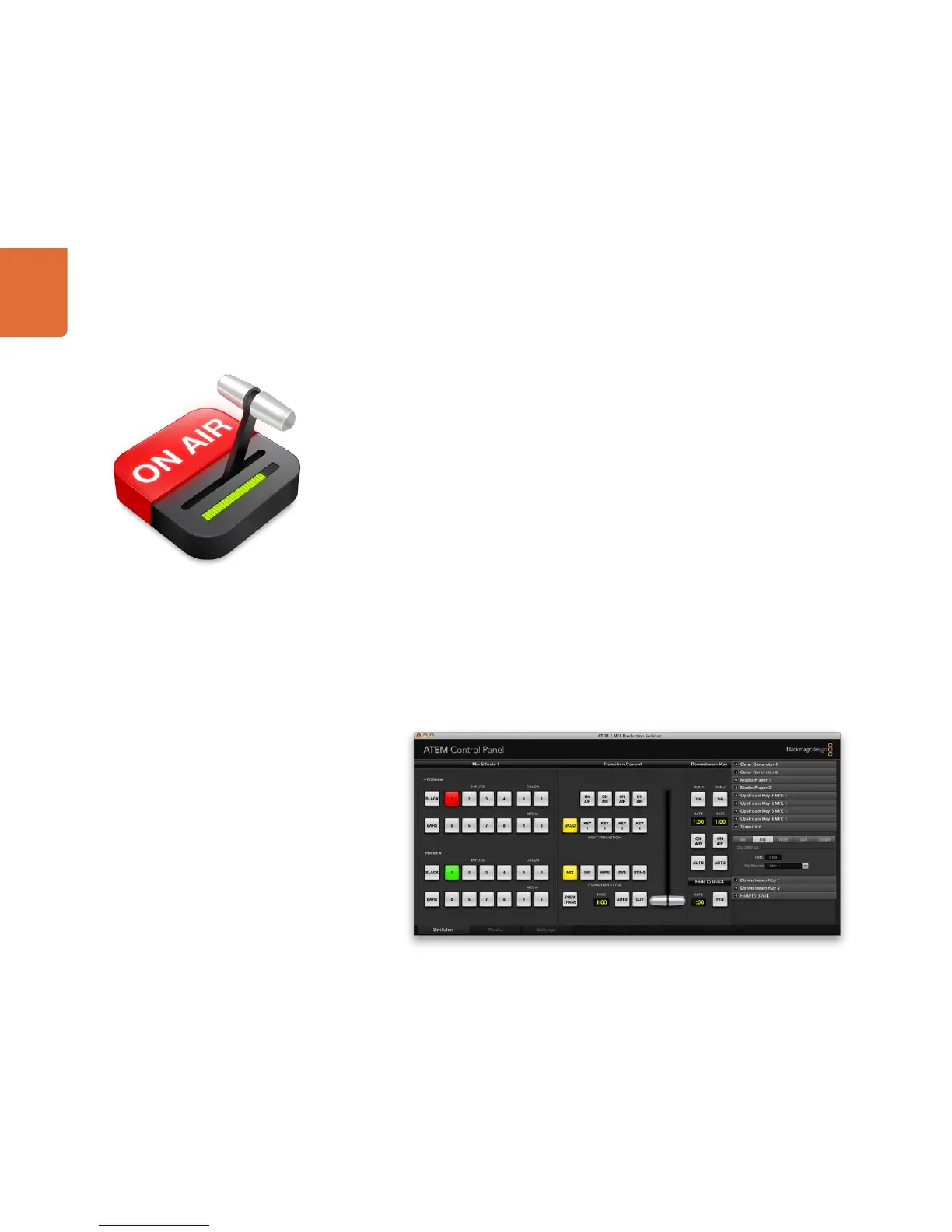
The ATEM Software Control is included with your ATEM Production Switcher, and allows you to control your
switcher in a similar way to a full hardware control panel. However instead of menu buttons, it uses a range
of pallets on the right side that shows you all processing features of your production switcher, and allows
settings to be easily made.
You can also use the ATEM Software Control to configure your switcher settings as well as upload graphics
and manage the media pool.
Switcher Control Panel
The software control panel user interface has three tabs; Switcher, Media and Settings, which can be
accessed by selecting the tab at the bottom left of the screen. The media and settings tabs contain unique
settings for the switcher, which can only be made from the software control panel.
When first launched, the switcher screen is selected, which is the main control interface for the switcher.
The software control panel must be connected to a switcher chassis to run.
Mouse or Trackpad Operation
The virtual buttons, sliders and fader bar on the Software Control Panel are operated using your computer
mouse or a trackpad if you’re using a laptop.
To activate a button, click once with the left mouse button. To activate a slider, click and hold down the left
mouse button while dragging. To control the fader bar, click and hold down the left mouse button on the
fader bar handle and drag in the desired direction of travel.



 To Next Page