Using ATEM Software Control
31
Using the Media Manager and Media Pool
The media tab is used to transfer stills and clips from your computer into the switcher's Media Pool. On the
left is a browse screen that you can use to navigate to the location of still image and image sequence files
on your computer. On the right, the Media Pool shows what is currently loaded into the switcher's memory.
Navigating the Browse Window
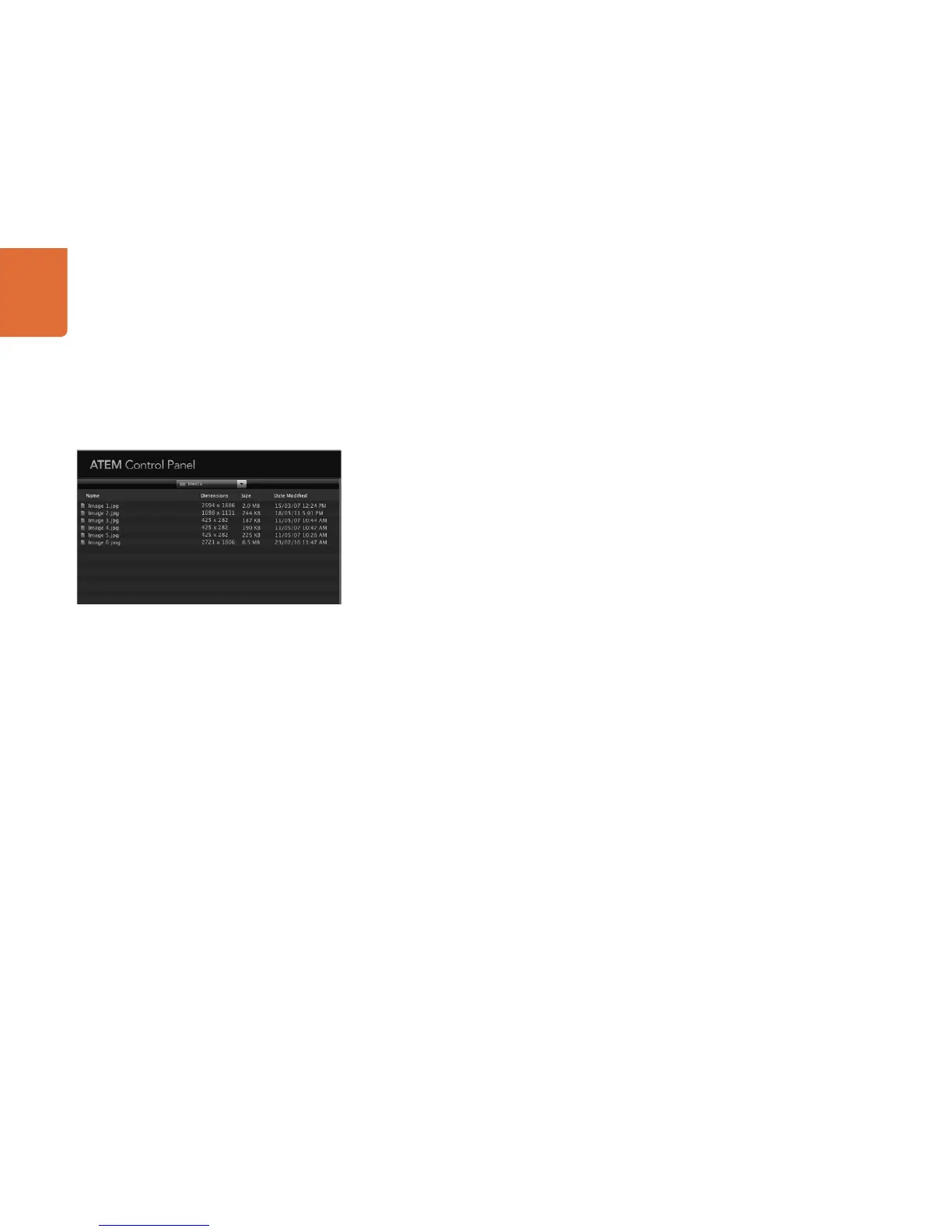
The browse window is a simplified file browser that lets you navigate your computer to look for graphics
files. The drop down list at the top shows the current folder. You can use the drop down to navigate back
one level or multiple levels at once.
The rest of the browse window shows you a list of the files and folders that are in the selected folder. You can
double click on a folder to enter the folder and view its contents. When you enter a folder the drop down
list is updated with the name of the current folder. When possible, the file list will show the resolution of any
graphics files in the list so you can check the correct television resolution graphics before loading them.
Browsing and Loading Files
The ATEM Production Switcher model's media pool has 32 still image windows and 2 clip windows that also
have a location for audio. On the ATEM Television Studio only the first two still image windows in the media
pool are active. On the 1 M/E and 2 M/E Production Switcher all of the windows in the media pool are active.
To copy a still, simply drag it from the browse screen and drop it into an empty window in the Media Pool.
To copy a clip you must select a sequence of images in the browse window and drag the entire sequence
and drop it into the clip window. You can do this by selecting the first file, then scrolling to the last file in the
image sequence, and while holding the shift key, selecting the last file. All the files will then highlight and
then can be all dragged into any of the two clip windows in the media pool. Audio files, which are used
when playing a clip in a stringer transition, can be dragged and dropped into the audio portion of the clip
window labeled Drag Audio Here.
When copying, a progress bar will show the status of the transfer. You can drop multiple files into the media
pool, even if the first images have not completed copying, as they will be scheduled to download one after
the other. If a clip or still is dragged and dropped into a window which already has content loaded, the
existing content will be overwritten.
Compatible Files - The ATEM media pool supports PNG, TGA, BMP, GIF, JPEG and TIFF still image formats.
Clips are simply a sequence of images. Audio files must be WAV, MP3 or AIFF. QuickTime and AVI is not
currently supported, however will be added in a future software update.
Browse Window



 To Next Page