Using ATEM Software Control
32
ATEM Media Pool
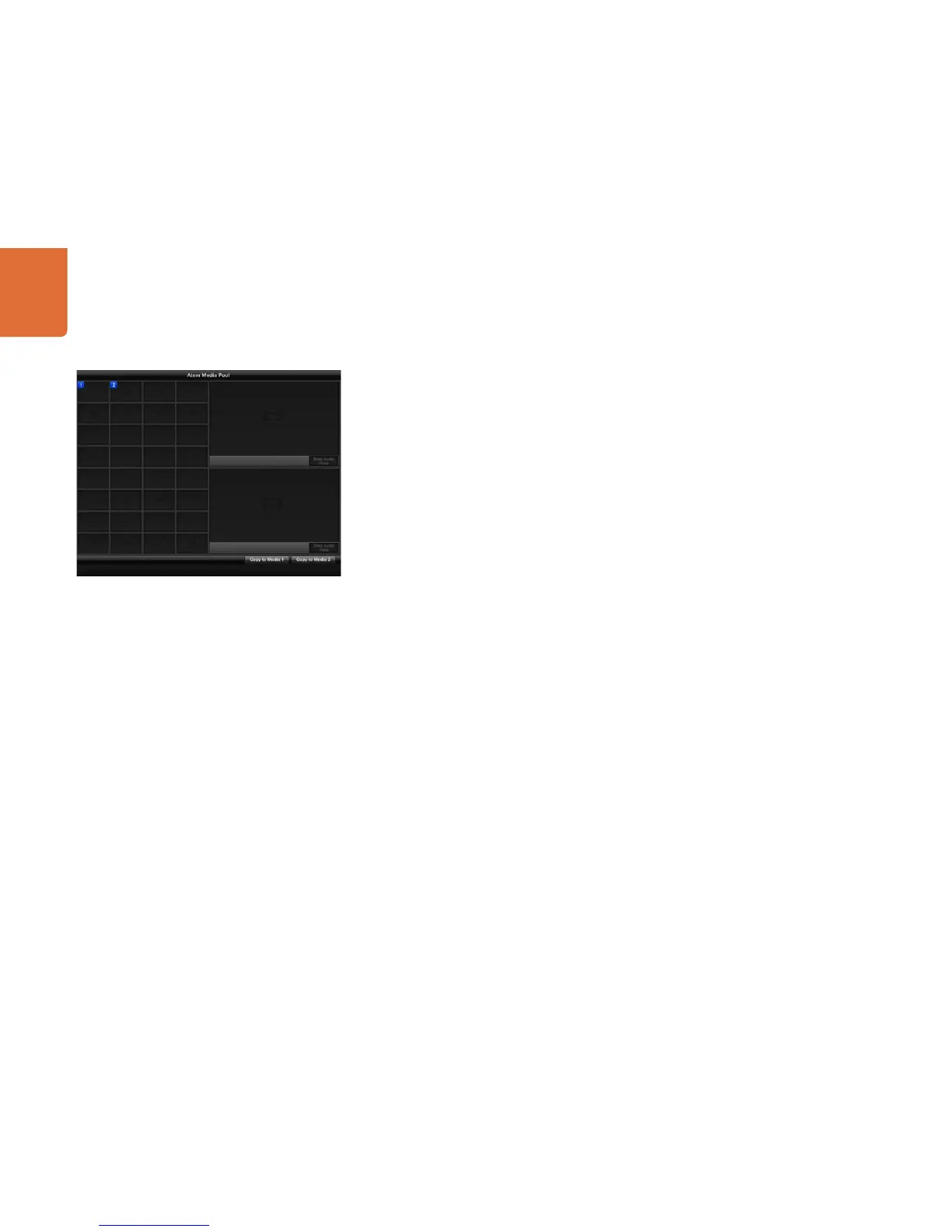
After the still and clip files have been transferred into the switcher's memory, the still window will show
a thumbnail of the image and for clips, the window will show a middle frame from loaded clip. Stills are
marked with a number indicating their position in the media pool so you can identify them on the broadcast
panel when assigning an image to the media player. Clips have a status bar that indicates the number of
frames in the clip. If you want to keep track of the file name for each still or clip, then as you hover the mouse
over the thumbnails, you will see the file name display at the bottom of the window. This is very useful, as
in the media player palette in the switcher tab, as well as the Photoshop plug-in, you will see a list of media
pool still and clip numbers as well as the file name.
There are two blue numbers displayed against clips or stills in the media pool, and these indicate the current
still or clip selected to the media players. Media player 1 is shown with a 1, and media player 2 is shown with
a blue number 2.
On the ATEM 1 M/E and 2 M/E Production Switchers you can change the media player assignment from
the media tab by using the copy to media buttons. First select the clip or still you want to copy to one of the
media players. The selected item will have a yellow border. Press the copy to media 1 or the copy to media
2 buttons at the bottom of the window to copy the selected still or clip to one of the media players. The
badge will update to reflect the current still or clip that is being used by the media player.
You can also assign media players to stills or clips from the switcher tab media player palette, from
the hardware based ATEM broadcast panels, or in some cases from the Photoshop plug-in when
downloading stills.
ATEM Media Pool



 To Next Page