Operating Your ATEM Switcher
52
Wipe Transitions
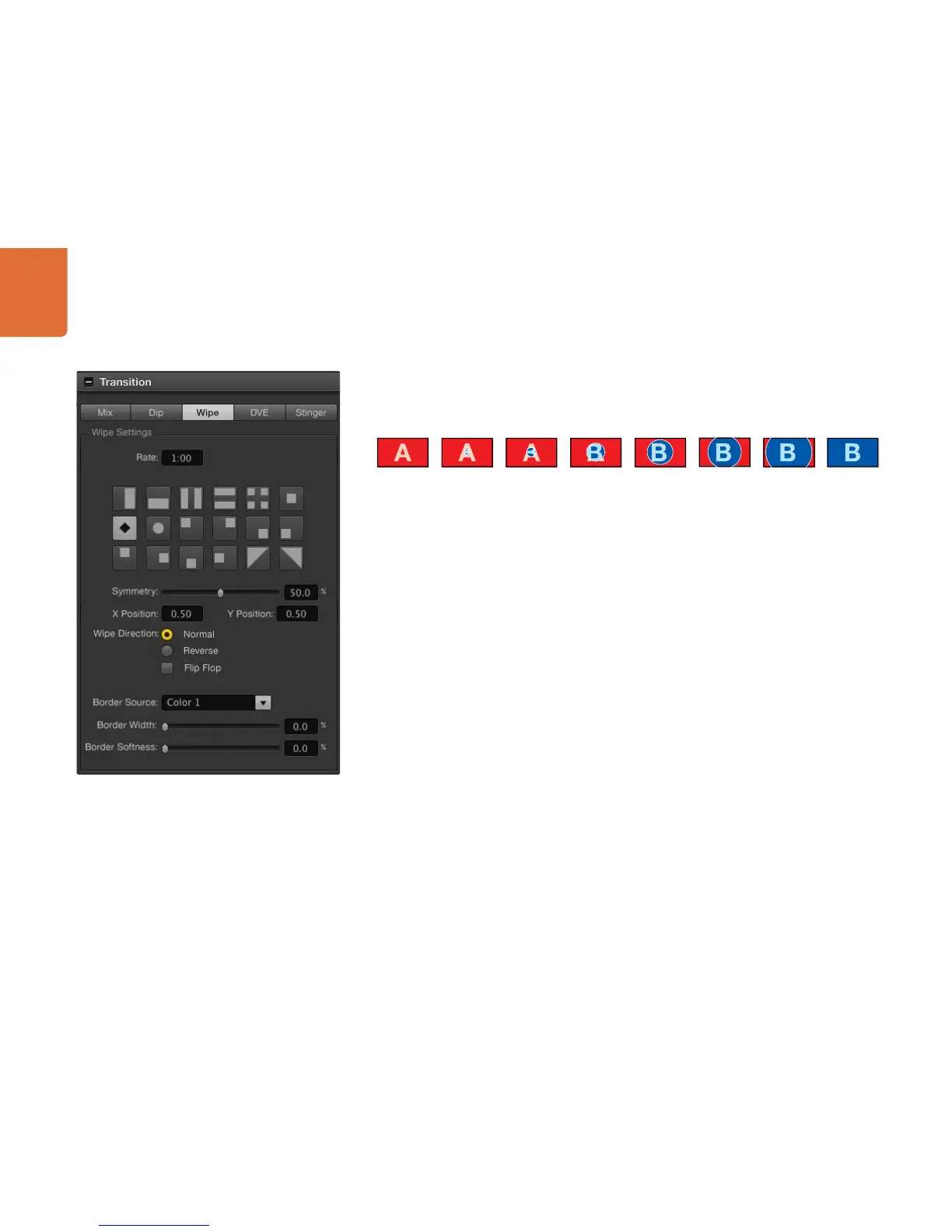
A wipe is a transition from one source to another and is achieved by replacing the current source by another
source with a pattern that forms a shape. For example an expanding circle or diamond.
Program output for a wipe transition.
To perform a wipe transition on the software control panel
Step 1. On the preview bus, select the video source that you want on the program output.
Step 2. Select the WIPE transition style in the transition control block.
Step 3. Expand the transition palette and select wipe from the transition types bar.
Step 4. Use the settings in the wipe palette to customise the wipe transition.
Step 5. Perform the transition as an auto transition or manual transition from the transition control
block.
To perform a wipe transition on the broadcast panel
Step 1. On the preview bus, select the video source that you want on the program output.
Step 2. Press the WIPE button to select the wipe transition type. The system control automatically
navigates to the wipe patterns menu. To manually navigate to the wipe patterns menu press
HOME > TRANS > WIPE PATTRN.
Step 3. Use the system control menu buttons to select the wipe pattern.
Step 4. Use the system control rotary encoders and buttons to adjust border parameters and specify
wipe direction. You can also enter a rate duration using the number pad followed by the set
rate button.
Step 5. Use the select bus to select the border source.
Step 6. Perform the transition as an auto transition or manual transition from the transition control
block.
Wipe Transition Settings



 To Next Page