Operating Your ATEM Switcher
67
Performing an Upstream Luma/Linear Key
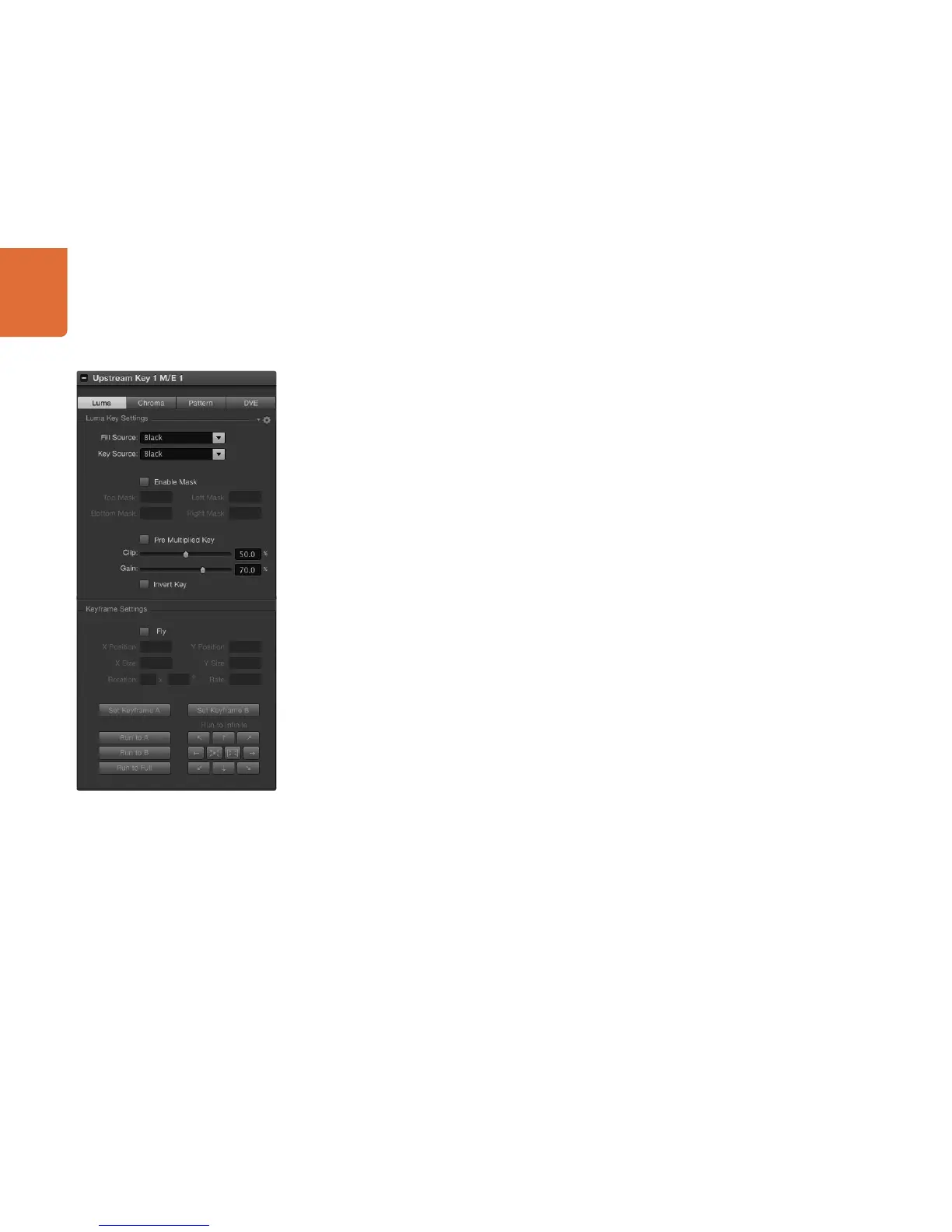
Since luma and linear keys use the same parameters, they are set up on the software control panel and
broadcast panel using a common menu, called the luma key menu. What defines the key as being either
luma or linear is in the selection of fill and key sources. In a luma key, fill and key sources are the same.
For a linear key, fill and key sources are different.
To set up a luma/linear key on upstream keyer 1 on the software control panel:
Step 1. Expand the upstream key 1 M/E 1 palette and select luma from the key types bar.
Step 2. Select the fill source and key source.
If performing a luma key, select the same source for both fill and key.
Adjust the key parameters to refine the key. For a description of luma key parameters, refer to the table
below.
To set up a luma/linear key on upstream keyer 1 on the broadcast panel:
Step 1. Press the KEY 1 button in the transition control block to enable the keyer on the preview output.
The system control will dynamically navigate to the KEY 1 menu. You can manually navigate to the
KEY 1 menu by pressing HOME > EFFECTS KEYS > KEY 1.
Step 2. Select the LUMA KEY menu button.
Step 3. The destination display will say key1fill. Select the fill source on the select bus.
Step 4. Hold down the CUT/FILL button so the destination display says key1 cut and select the key
source.
If performing a luma key, select the same source for both fill and key.
Step 5. Adjust the clip and gain controls to refine the key or press the pre-mult button for pre-multipled
keys. The clip and gain controls are not available for pre-multipled keys.
Luma Key Settings



 To Next Page