Operating Your ATEM Switcher
74
Adjusting the x/y position of a pattern
Some of the patterns may have their center point repositioned. To position a pattern, navigate to the
pattern selection page of the keyer you are setting up. Use the joystick to move the pattern vertically and
horizontally. To re-center the pattern, press the pattern select button of the current pattern in the menu. This
will reset the position and symmetry of the pattern.
DVE Key
DVEs (digital video effects) are used to create picture-in-picture boxes with borders. The ATEM 1 M/E and
2 M/E Production Switchers have 1 channel of 2D DVE that allows scaling, rotation, 3D borders and offers a
drop shadow. The ATEM Television Studio does not have any DVE channels.
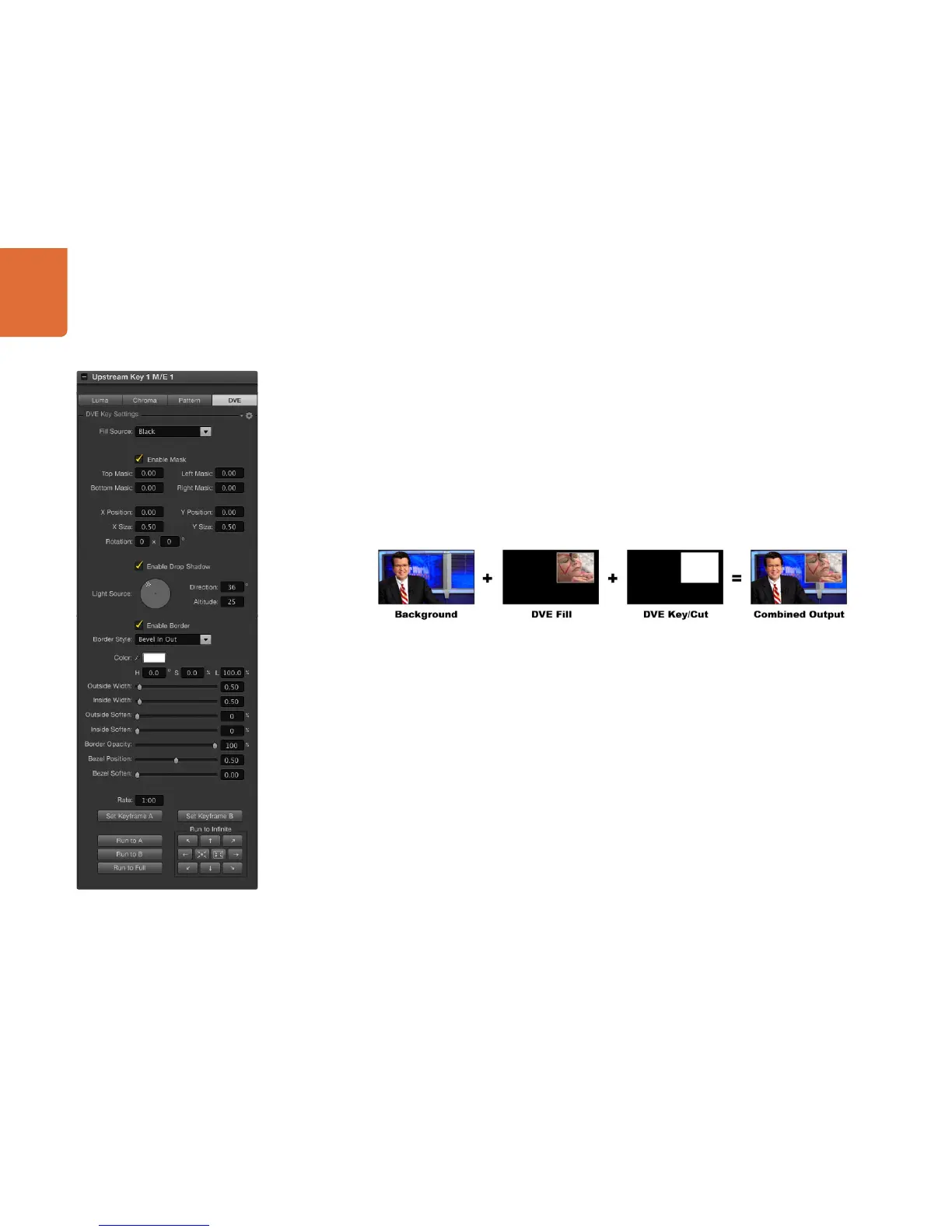
Combining a background, DVE fill and DVE key/cut
Background - A full screen image.
Fill - Another full screen that has been scaled, rotated or has added borders and will be overlaid on top of
the background.
Key/Cut - In the case of a DVE key the key/cut signal is generated by the switcher’s internal DVE engine.
Performing an Upstream DVE Key
To set up a DVE key on upstream keyer 1 on the software control panel:
Step 1. Expand the upstream key 1 M/E 1 palette and select DVE from the key types bar.
Step 2. Select the fill source.
Step 3. Adjust the key parameters to refine the key. For a description of DVE key parameters, refer
to the table below.
DVE Key Settings



 To Next Page