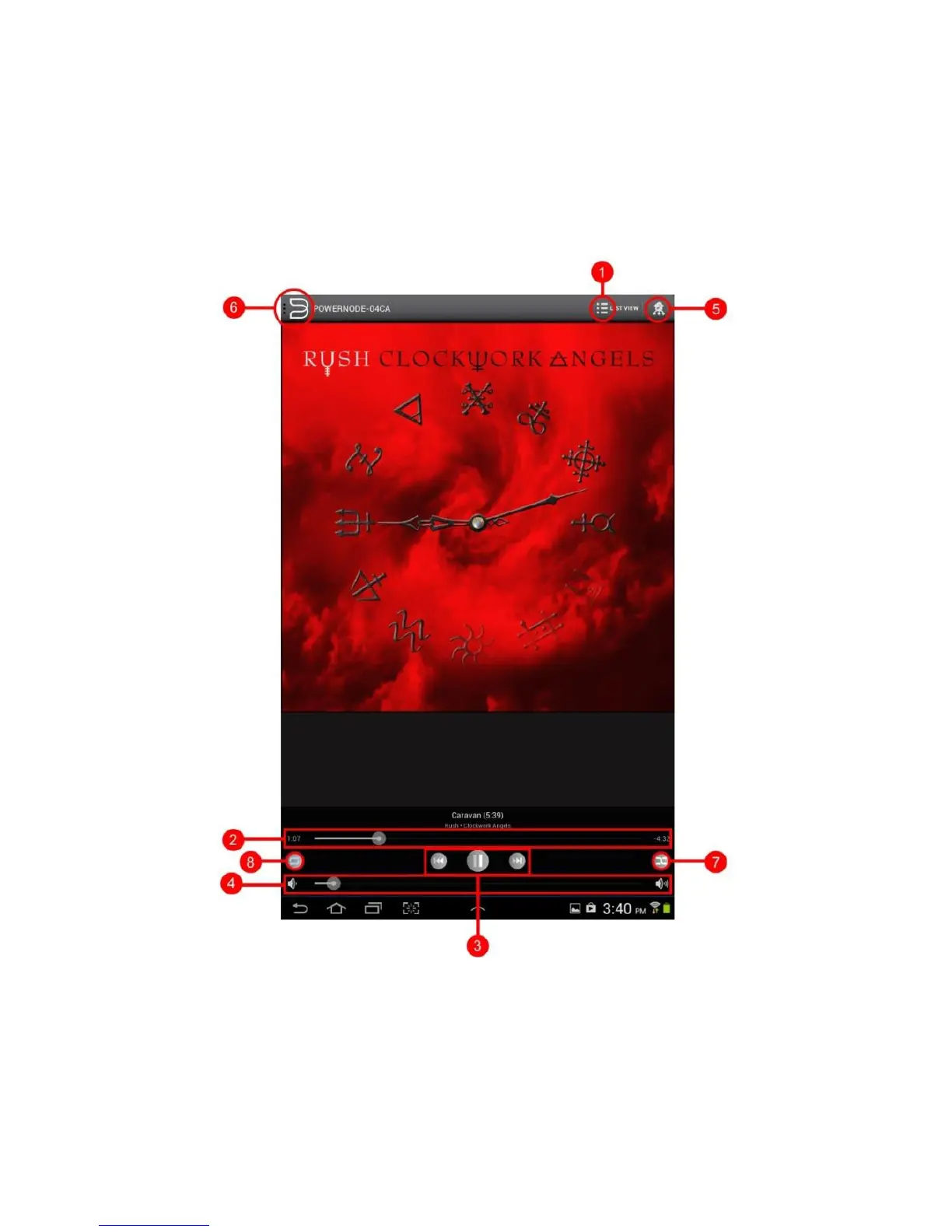
Now Playing Window – Android iPad – go to page 4 5 iPhone/iPod Touch – go
to page 4 6
When a particular song from either your library or music provider is being played back, the Album Art, Song Title, Artist and
Album Title is displayed in the Small Now Playing window in the lower left corner of the screen.
For a Full Screen Now Playing View, Tap the Album Art.
Full Screen Now Playing View
After tapping on the Small Now Playing Window the Full Screen Now Playing view will appear. In this full screen view, the
following features, functions and information are available:
1. List Button – Select t o return to Playlist window.
2. Song Status Indicator - Slide to the left to scan backwards or Slide to the right to scan forwards in the song. Also
shows elapsed time and remaining playback time of current song
3. PlaybackControls - Play or pause current song, Skip backward to previous song or Skip forward to next song.
4. Volume Slider - Slide right to increase volume level or Slide left to decrease volume level.
5. Player (Rooms) Button – Select to display the Players Drawer
6. Navigation Button – Select to display the Navigation Drawer
7. Shuffle Button - Select to playback in random order the songs in the current playlist.
8. Repeat Button – Select to repeat current song, repeat current playlist or no - repeat.



 To Next Page