EasyManua.ls Logo

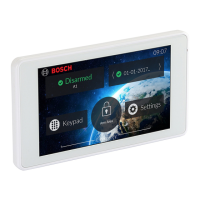
Bosch TouchOne - User Manual

Bosch TouchOne
17 pages
Print Icon
To Next Page IconTo Next Page
Loading...
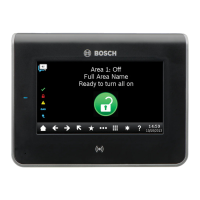
TouchOne
User’s Guide

Other manuals for Bosch TouchOne

Questions and Answers

  • B
    Bryan GarnerAug 2, 2025
    What to do if my Bosch Control Unit TouchOne restarts often?
    • C
      Christopher VazquezAug 2, 2025
      If your Bosch Control Unit TouchOne doesn't start completely or restarts frequently, try these steps: 1. Remove power to the control panel, disconnect all other devices, and connect only the TouchOne. Allow up to 5 minutes for the overload protection circuit to cool down, then reapply power. 2. If the issue persists, the total number of devices on the panel might exceed the maximum current draw. In this case, you may need an external power supply. 3. You can also reduce the screen brightness, disable WiFi, and use the Sleep standby option instead of the photo slideshow to reduce power consumption.
  • D
    davidsmithAug 11, 2025
    How to fix a Bosch Control Unit TouchOne that won't turn on?
    • K
      Kelsey RodriguezAug 12, 2025
      If your Bosch Control Unit TouchOne doesn't turn on, consider the following: * First, check that the PWR LED on the back of the TouchOne is lit, which indicates it's receiving power from the control panel. * Next, ensure the TouchOne is wired correctly and that you're getting a steady 11V to 13V on the PWR and COM (Red and Black) wires, measured at the TouchOne side of the cable. * Also, try wiring the TouchOne Wire Harness directly to the panel to test, and even try wiring the TouchOne to another panel to isolate the issue. * Finally, ensure there is no short between the PWR and COM wires.
  • P
    Pamela WolfAug 21, 2025
    What to do if Bosch Control Unit TouchOne shows a communication failure message?
    • R
      Ralph PowellAug 21, 2025
      If your Bosch Control Unit TouchOne displays a communication failure message: * Check the “ALIVE” LED on the back of the device to ensure communication is stable (the LED should be flashing consistently). * Ensure the wiring is correct. * If the TouchOne is powered by a separate power supply, the ground wire of the power supply should also connect to the ground wire of the bus.

Summary

Introduction

Product Summary

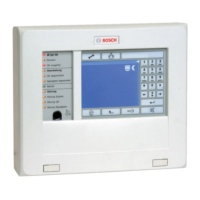
Overview of the TouchOne keypad and its capabilities.

Version

Details the specific software version the user guide is written for.

Features not covered

Lists features accessed via TEXT LCD Codepad, referring to another manual.

General Usage

Home Screen

Description of the main screen for viewing status and performing common actions.

Keypad Screen

Explanation of the screen for system functions without a graphical interface.

Arming the System

Arming in AWAY Mode

How to arm the system when leaving premises, securing all zones.

Arming in STAY Mode 1

How to arm perimeter and unused areas while allowing movement in isolated zones.

Arming in STAY Mode 2

How to arm perimeter and unused areas, allowing movement in auto-isolated zones.

Disarming the System

Procedure to disarm the system after entering premises or when an alarm occurs.

Zones

Isolating Zones

Manually disable one or more zones before arming the system.

Renaming Zones

Provide more meaningful information for zones when displayed.

Users

Adding a User

Process for adding new user codes and PINs to the system.

Deleting a User

Procedure to remove existing user codes from the system.

Renaming a User

Assign a new name to a user for easier identification.

Adding;Changing a User Photo

Add or change a user's photo for faster identification on the TouchOne.

Editing a User PIN

Process for changing the existing Personal Identification Number for a user.

Adding a Mobile Device

Pair a Bluetooth-enabled mobile phone for automatic system disarming.

Removing a Mobile Device

Remove a previously paired mobile device from a user account.

Adding an RF Keyfob

Process for adding a Radio Frequency keyfob to a user.

Deleting an RF Keyfob

Process for removing an RF keyfob from a user.

Outputs

Controlling Outputs

Turn on or off outputs programmed by the installer, e.g., pool pump lighting.

Renaming Outputs

Provide more meaningful names for outputs displayed on the TouchOne.

Date and Time

Change the System Date and Time

Procedure to update the system's current date and time settings.

WiFi

Connect the TouchOne to a WiFi network

Steps to connect the TouchOne to a local WiFi network for enhanced features.

Disconnect from a WiFi network

Procedure to remove the TouchOne's connection from a WiFi network.

Display, Wallpaper & Sounds

Change the TouchOne Volume

Adjust the audio output level for alerts and interface sounds.

Change the TouchOne Brightness

Adjust the screen brightness for optimal visibility.

Change the Wallpaper

Set a custom or default image as the TouchOne's background wallpaper.

Standby Screen

Configure screen behavior during system standby periods.

Make the Screen sleep during Standby

Enable the screen to automatically enter sleep mode when idle.

Show a Photo Slideshow during Standby

Display a slideshow of selected images when the system is in standby.

Change the Standby Time

Set the duration of inactivity before the standby screen activates.

Enable Standby when the system is armed in AWAY Mode

Configure standby screen display when the system is armed in AWAY mode.

Show the Alarm Status on the Standby Screen

Display the current alarm status on the standby screen for quick viewing.

Language

Change the TouchOne Language

Select the user interface language for the TouchOne.

Tutorials

Viewing a Tutorial Video

Access and play instructional videos for system functions.

Bosch TouchOne Specifications

General IconGeneral
BacklightYes
Power Supply12VDC
TypeTouchscreen Keypad
Arming OptionsAway, Stay
BuzzerYes
LanguagesMultiple

Related product manuals