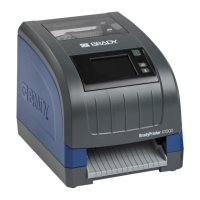
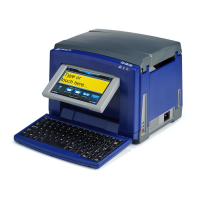
BBP™31 Sign & Label Printer
Tutorial
13
Lesson 7: Creating QuickLabels
Delete a Label File
Lesson 7: Creating QuickLabels
In this lesson, you will learn to create a QuickLabel by entering the label ID and by
browsing to the label.
Note: After creating the label, you can edit the objects by using the procedures
from “Lesson 1: Creating a Simple Text Label” on page 1-2 and “Lesson 2:
Adding Graphics to Labels” on page 1-5.
To create a QuickLabel using the label ID:
1. From the Home page, select Select More Label Types .
1. Select QuickLabel
2. In the Label ID dialog, type or touch: 301
3. Select OK. The label is immediately loaded in the Editor.
To browse for a QuickLabel:
1. From the Home page, select Select More Label Types .
1. Select QuickLabel
2. In the Label ID dialog, touch Browse .
3. In the Category list, select Fire.
4. Select label 358.The label is immediately loaded in the Editor.


 To Next Page