M511 User Manual 12
Setup
Installing the Windows Driver (Optional)
The mobile device must support Bluetooth® 4.2 or higher.
To install the Brady Express Labels app and get started:
1. Download the app from the Apple® App Store or the Google Play™ store.
2. Connect to the printer. See “Connecting the Printer” on page 12.
3. Configure settings. See “Printer Settings” on page 13.
4. Create labels and print.
Computer
Brady Workstation software provides a variety of apps to simplify label creation for specific purposes. It
also provides easy-to-use apps for custom label design.
To get Brady Workstation software:
1. Make sure your computer is connected to the Internet.
2. Go to workstation.bradyid.com.
3. Follow the instructions on the screen to choose the right software for your purpose and
download it.
Installing the Windows Driver (Optional)
If you are using the Brady Express Labels app or Brady Workstation software, you do not need to
install the windows driver. Skip to “Connecting the Printer” on page 12.
If you are using older Brady software or third-party software, you must install the Windows driver. See
the Driver Installation Guide PDF file on the USB drive that came with the printer.
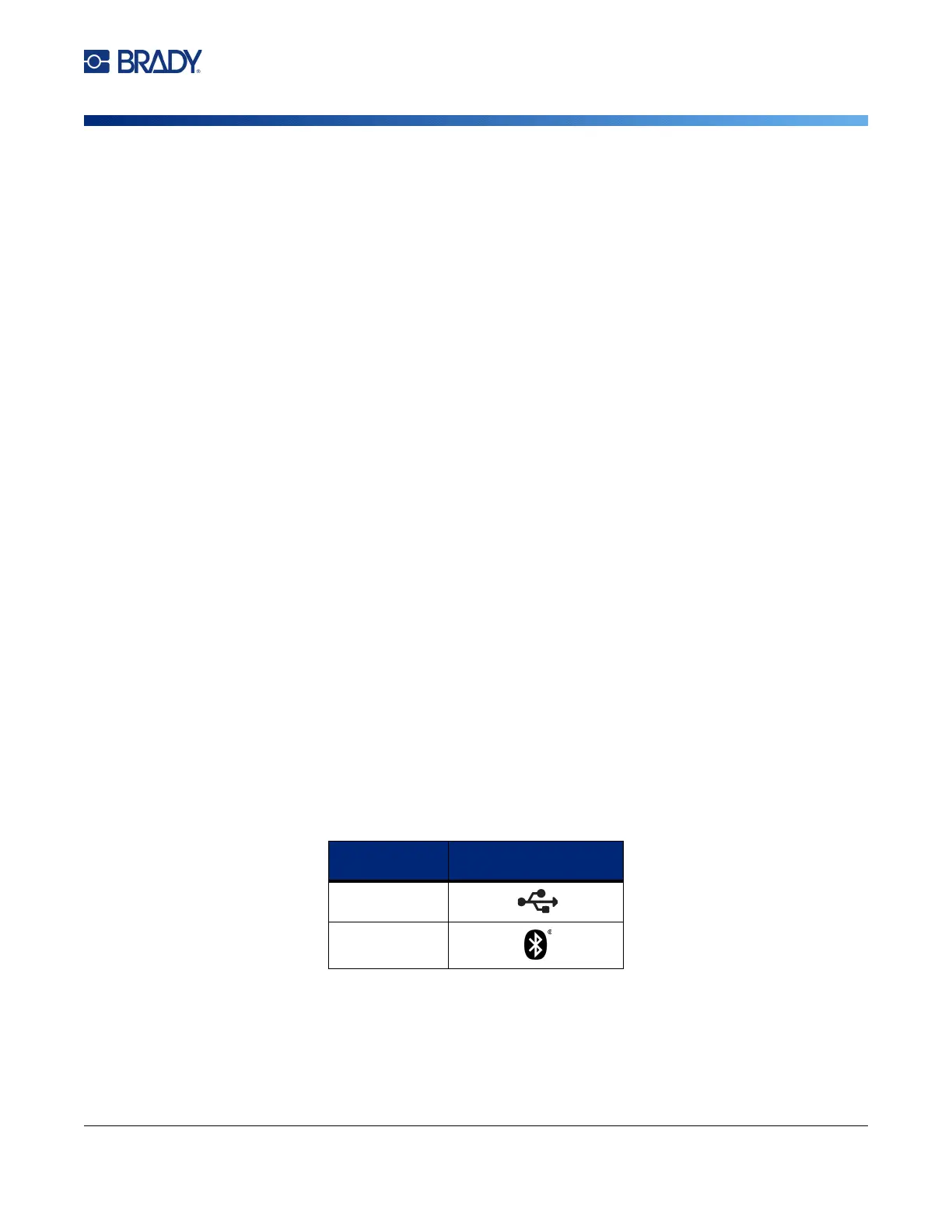
Connecting the Printer
Connect to the labeling software using Bluetooth
®
wireless technology or a USB cable.
Supported
Connections
Computer
Mobile Device



 To Next Page