4. Configuration
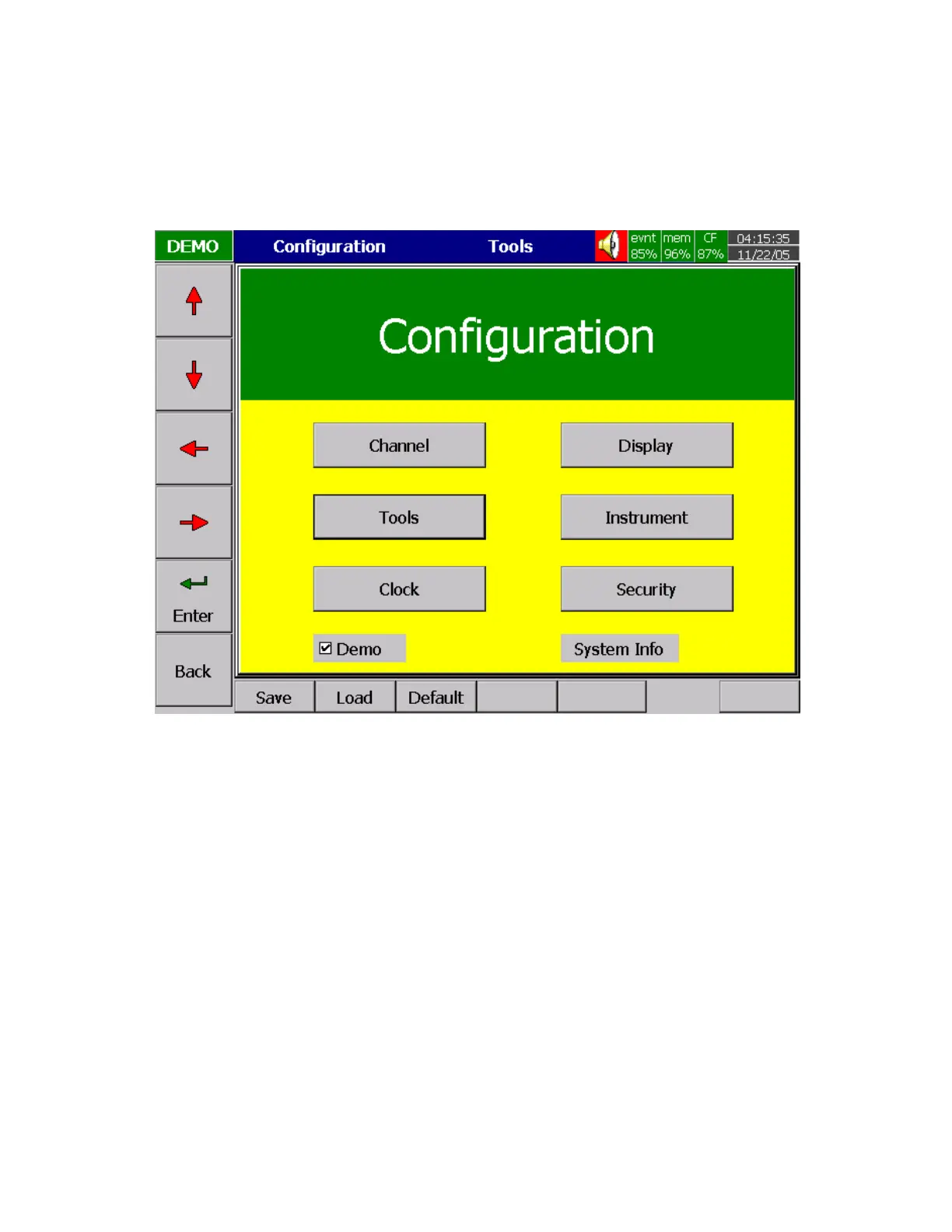
Press the Config key to enter the Configuration mode. The following buttons appear: Channel, Display,
Tools, Instrument, Clock, System Info and Demo. Meanwhile, the following soft keys appear at the
bottom: Save, Load, Default and Back.
Figure 4 – 1
Soft Keys
Enter: First select the mode by pressing directional keys
↑↓←
→
, then press Enter key to enter any
mode of Channel, Display, Tools, Instrument, Clock, System Info or Demo.
Save: Save configurations from recorder to storage media CF card. To read the configuration and
measured data from CF card on a PC for the first time or any time configuration has been changed, it
is important to press Save key to save configuration changes to CF card beforehand.
Load: Load configuration from storage media CF card to recorder.
Default: If the configuration is set incorrectly, Default is a useful key to recall the default settings on the
analog input card inserted into rear expansion slot.
Back: Go back to the previous display.


 To Next Page