Q27: Is it possible to print out the data in selected time from the recorder?
A27: Please note that it is not possible to connect printer directly to the recorder. It is possible to print
out the data in selected time from the Observer software. The printing data in Excel is available
from the Historical Viewer of Observer software.
If any error appears like floating point error when user attempts to print data out, then the reason
might be that data is not available for selected pens. Search it by a specific time or by a period of
time, make sure that data is shown on the trend. Select the pen correctly, and then proceed the
printing.
Q28: How many timers, counters and totalizers are available in a recorder?
A28: 6 counters, 6 timers and 18 totalizers are available in one recorder if this option been ordered.
Q29: Can I use digital inputs for the counting application?
A29: The recorder can detect maximum of 30 pulses/Minute at a frequency of 0.5 Hz. The possible
alternative is usage of pulse to current 4-20 mA converter available in the market.
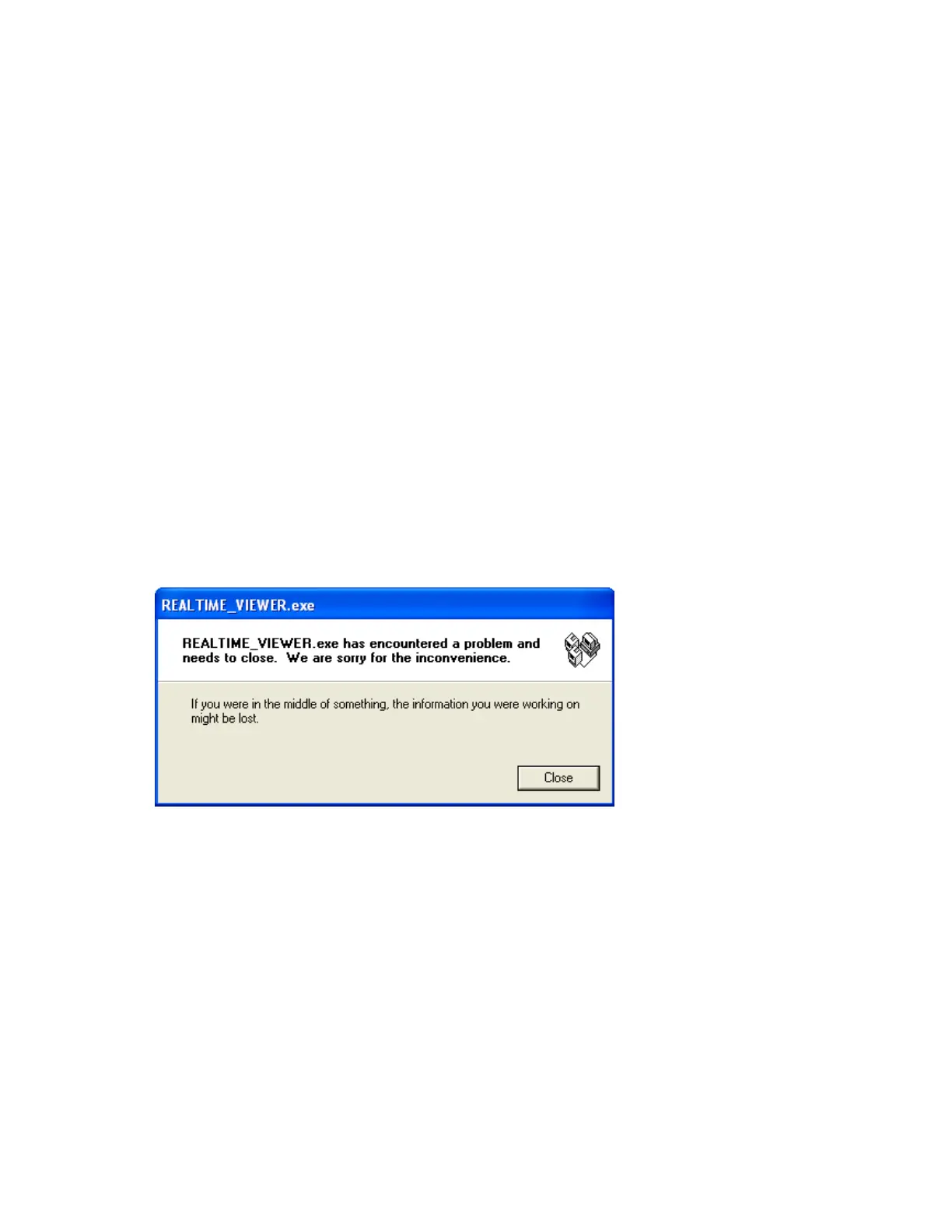
Q30: When the user is trying to open Observer software, he might get the following message, what
is the next move?
A30: If Observer software file was corrupted in the PC, possible reasons might be virus, installation of
new software which is incompatible with your operating system. The solution is to uninstall the
old Observer software as per procedure given in section 1.4 of this software guide. Then, install
the new Observer software from CD supplied. If the problem still can’t be solved, then uninstall
the old Observer software and create a back up for the historical and real-time folders under
C:/Observer and remove Observer folder from C: Then install the new Observer software again.
Q31: How to write Observer data and configurations back up to CD’s?
A31: Data will be available at .dat,idx files and .lst files at the path C:/Observer. The files will be
available under historical and realtime folders. Configuration file name is Recorder.config. You
can create a folder and save all historical and real time folders in to back up folder, and then you
can write this information to CD.


 To Next Page