33
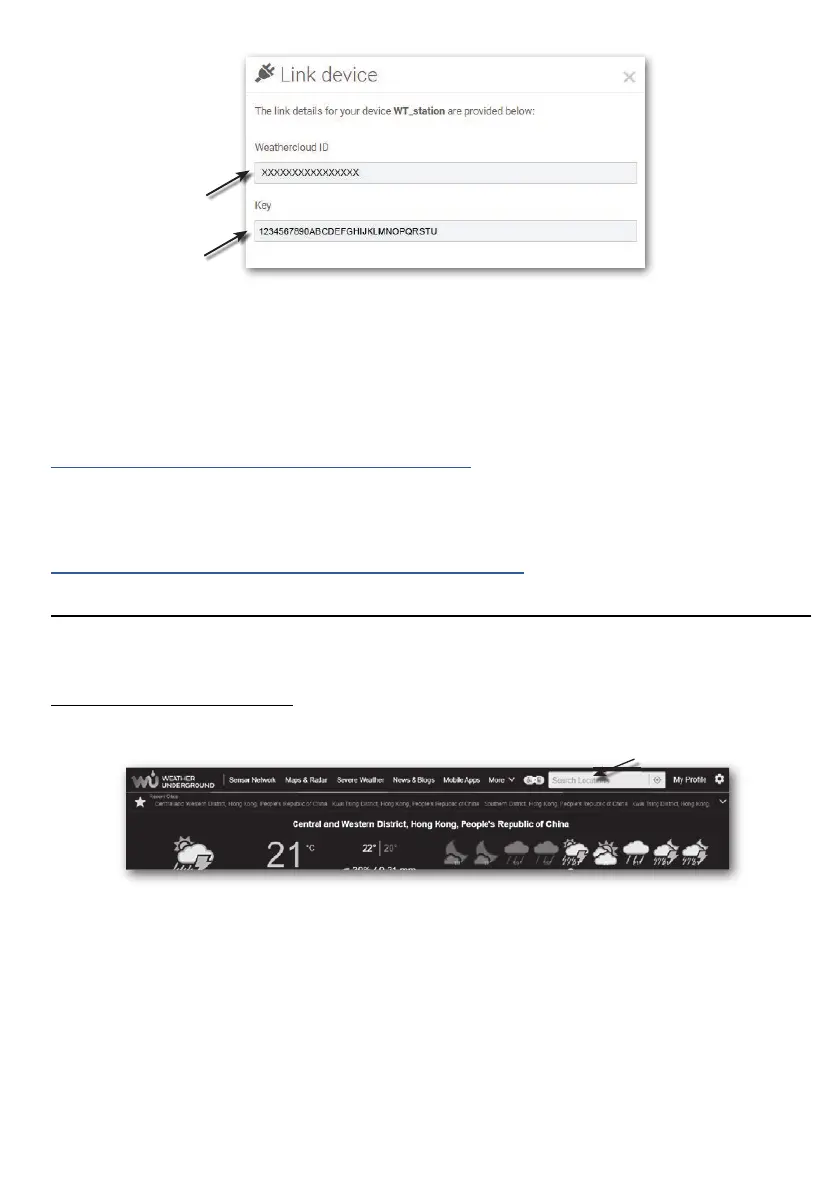
4. Jot down your ID and key for the further setup step.
5. In the setup UI that mention in section 5.2,selecttheWeathercloudinrstorsecondrow
of the Weather server setup section then key-in the Station ID and key that assigned by
Weathercloud.
6.3 Awekas
Detailed additional instructions for account creation and connection setup for AWEKAS are
available for download at the following Internet address (German language):
https://www.bresser.de/download/7002582/AWEKAS
6.4 PWSWeather
Detailed additional instructions for account creation and connection setup for PWSWeather are
available for download at the following Internet address (English language):
https://www.bresser.de/download/7002582/PWSWEATHER
7. View WUnderground & Weathercloud live data
7.1 Viewing your weather data in WUnderground
Login your account.
To view your weather station live data in a web browser (PC or mobile version), please visit
http://www.wunderground.com, and then enter your “Station ID” in the searching box. Your
weather data will show up on the next page. You can also login your account to view and
download the recorded data of your weather station.
Another way to view your station is use the web browser URL bar, type below in the URL bar:
https://www.wunderground.com/dashboard/pws/XXXX
Then replace the XXXX by your Weather Underground station ID to view your station live data.



 To Next Page