Infotainment System 83
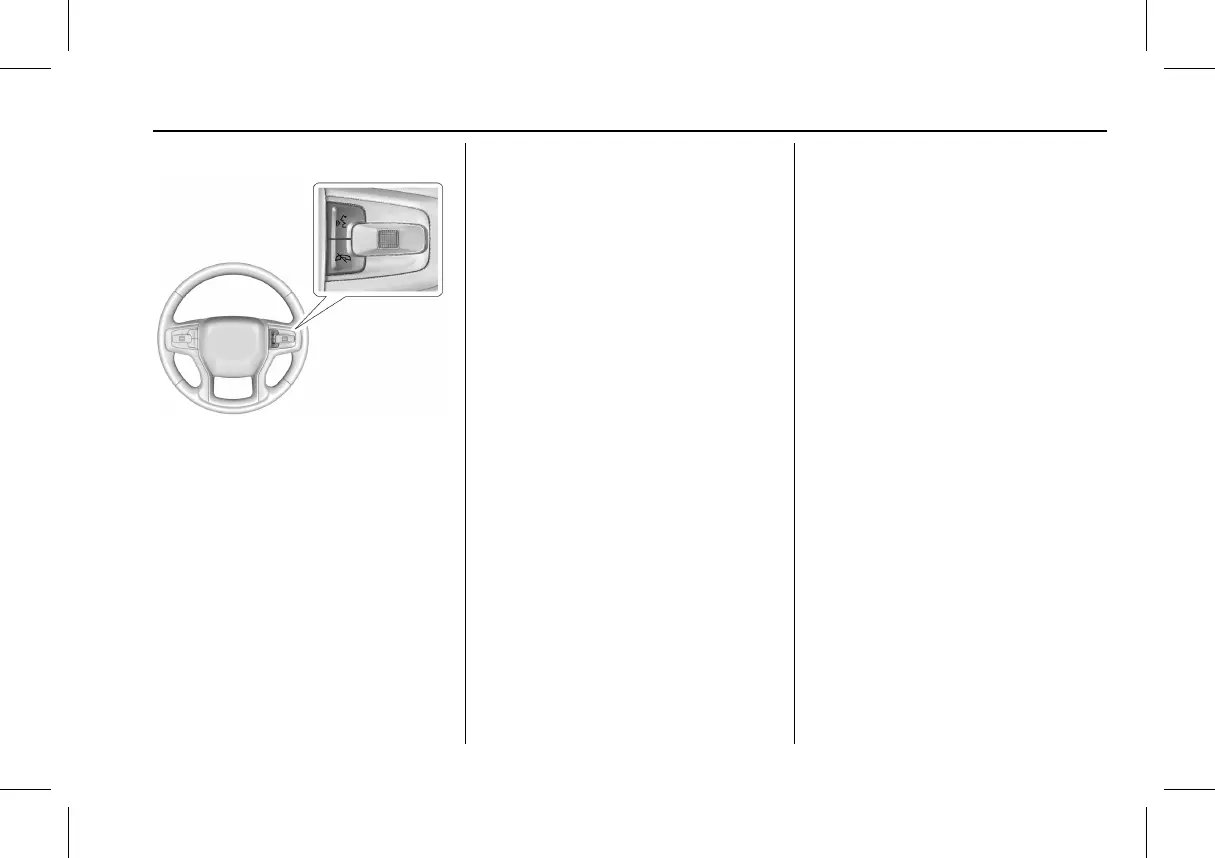
Steering Wheel Controls
If equipped, some audio controls can be
adjusted at the steering wheel.
g : Press to answer an incoming call or
start voice recognition. See Bluetooth
(Pairing and Using a Phone) 0 92 or
Bluetooth (Overview) 0 92.
c : Press to decline an incoming call or
end a current call. Press to mute or unmute
the infotainment system when not on a call.
Using the System
Phone
Touch the Phone icon to display the Phone
main page. See Bluetooth (Pairing and Using
a Phone) 0 92 or
Bluetooth (Overview) 0 92.
Audio
Touch the Audio icon to display the audio
screen. See “AM-FM Radio 0 85, Satellite
Radio 0 87, and Bluetooth Audio 0 90.
Wi-Fi Hotspot
Touch the Wi-Fi Hotspot icon to display the
Wi-Fi Hotspot screen. See “Wi-Fi Hotspot” in
Settings 0 97.
Energy
Touch the Energy icon to open the Enery
app. See Energy Information 0 68.
Entertainment Studio
Touch the Video Player icon when in park
and select a desired streaming service. To
use this feature, an active Connected
Services plan with vehicle data or a mobile
device hotspot must be used as a data
source.
Settings
Touch the Settings icon to display the
Settings menu. See Settings 0 97.
Apple CarPlay
Touch the Apple CarPlay icon to activate
Apple CarPlay (if equipped) after a
supported device is connected. See Apple
CarPlay and Android Auto 0 96.
Android Auto
Touch the Android Auto icon to activate
Android Auto (if equipped) after a supported
device is connected. See Apple CarPlay and
Android Auto 0 96.
Google applications such as Play Store,
Assistant, and Maps are not available due to
no data plan.
Shortcut Menu
The shortcut menu is along the left edge of
the display. It shows up to five applications.
To change the applications shown on the
shortcut menu, touch and hold an icon and
then drag it from the home page to the
shortcut menu.



 To Next Page